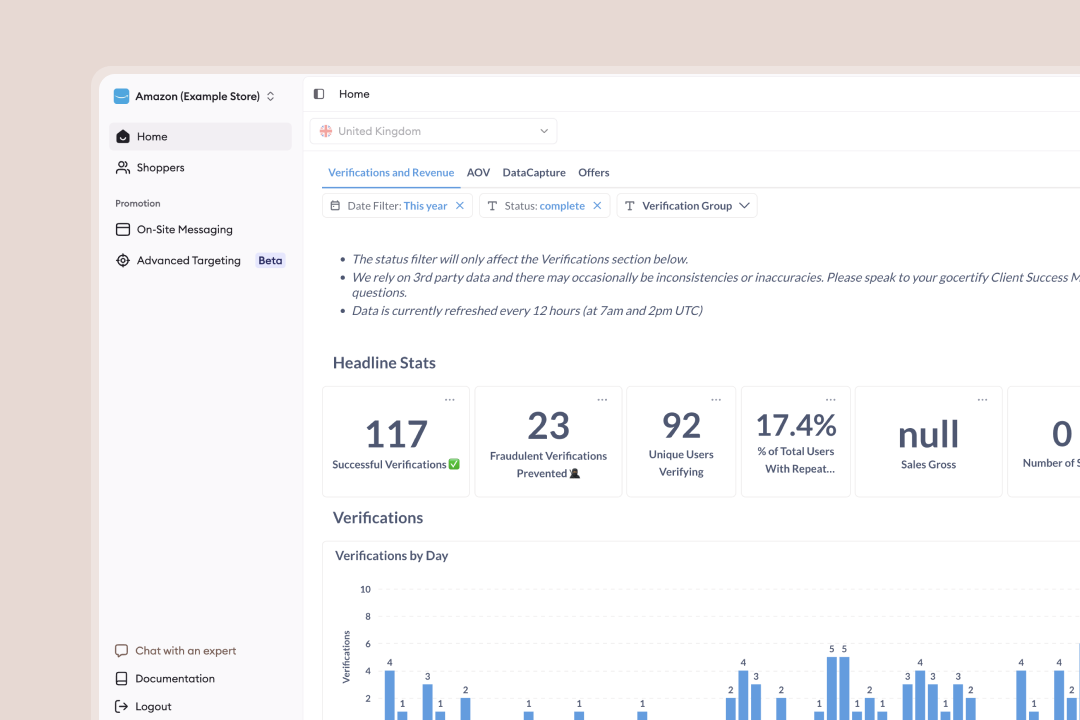
Fresh Dashboard Design

Your Reward Management Platform.

The Gocertify dashboard is your central hub for managing reward campaigns, viewing shopper analytics, and configuring your promotions. Access is secured through password-based authentication with enforced two-factor authentication (2FA) to protect your campaigns and data. What you can do in the dashboard:
  • View real-time shopper engagement reports and analytics
  • Download CSV exports of verification data
  • Configure on-site messages
  • Manage team access and permissions

Authentication Methods

Access to the Gocertify platform is secured with:
  • Password-Based Login: Users create and manage their own passwords, reducing the risk of magic-link–related issues (such as intercepted or expired links).
  • Single Sign-On (SSO): Login via Microsoft 365 or Google for seamless access.
  • Enforced Two-Factor Authentication (2FA): All logins require a one-time code sent to your registered email address.
  • Secure Session Management: Each login requires both a valid password and a fresh 2FA code.

Personal Account Management

Navigate to the login screen to access your dashboard. Gocertify supports:
  • Email/Password login
  • SSO login Microsoft 365 or Google
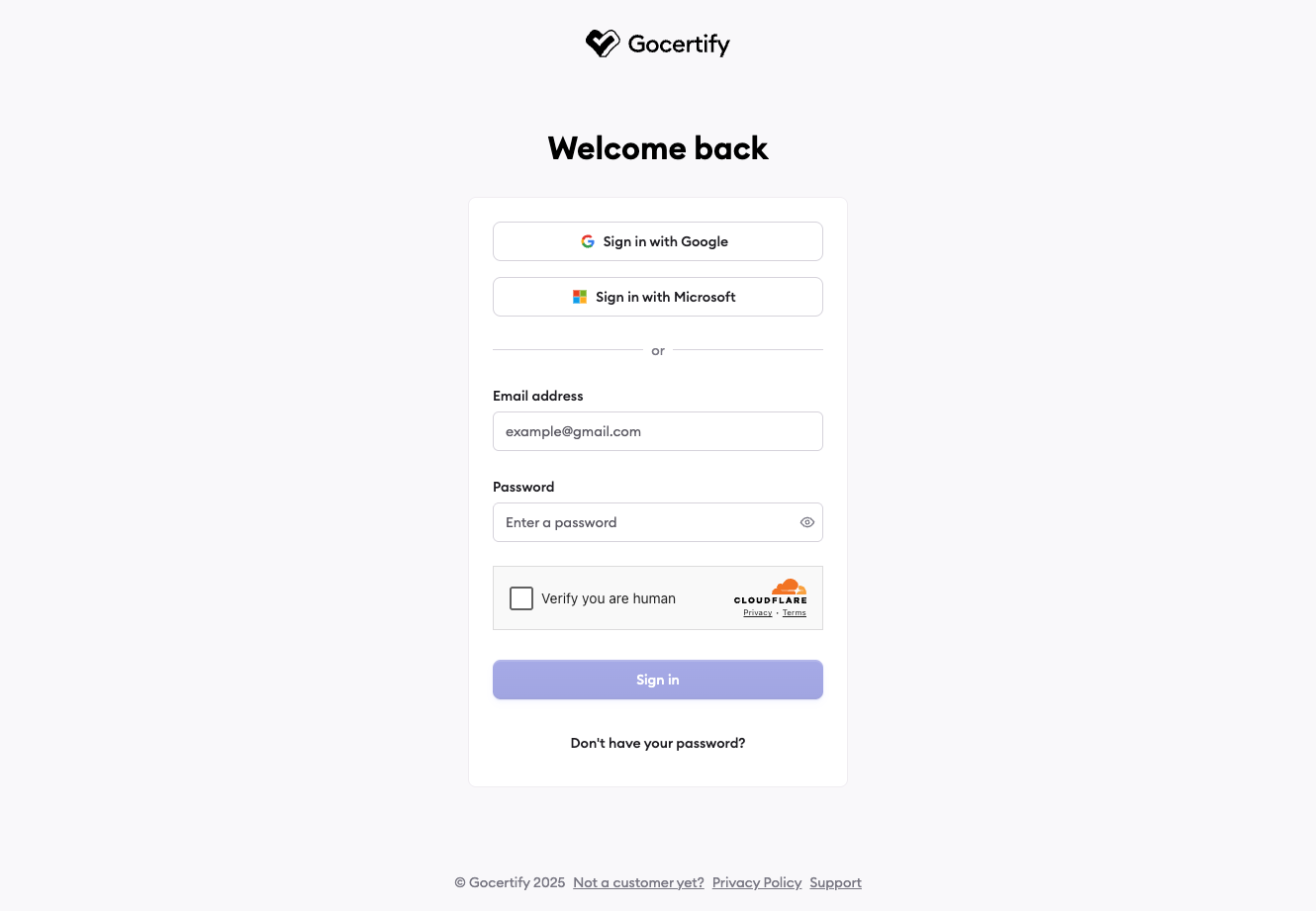
Login Screen
1

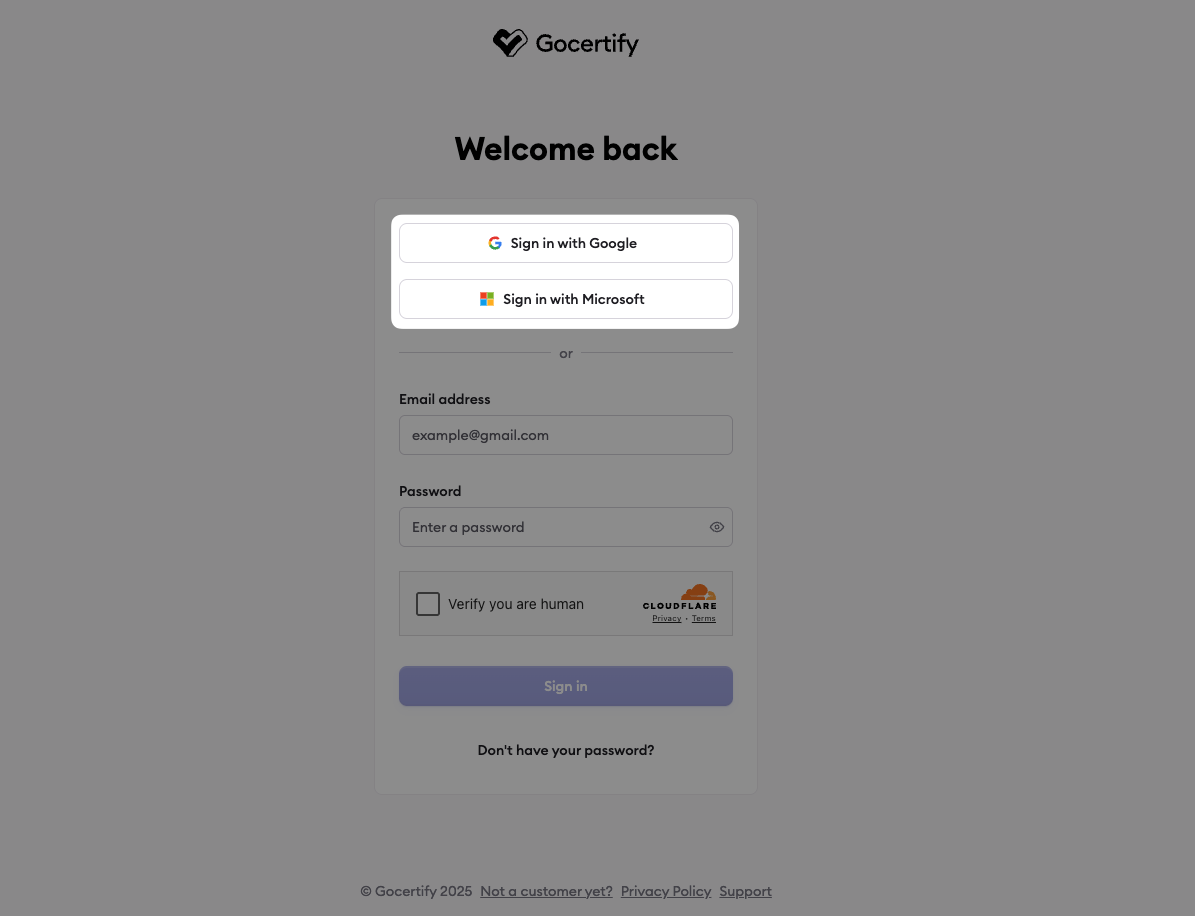
Select your SSO provider

Select your SSO provider from the list of available providers. The email you’ve been invited with must be managed by that SSO provider.
SSO Login
2

Select your account

Select the account you want to login with from the list of available accounts. This must be the same email you’ve been invited with.
1

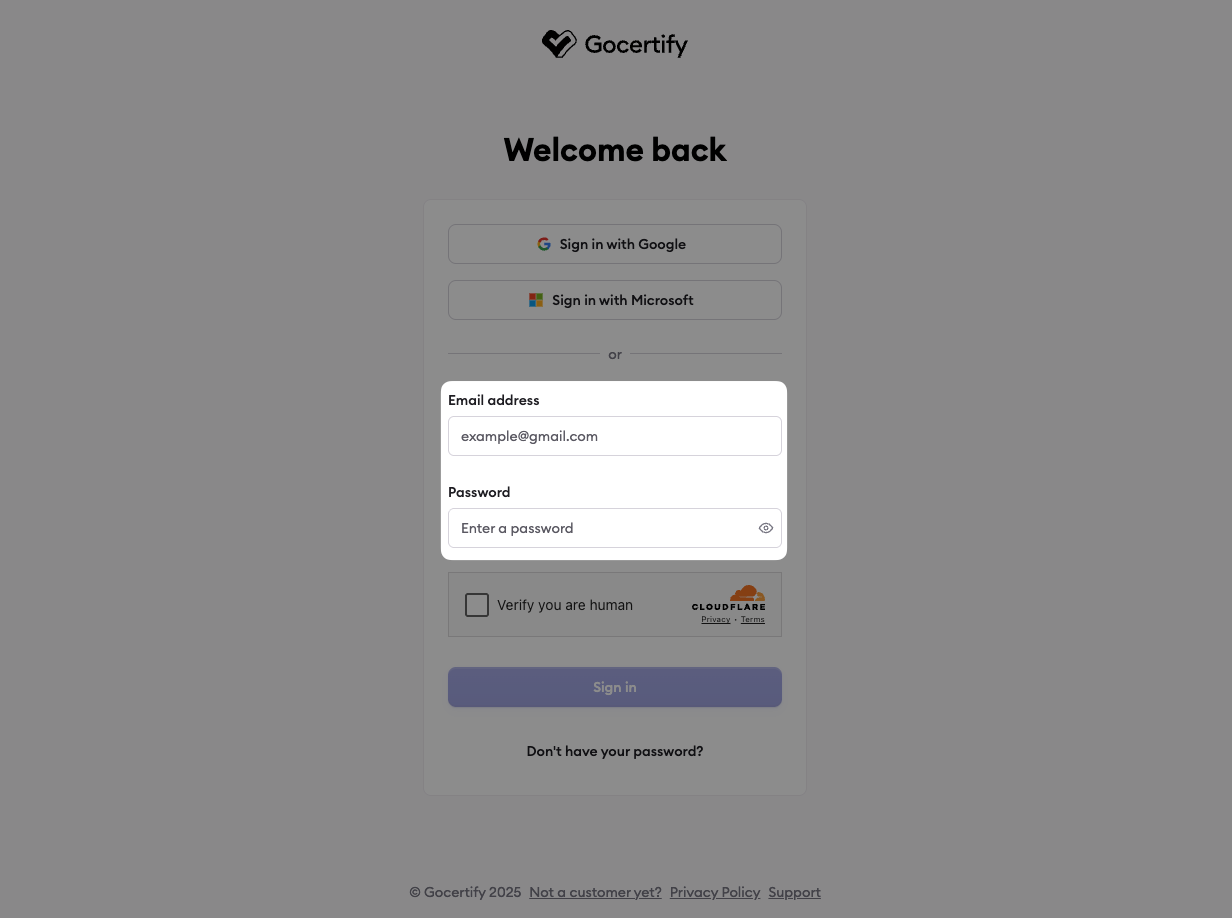
Enter your email and password

Input the email that you’ve been invited with and your password.
Email Password Login
2

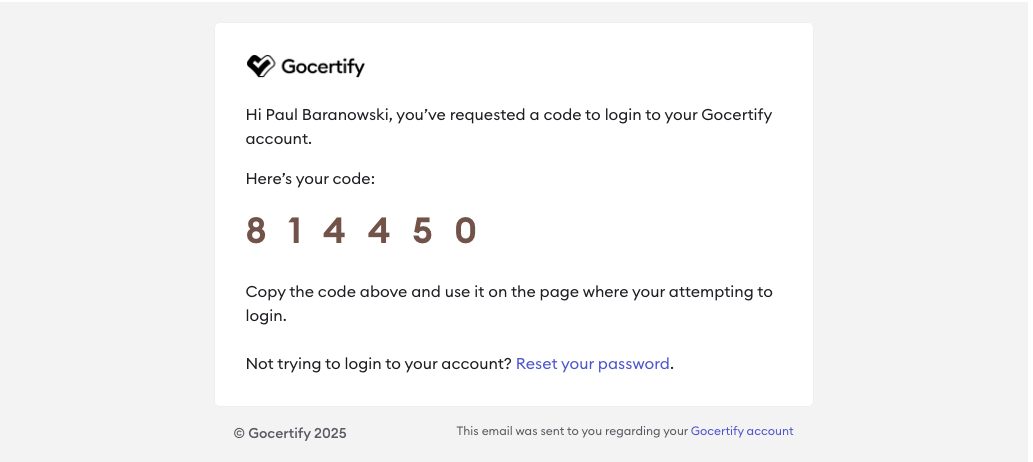
Retrieve your 2FA code from email

You will receive an email with a 2FA code. If you don’t see it, check your spam folder or resend the code.
2FA Email
3

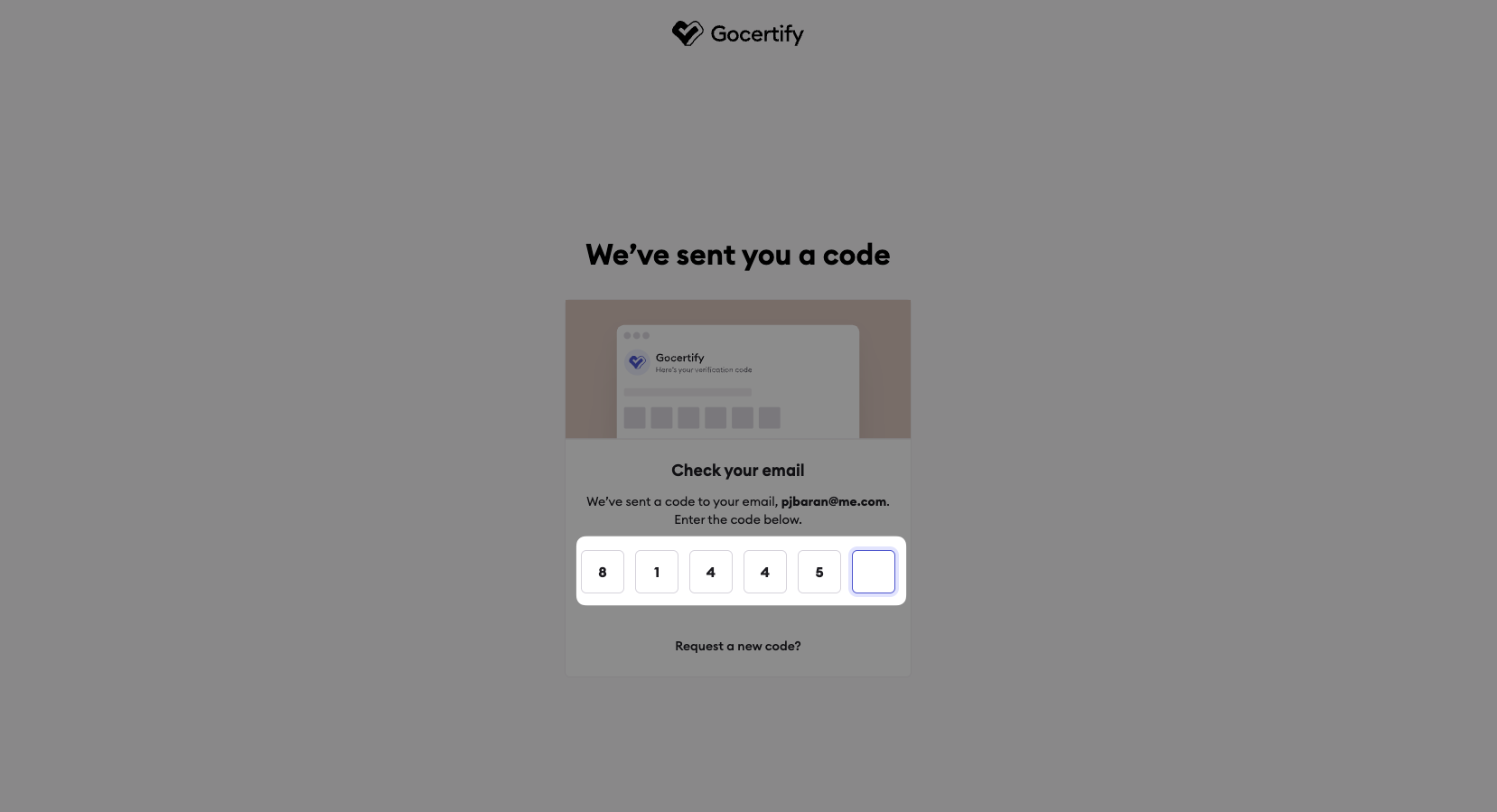
Enter your 2FA code

Navigate back to the login screen and enter the 2FA code.
Enter 2FA Code
When you log in to the Gocertify dashboard for the first time, you’ll be guided through a four-step onboarding process. This helps ensure you have everything configured properly from the start.
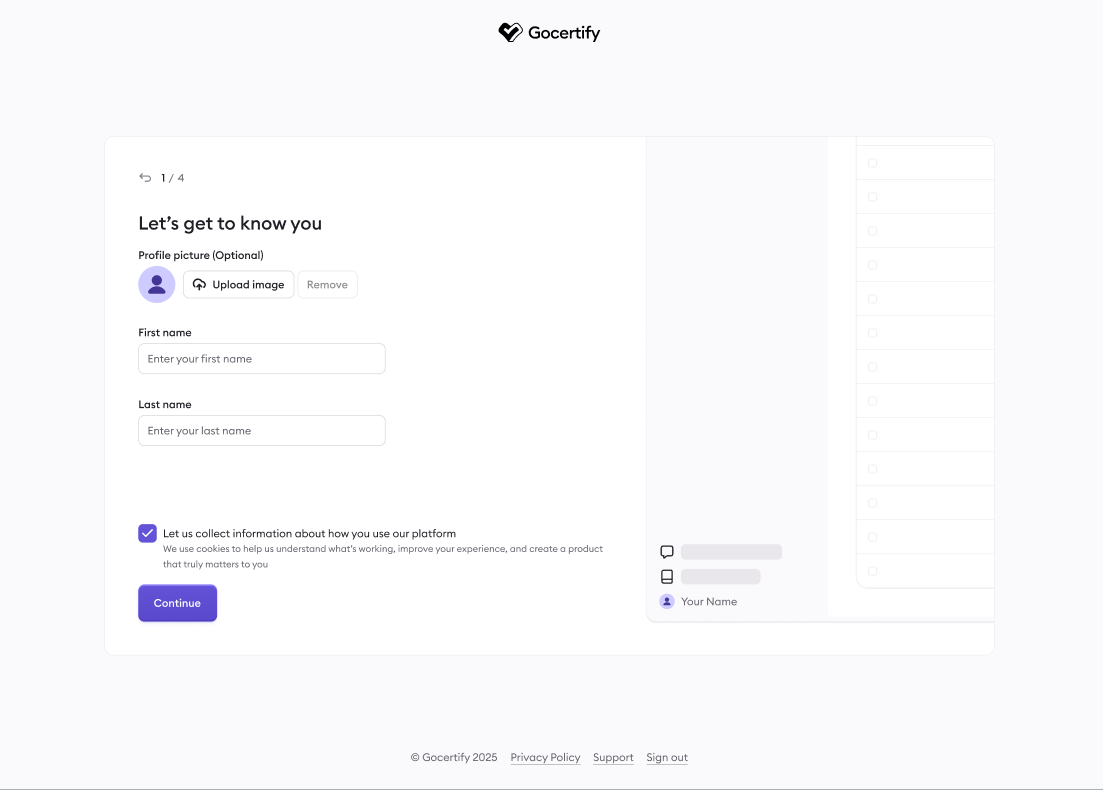
1

Set up your profile

Enter your first and last name, and optionally upload a profile picture. You can also choose whether to allow Gocertify to collect usage data to improve your experience.
Profile Setup
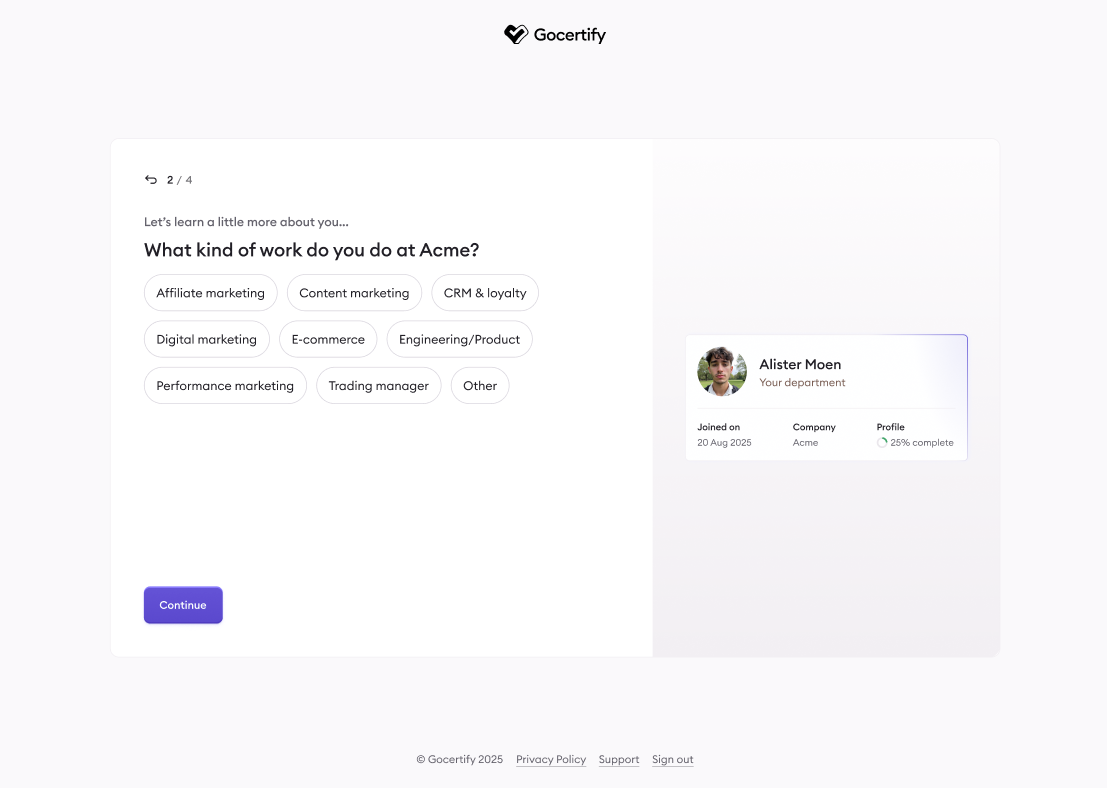
2

Select your department

Tell us what kind of work you do. This helps us tailor the dashboard experience to your role, whether you’re in marketing, e-commerce, affiliates, or another area.
Department Selection
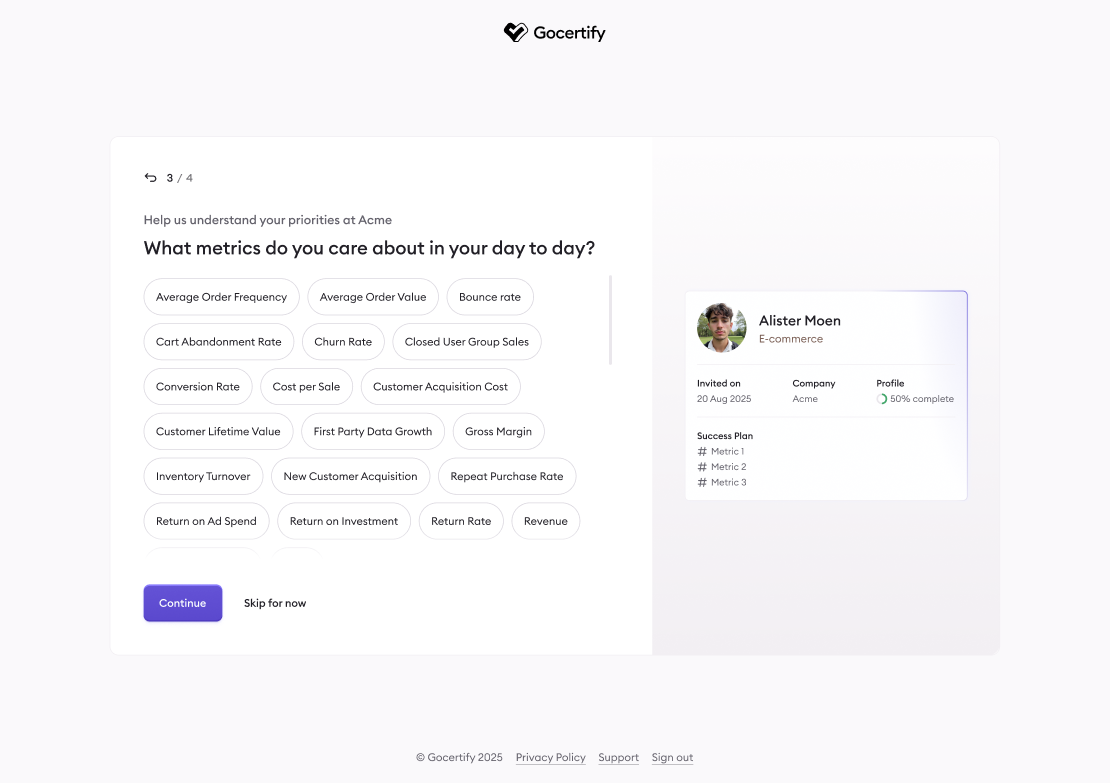
3

Choose your success metrics

Select the metrics that matter most to you in your day-to-day work, such as conversion rate, average order value, or customer acquisition cost. This will tailor your dashboard experience and help surface the most relevant data.
Success Metrics
4

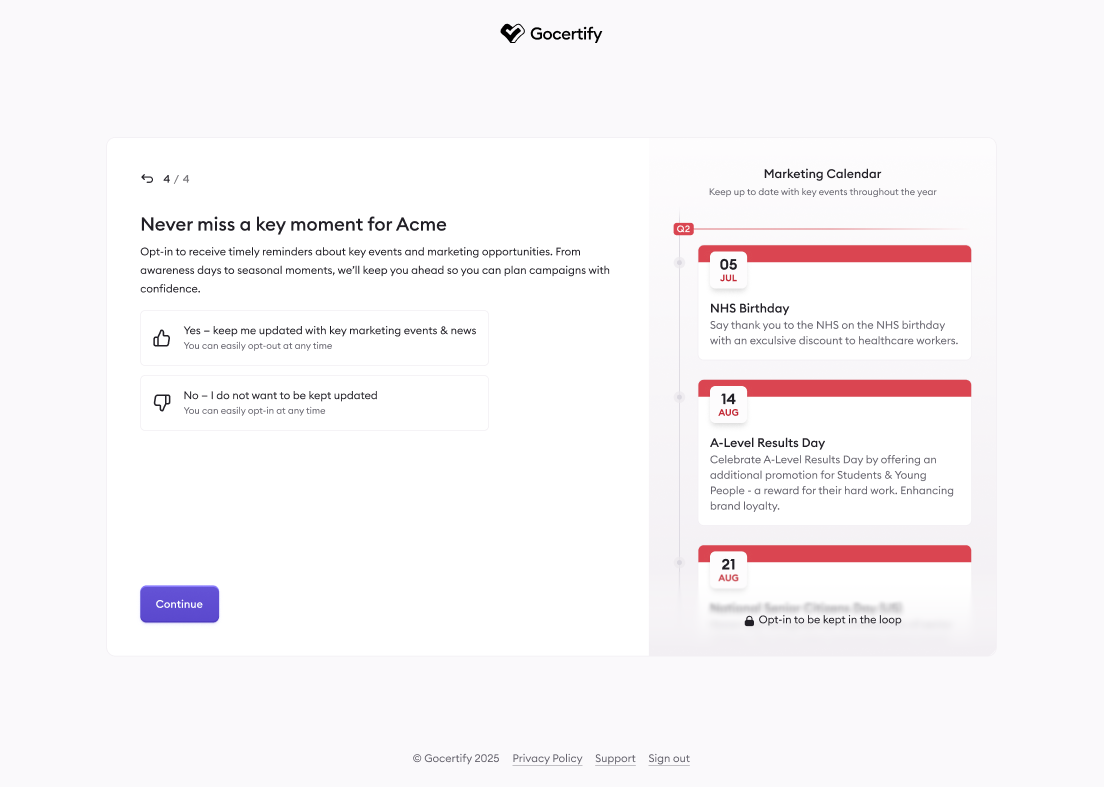
Set notification preferences

Choose whether you’d like to receive updates about key marketing events and opportunities. You can opt in to stay informed about relevant dates and campaigns, or opt out if you prefer.
Notification Preferences
Once you complete these steps, you’ll have full access to your dashboard with your preferences already configured.
To reset your password, or for users who joined Gocertify before we migrated from magic link to password login, you can reset your password via the login screen or directly from the forgotten password screen.
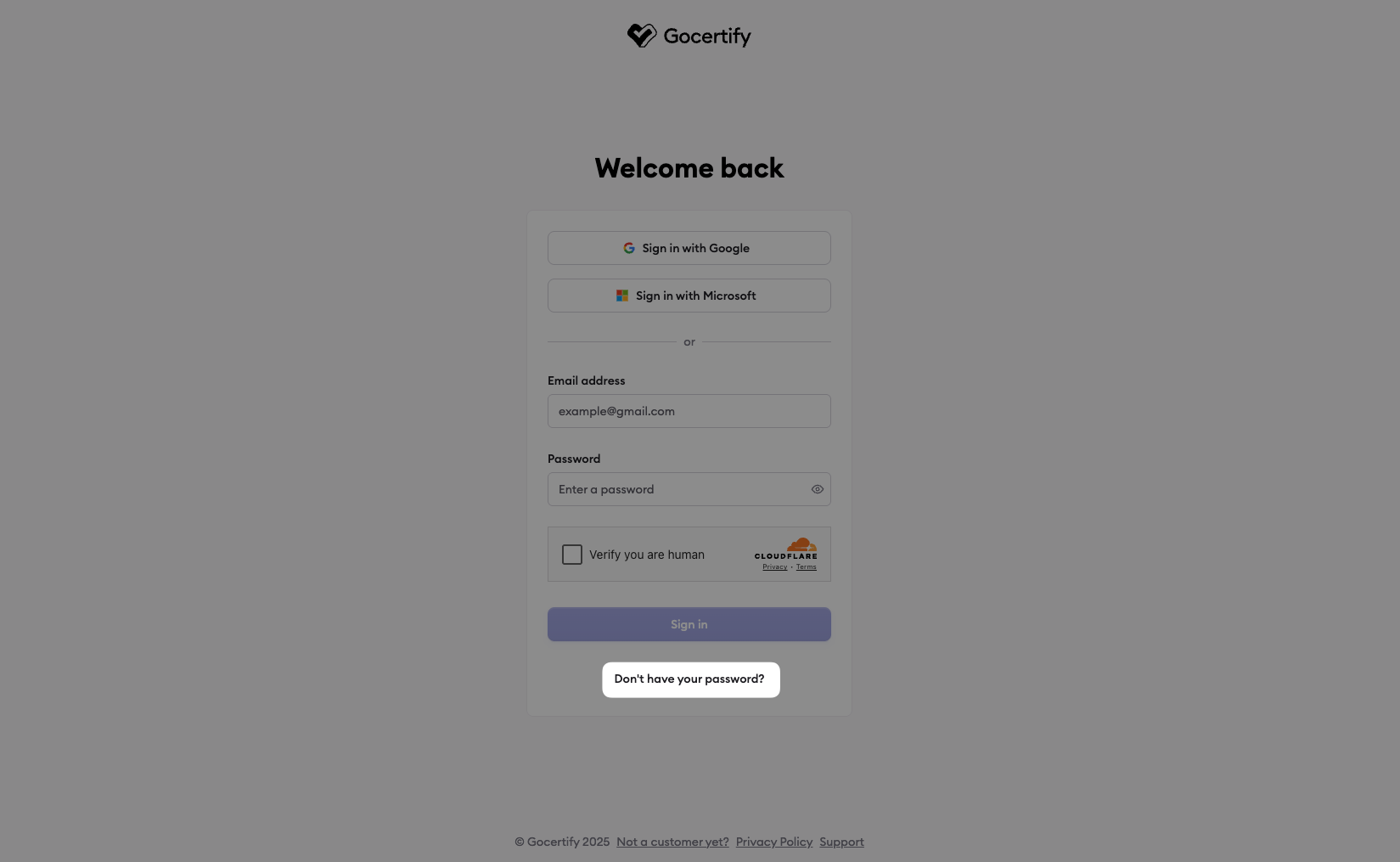
1

Select 'Don't have your password?'

In the login screen select “Don’t have your password?”
Password Reset
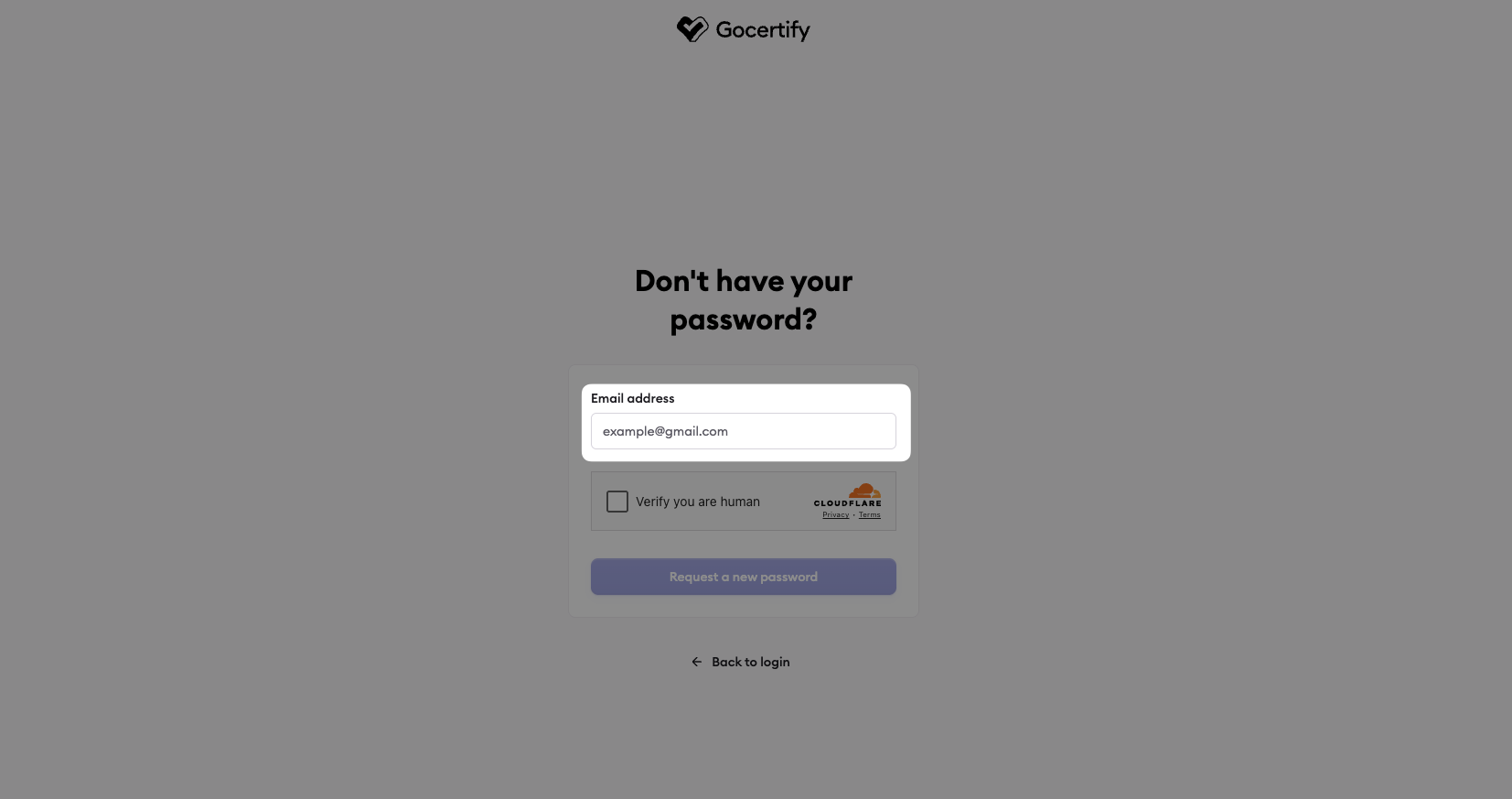
2

Enter your email

Enter your email address and select “Request a new password”
Reset Password Email Input
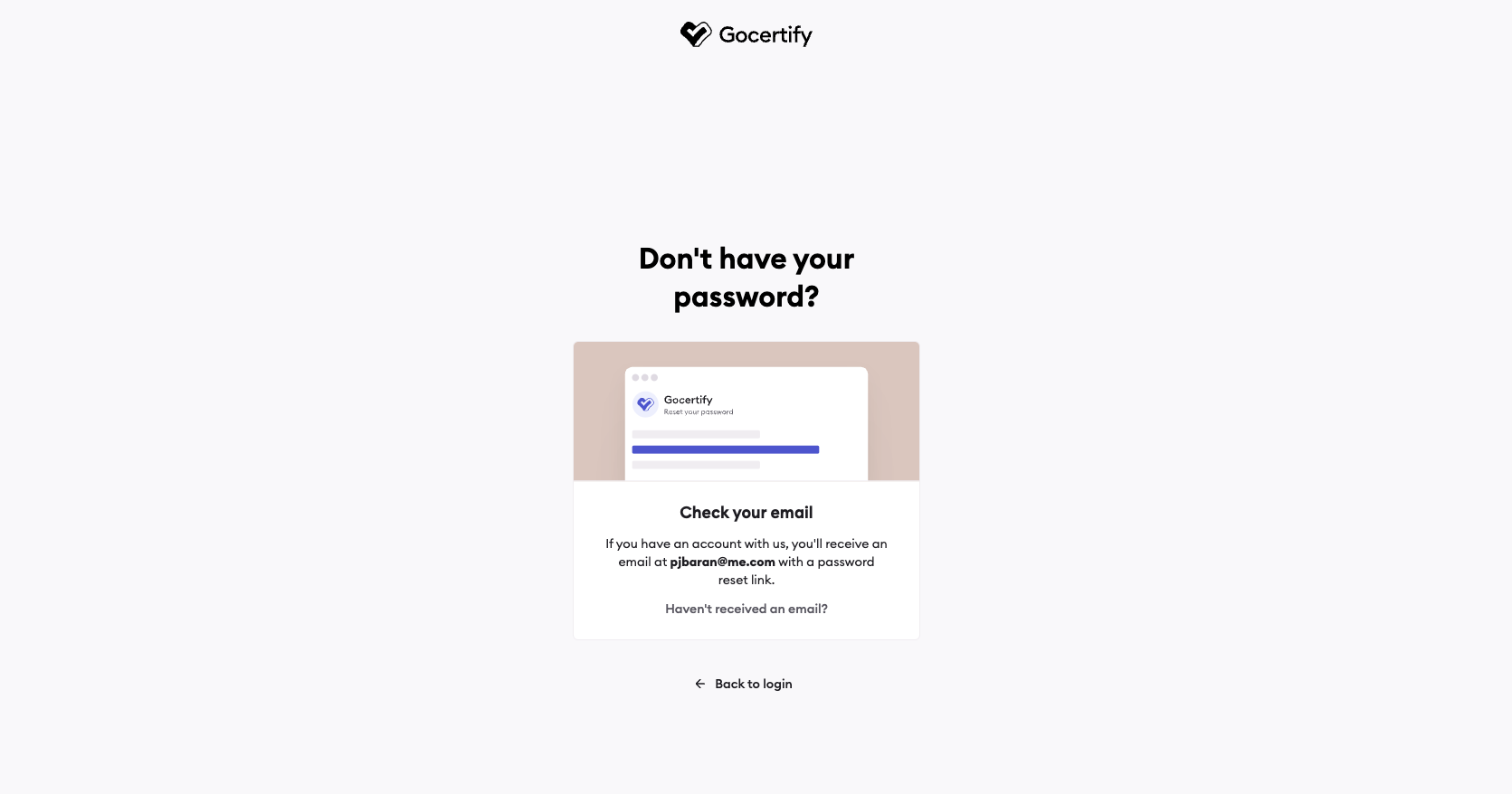
3

Check for password reset email

You will receive confirmation that the email has been sent. If you don’t receive it, check your spam or select “Haven’t received an email?”
Reset Password Email Sent
4

Click 'Reset my Password' in the email
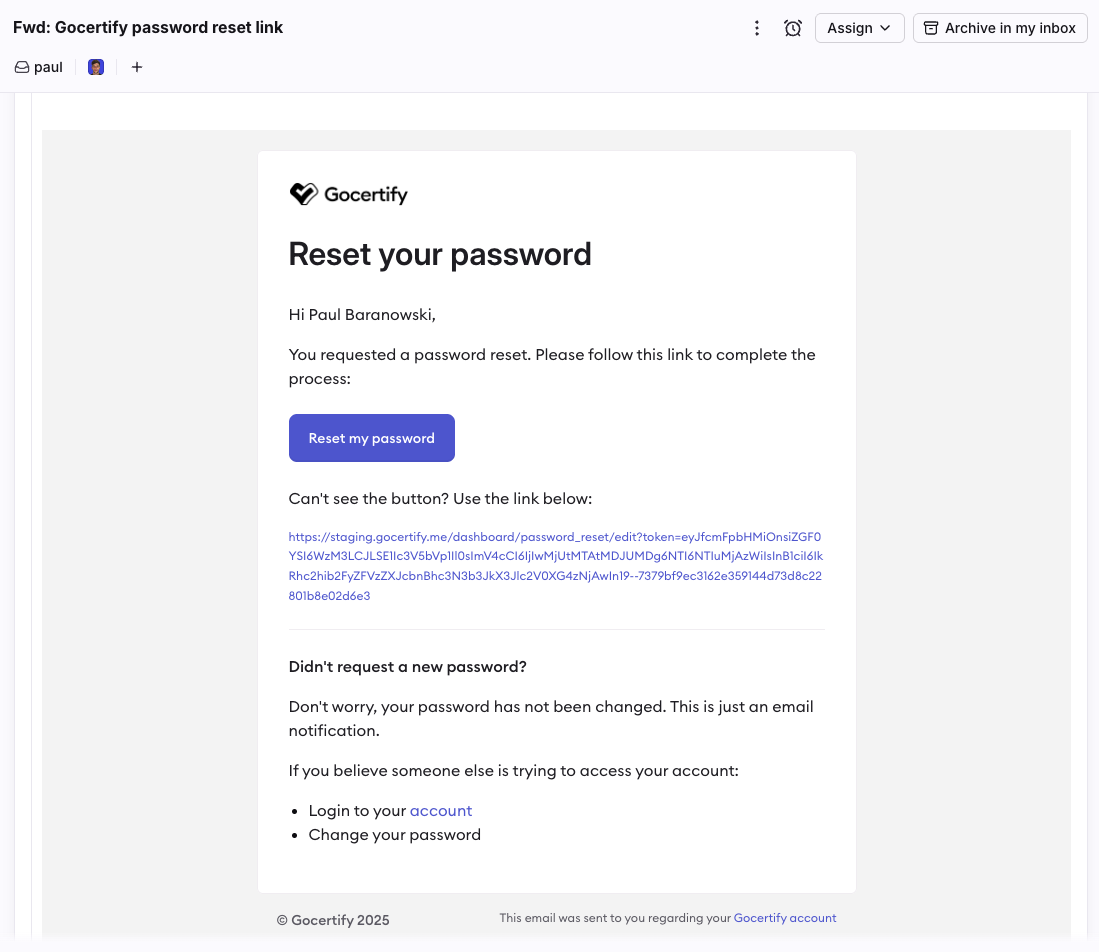
In the email you received, click “Reset my Password” to open the password reset page.
Reset Password Email
5

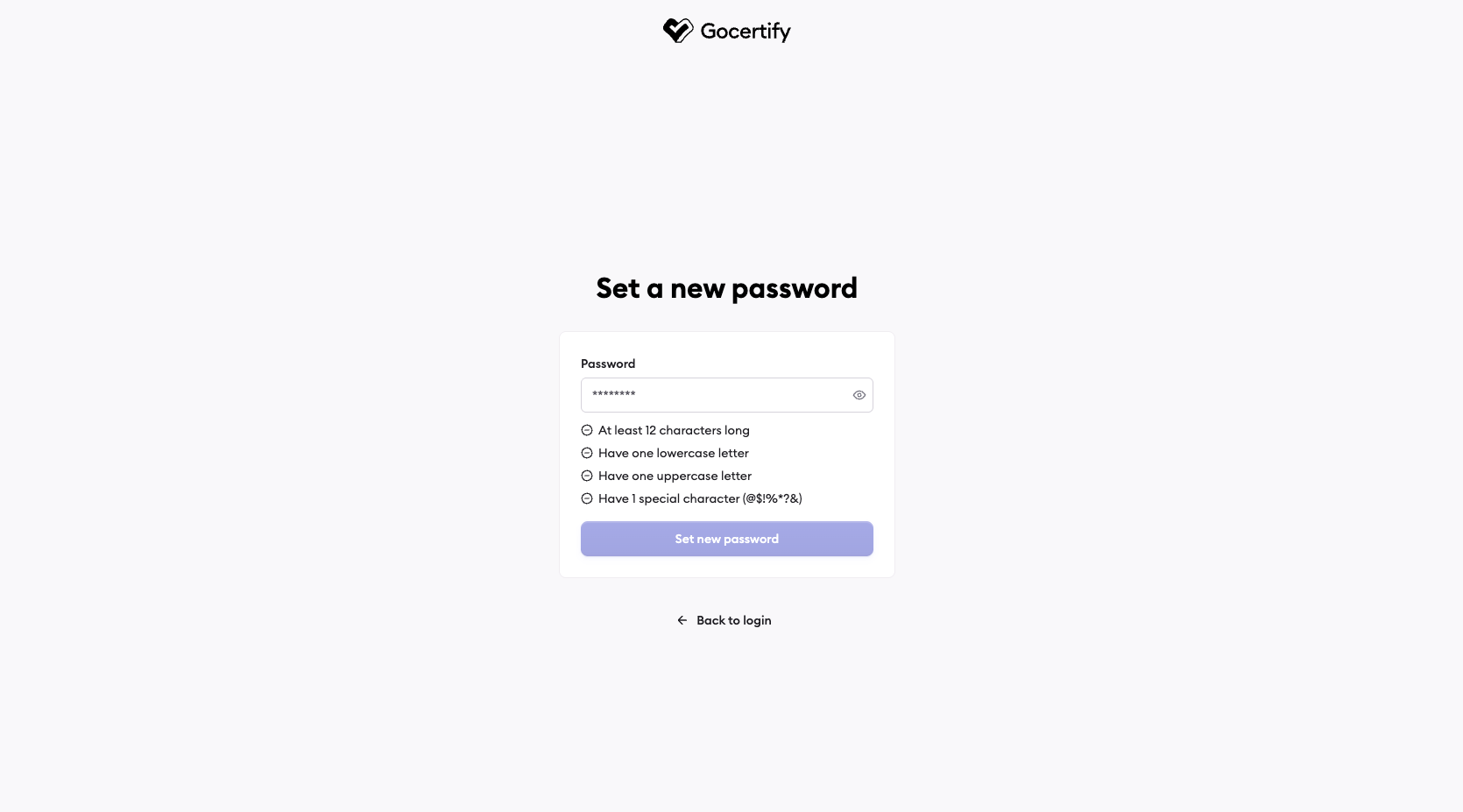
Enter your new password

A new tab will open and you can enter your new password. It must meet the validation requirements. Each requirement will turn into a green checkmark when met.
Reset Password Input
6

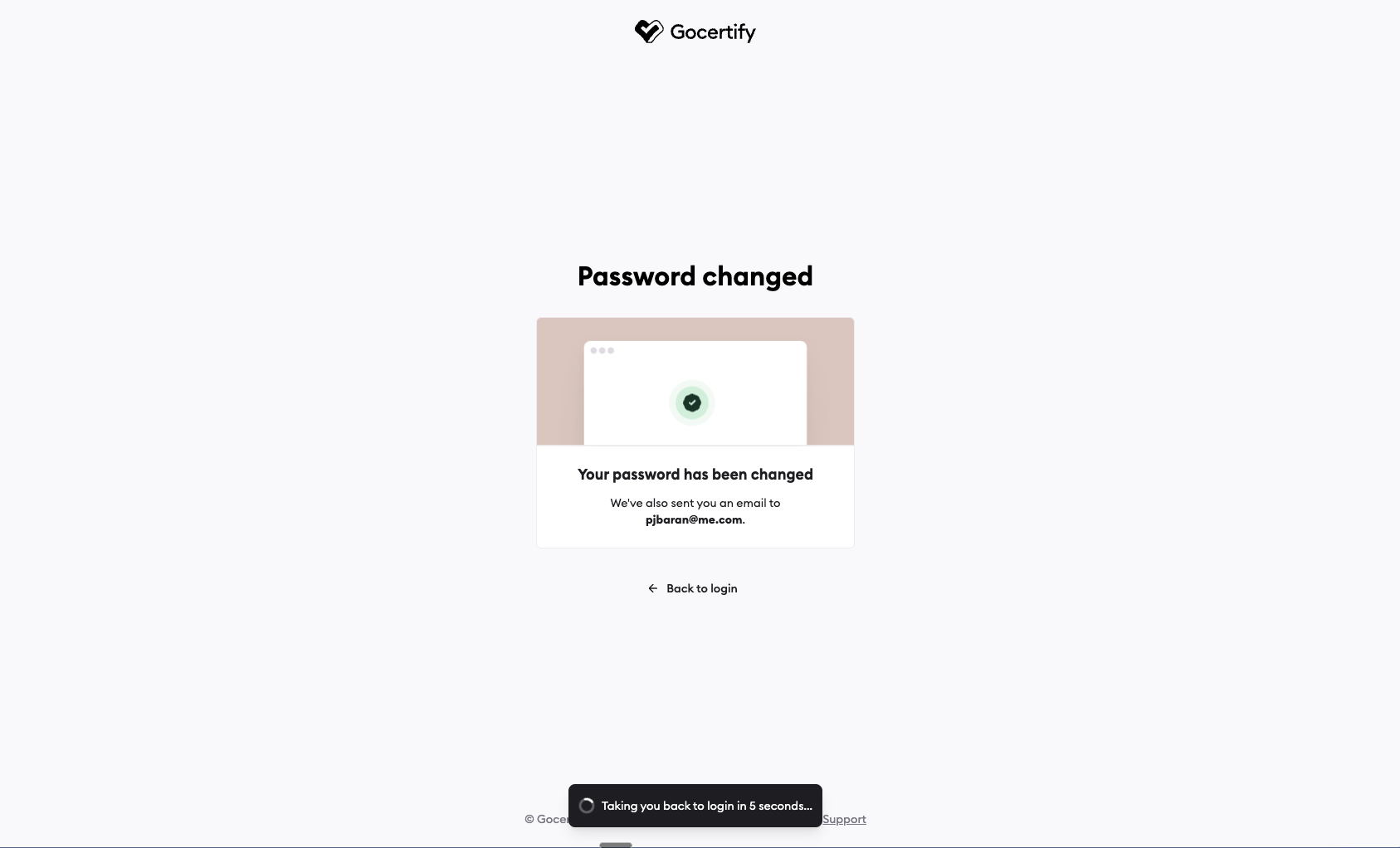
Password change confirmation

The page will update to confirm that your password has been changed and after 5 seconds you will be redirected to the login screen.
Password Changed Screen
7

Login with your new password

You can now login with your new password.
Email Password Login
If you have previously logged in with email/password, but now want to login with SSO, you can link your accounts by simply using SSO to login with the same email.There is also a path for doing this via profile settings:
1

View your profile settings

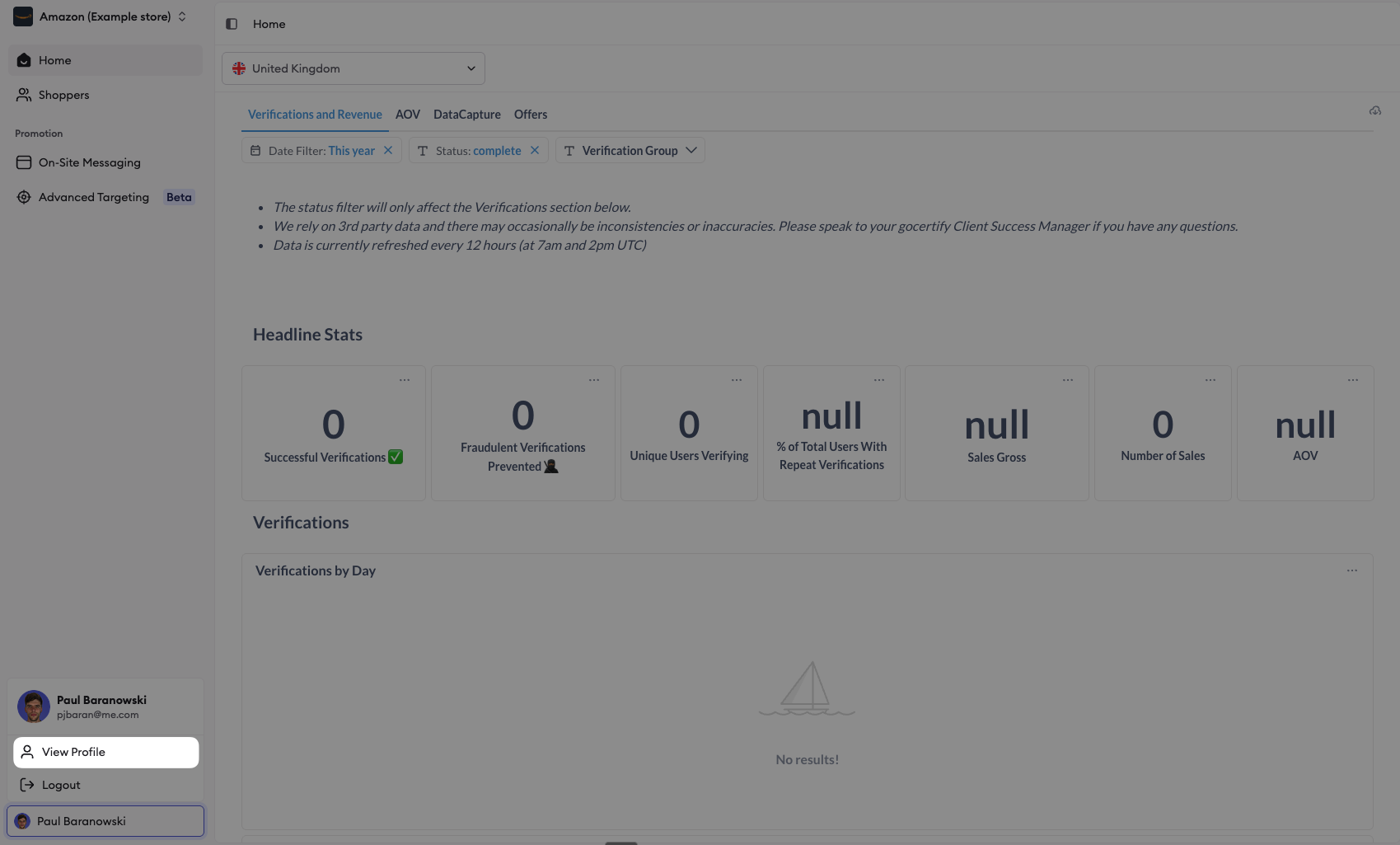
Click on your profile card and select “View Profile”.
View Profile Settings
2

Navigate to account security settings
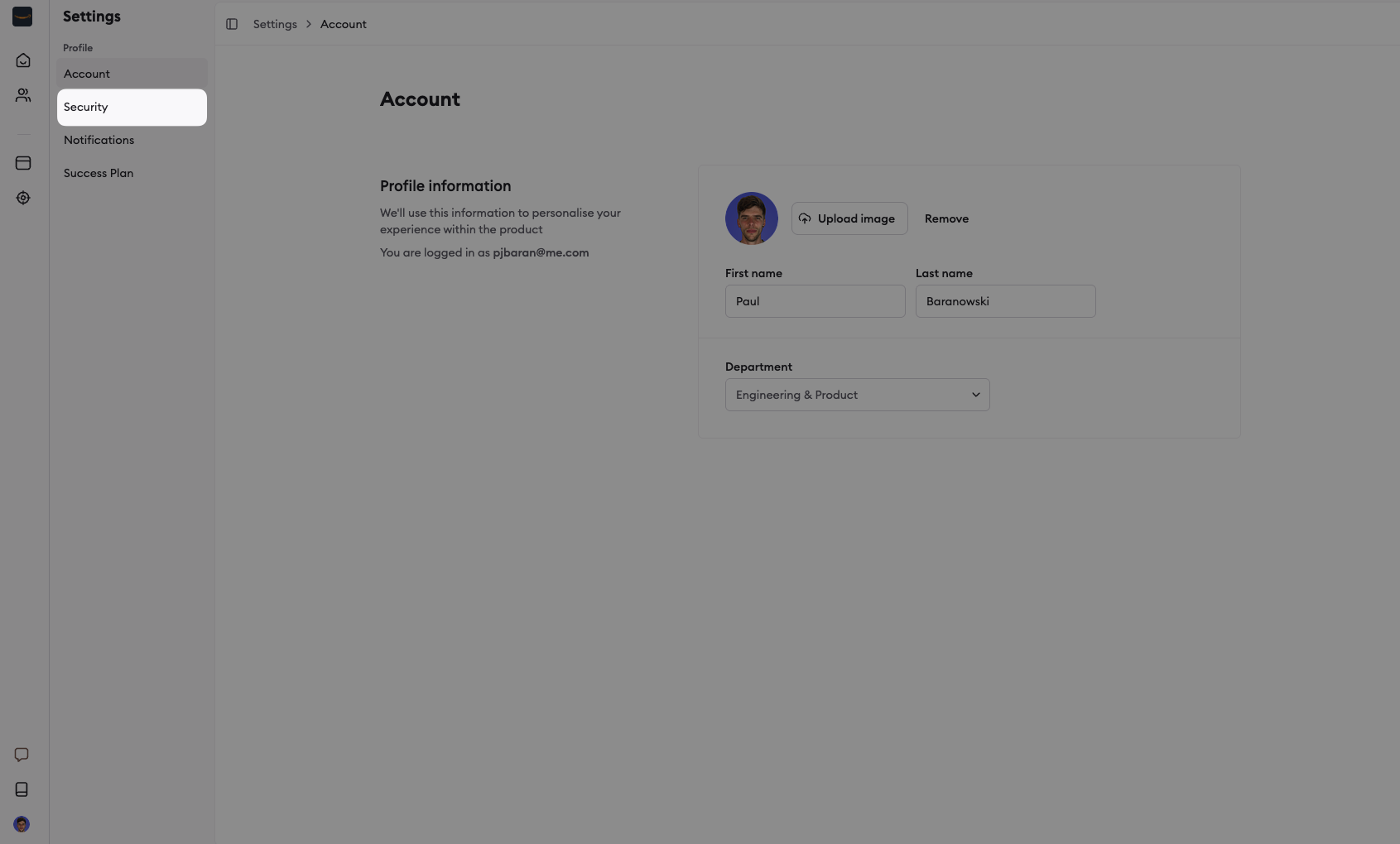
Select “Security” from the sidebar menu.
Account Security Settings
3

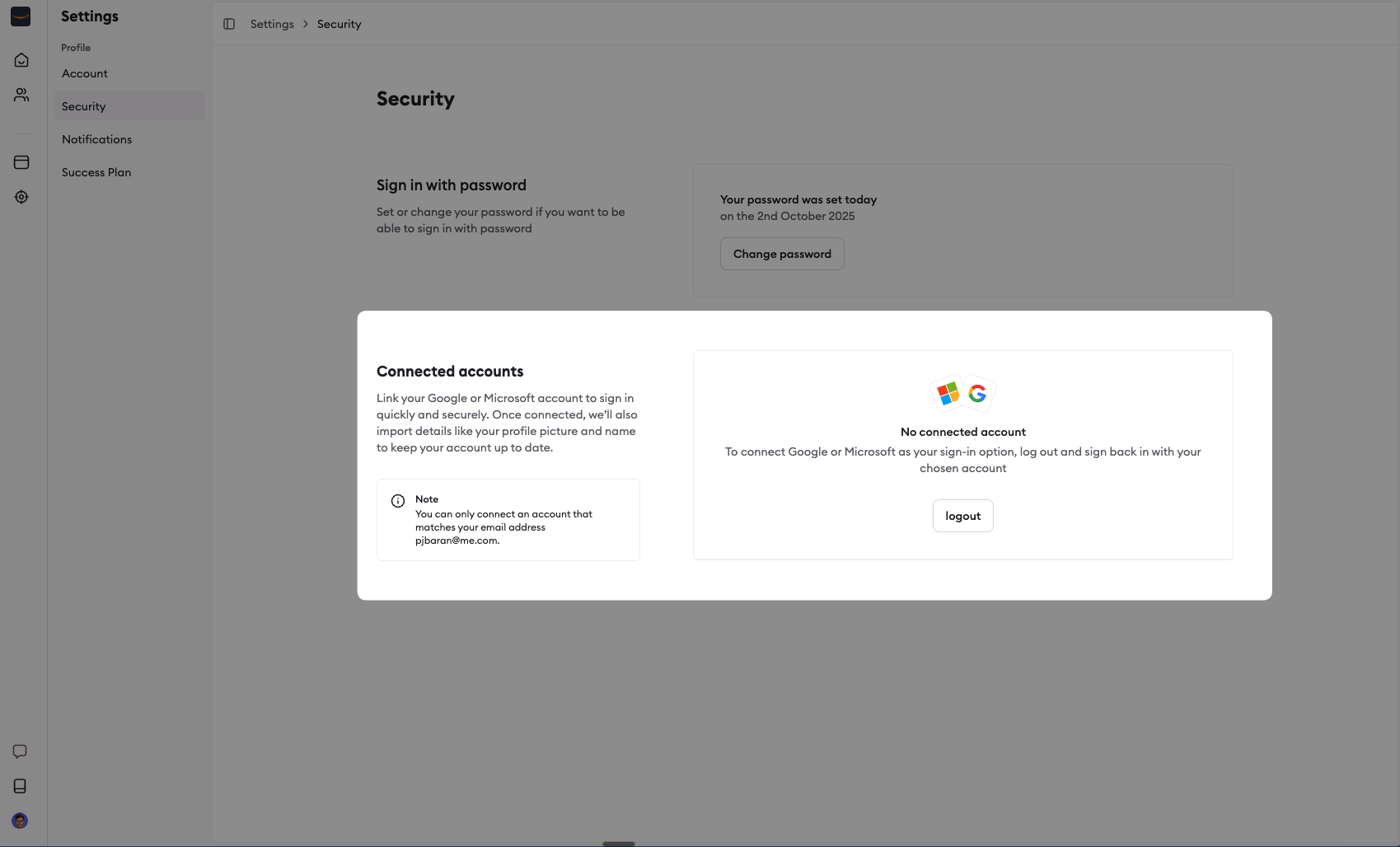
Link your accounts

Under the “Connected accounts” section it will say “No connected account” and prompt you to logout and then login with SSO.
No Linked Account
4

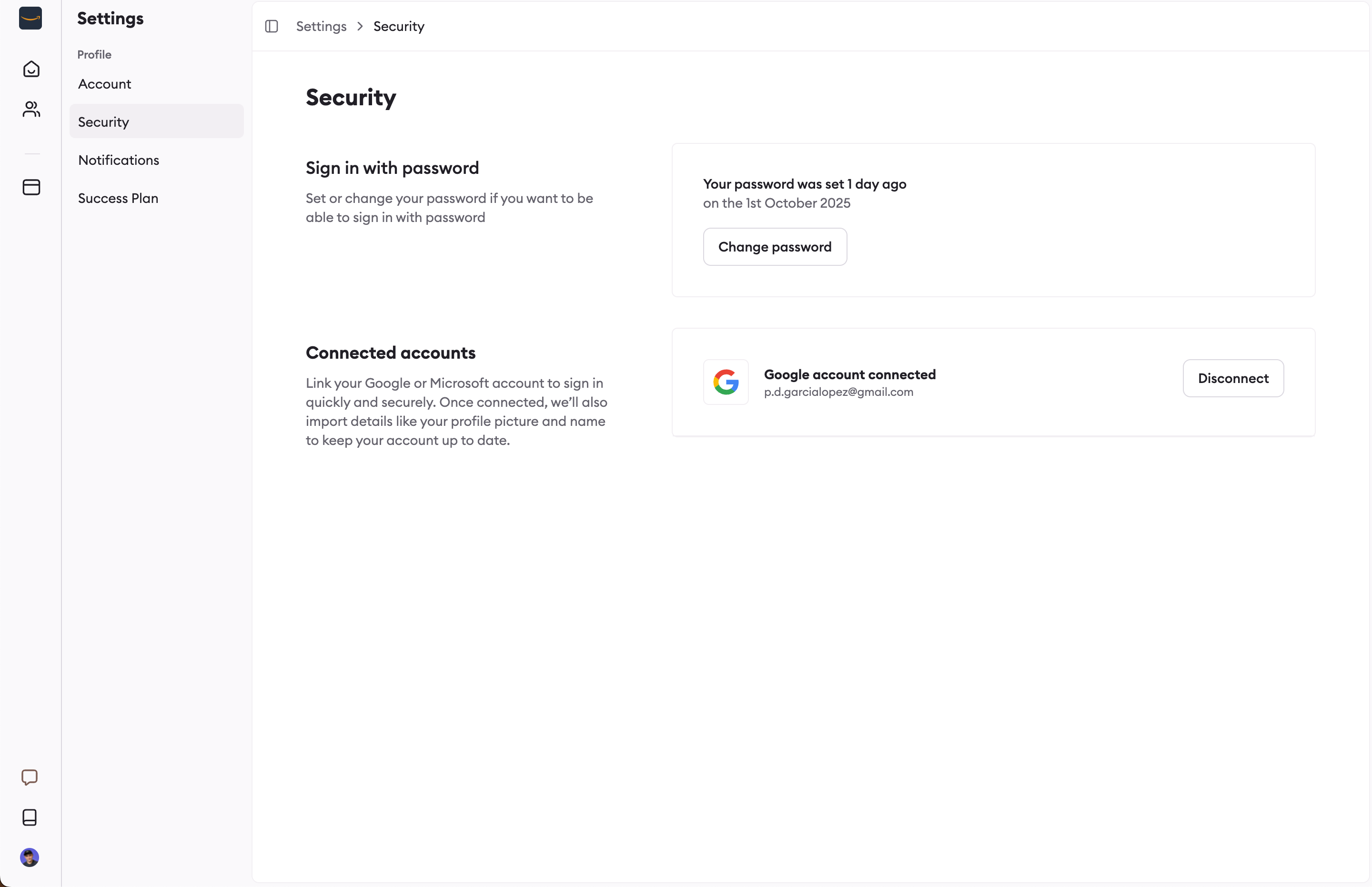
Linked account confirmation

Once this has been done successfully, it will say “Google/Microsoft account connected” and you can now login with SSO. If you want to disconnect the account, you can do so by clicking the “Disconnect” button.
Linked Account
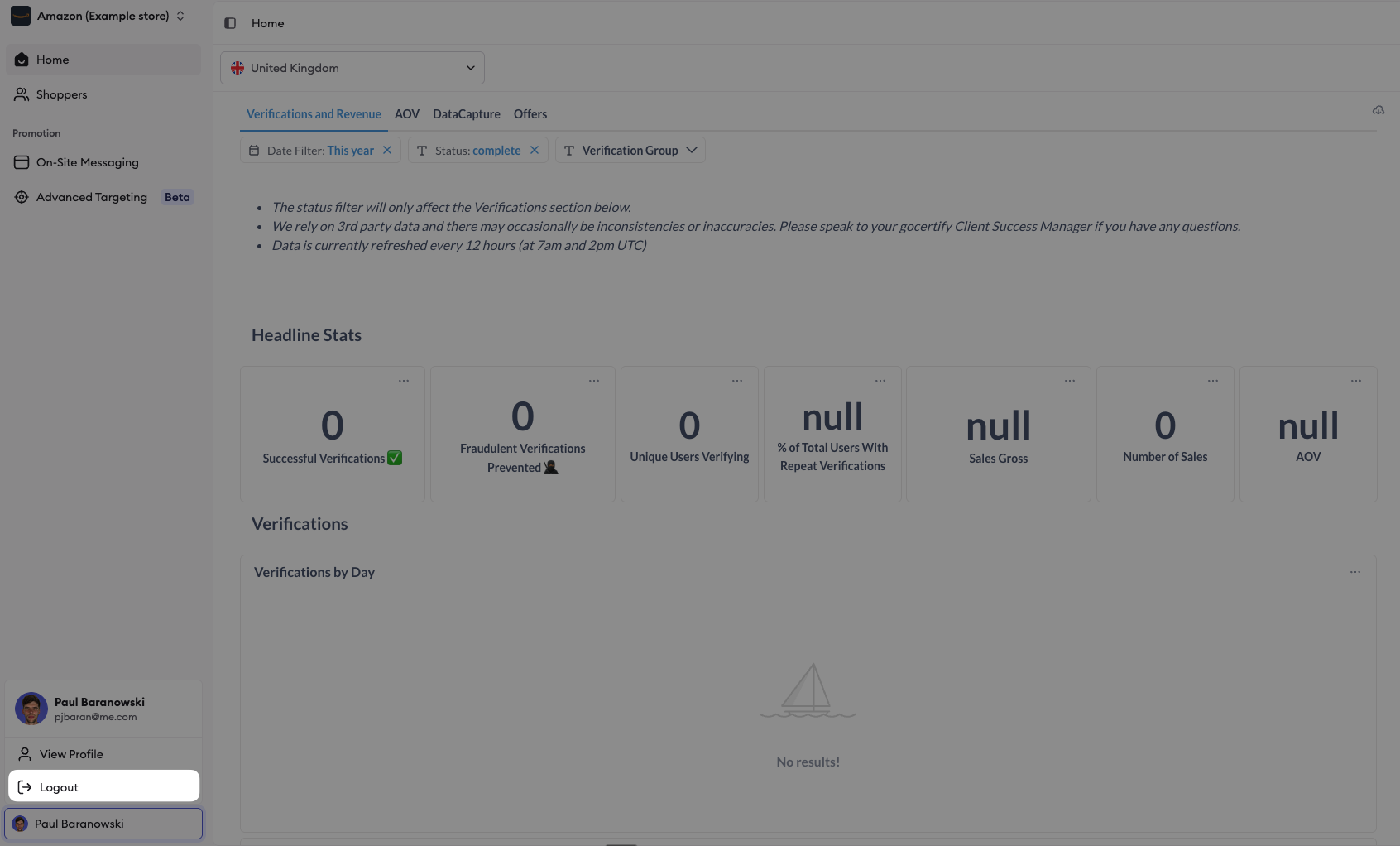
To logout, click your profile card and select “Logout”.
Dashboard Logout
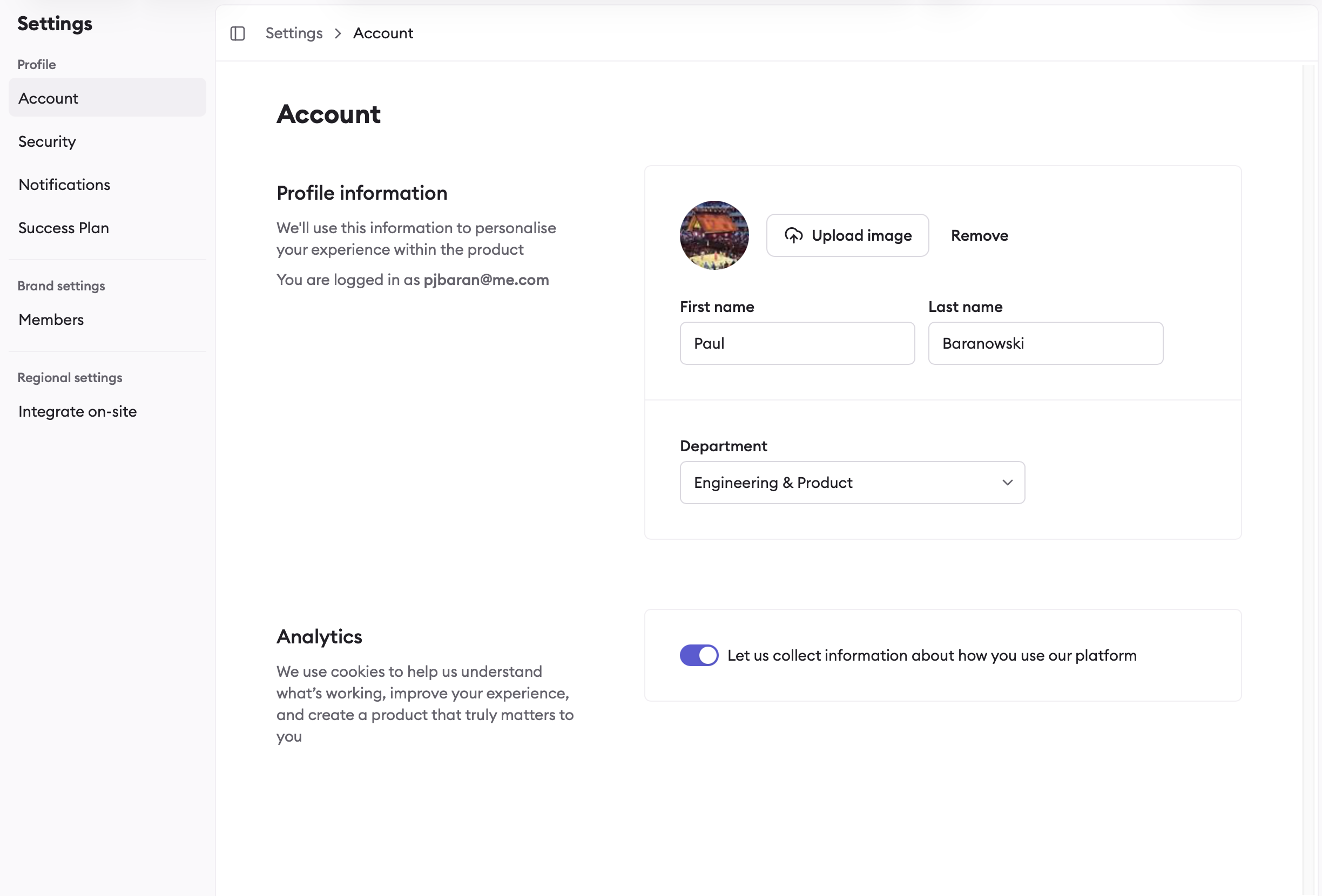
You can update your profile and preferences at any time by clicking your profile card and selecting “View Profile”. From there you can access several settings pages:Account — Update your name, profile picture, and department. You can also control whether Gocertify collects usage data to improve your experience.
Account Settings
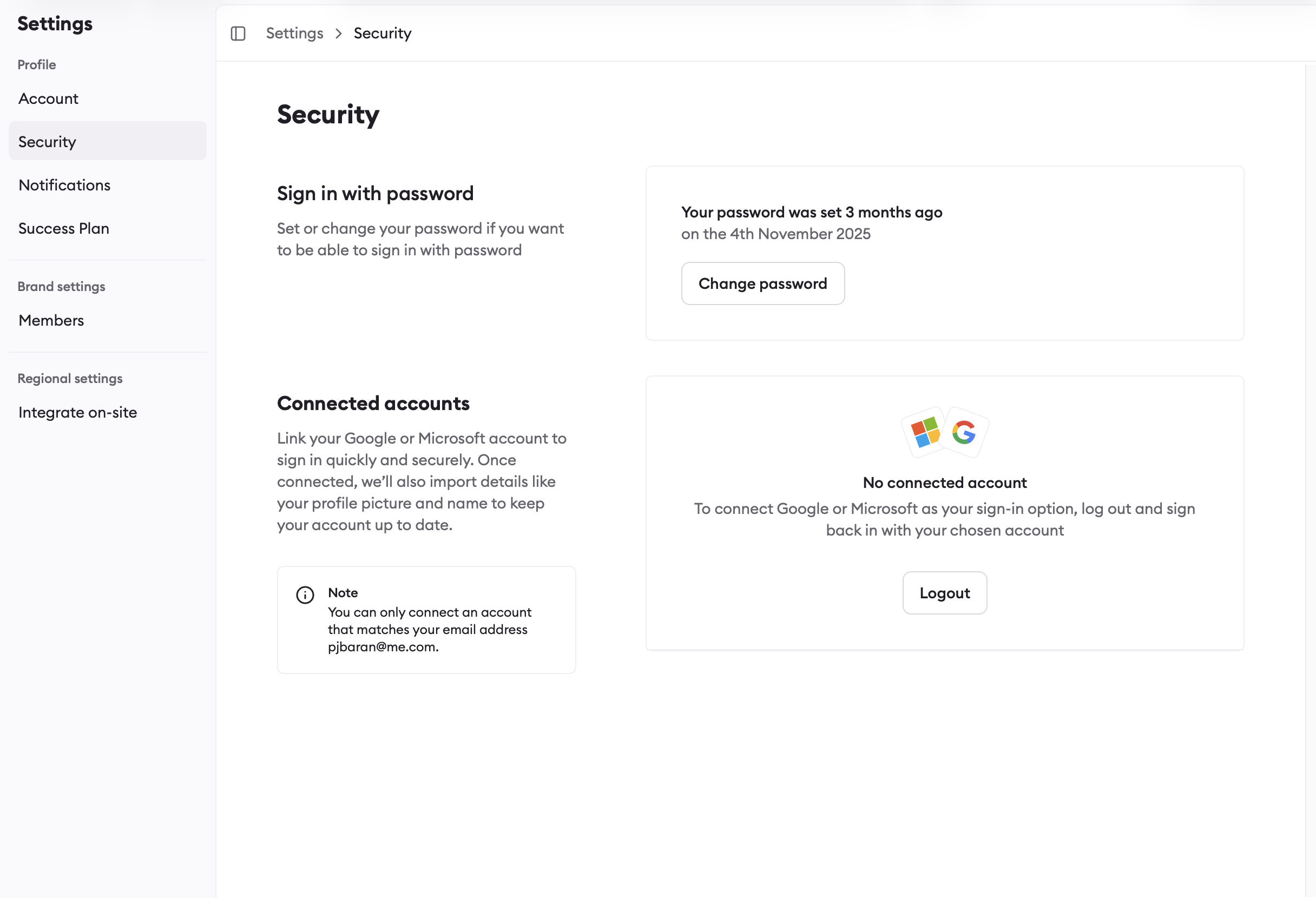
Security — Change your password and link your Google or Microsoft account for SSO sign-in.
Security Settings
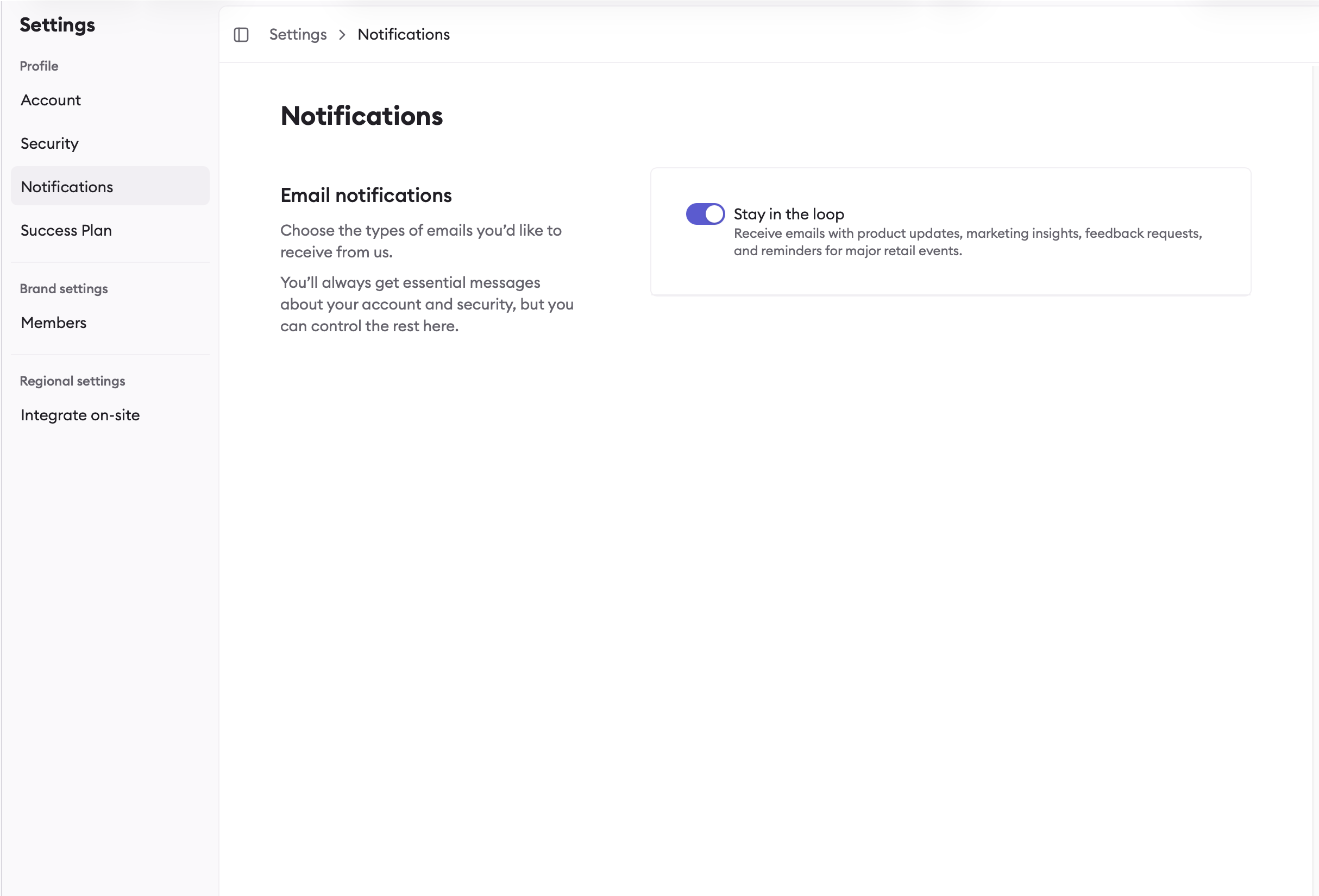
Notifications — Choose whether to receive product updates, marketing insights, and reminders for major retail events. Essential account and security messages will always be sent.
Notification Preferences
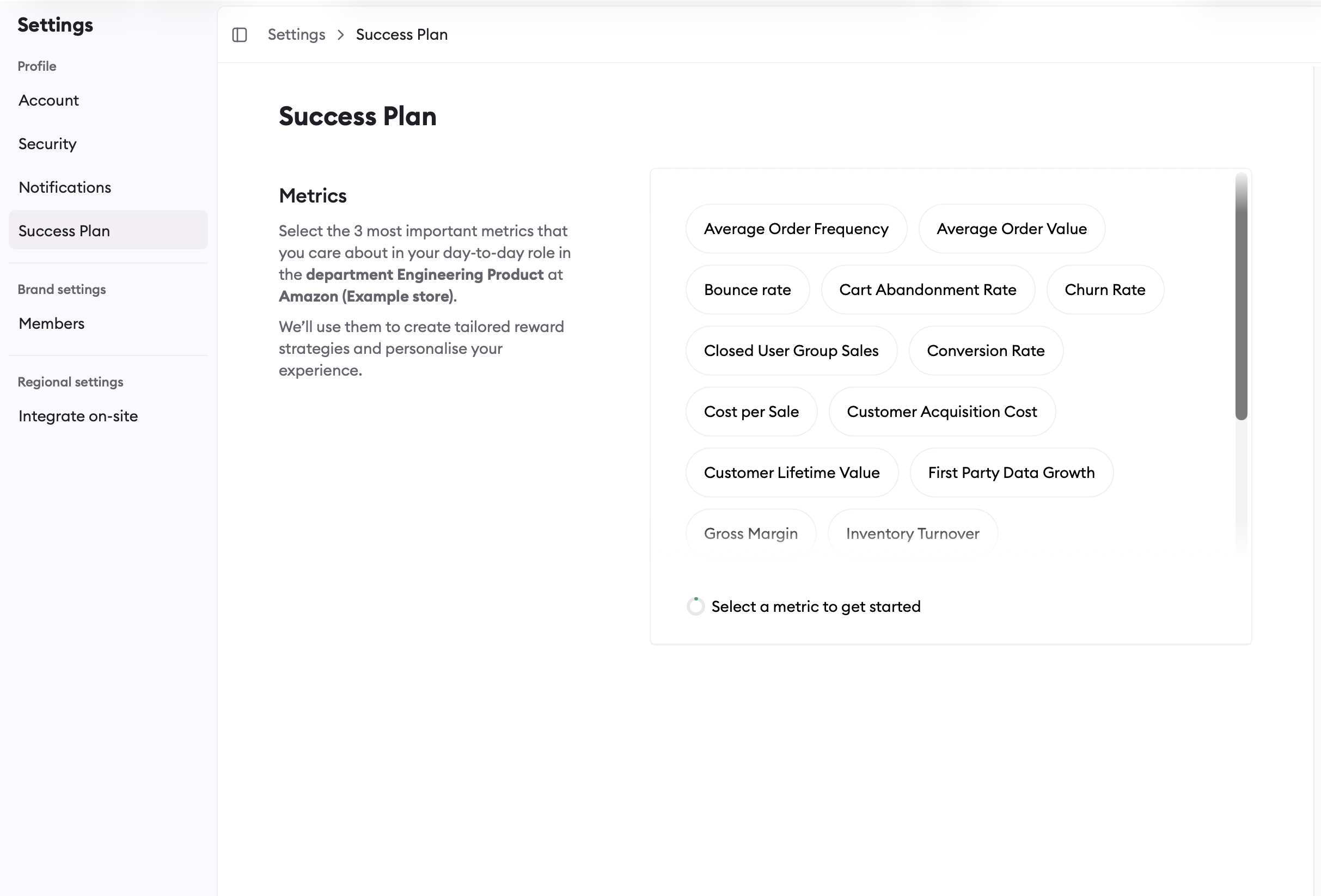
Success Plan — Select the 3 metrics that matter most to you in your day-to-day role. We use these to tailor your dashboard experience and personalise reward strategies.
Success Plan Settings

Brand Groups and Brand Regions

If your brand operates in multiple countries or markets, you can view and manage data across all your regions from a single dashboard. The region selector appears in the sidebar when you have access to multiple regions.
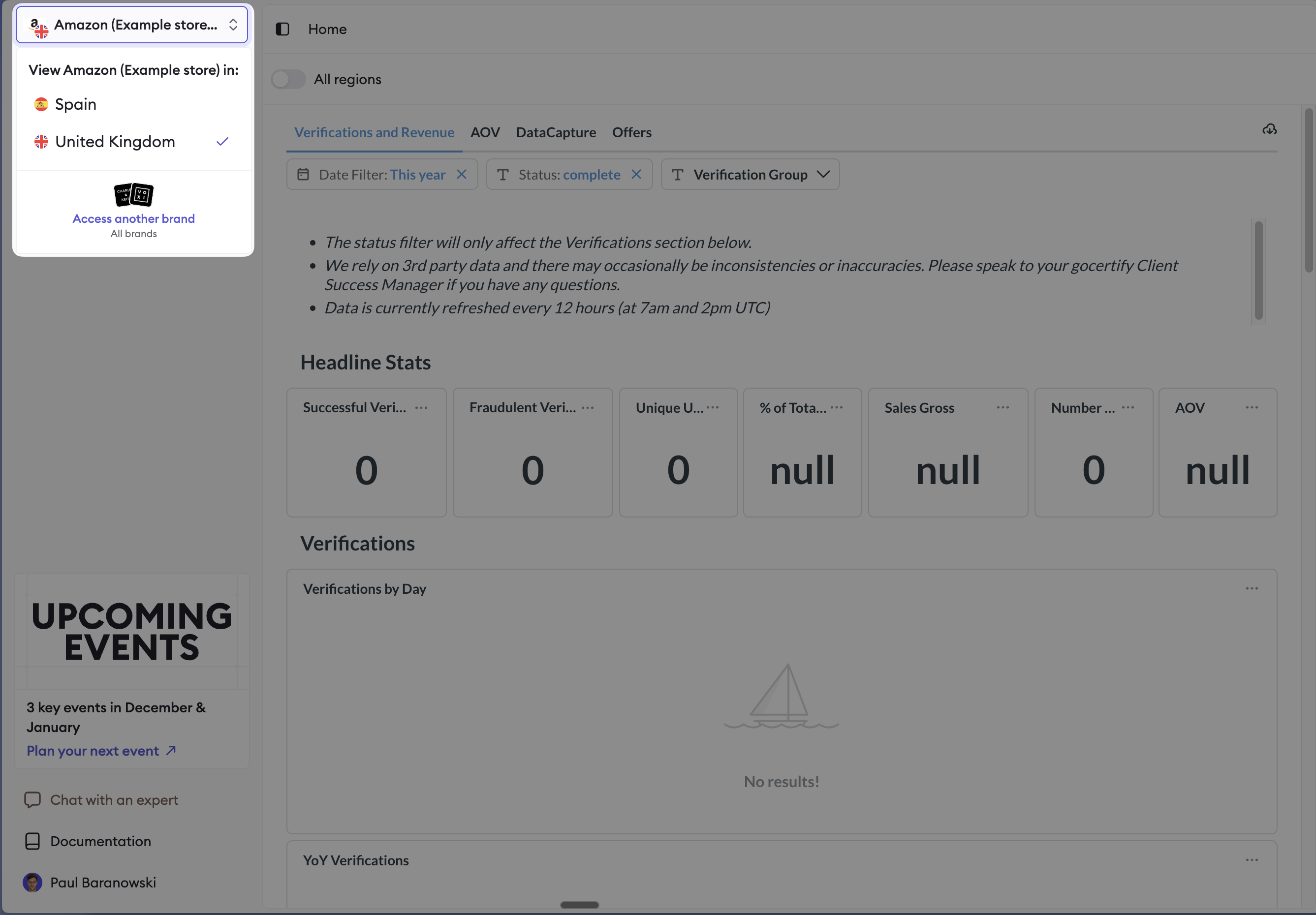
Region Selector
Click the region selector in the sidebar to switch between regions. The selected region’s flag appears next to your brand logo. When viewing Reports or Shoppers, you’ll see an “All regions” toggle if you have access to multiple regions. Enable this to view aggregated data and export CSV files that span all your regions.

Team Management

You can invite team members to your account by navigating to the “Members” section in the sidebar menu. Select “Invite Member” and enter the email address of the team member you want to invite. They will receive an email with a link to join your account.
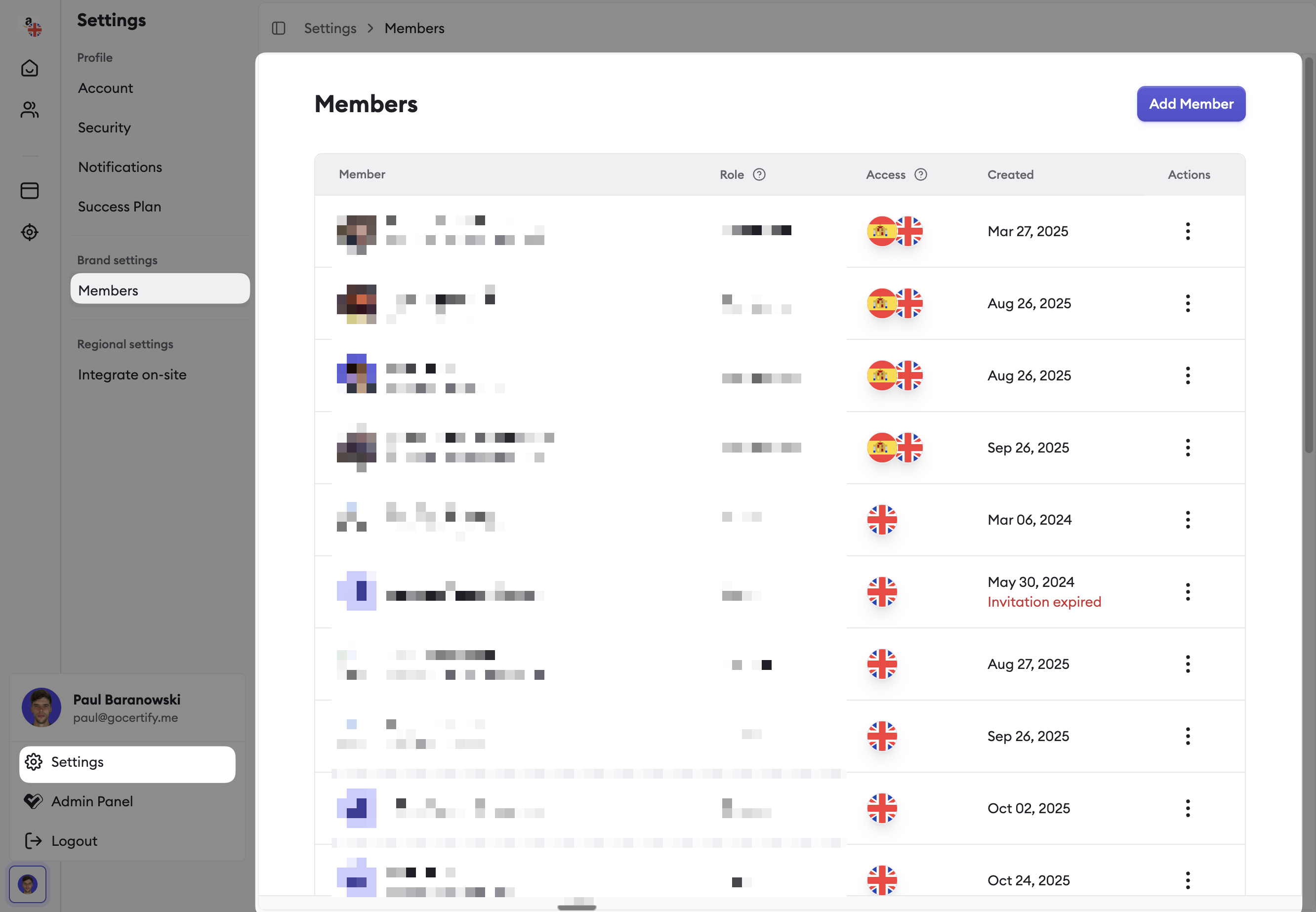
Team Management
When you invite a team member to your account, you can select their role from the following options:
RolePermissions
Brand AdminEverything in Region Admin, plus: manage settings across all available regions. Brand admins always have access to all regions.
Region AdminEverything in Creator, plus: manage settings in assigned regions, manage team members, manage alerts.
CreatorEverything in Viewer, plus: view shoppers & export contacts, view and manage placements (OSM), view and manage targets.
ViewerView reporting.

Allowed Emails for Testing

Need to test the verification flow with your team? You can request specific email addresses to be pre-approved for your brand. When someone verifies using an allowed email address, they’ll bypass the standard verification process and be automatically verified. This is useful for:
  • Team members testing the shopper verification experience
  • Partners who need to demo the verification flow
  • QA testing before campaign launches
To add or remove allowed emails for your brand, contact your account manager or reach out to partners@gocertify.me.

Need Help?

If you’re having trouble accessing your dashboard, please reach out to partners@gocertify.me for assistance.