Start building loyal communities with targeted, gated offers.
Gocertify has a native integration with Shopify. This allows you to easily promote Gocertify offers across your Shopify site. To install your Shopify app follow the Shopify specific instructions in Integrate on Site. We also can connect directly to your Shopify discounts to create unique codes for each shopper.
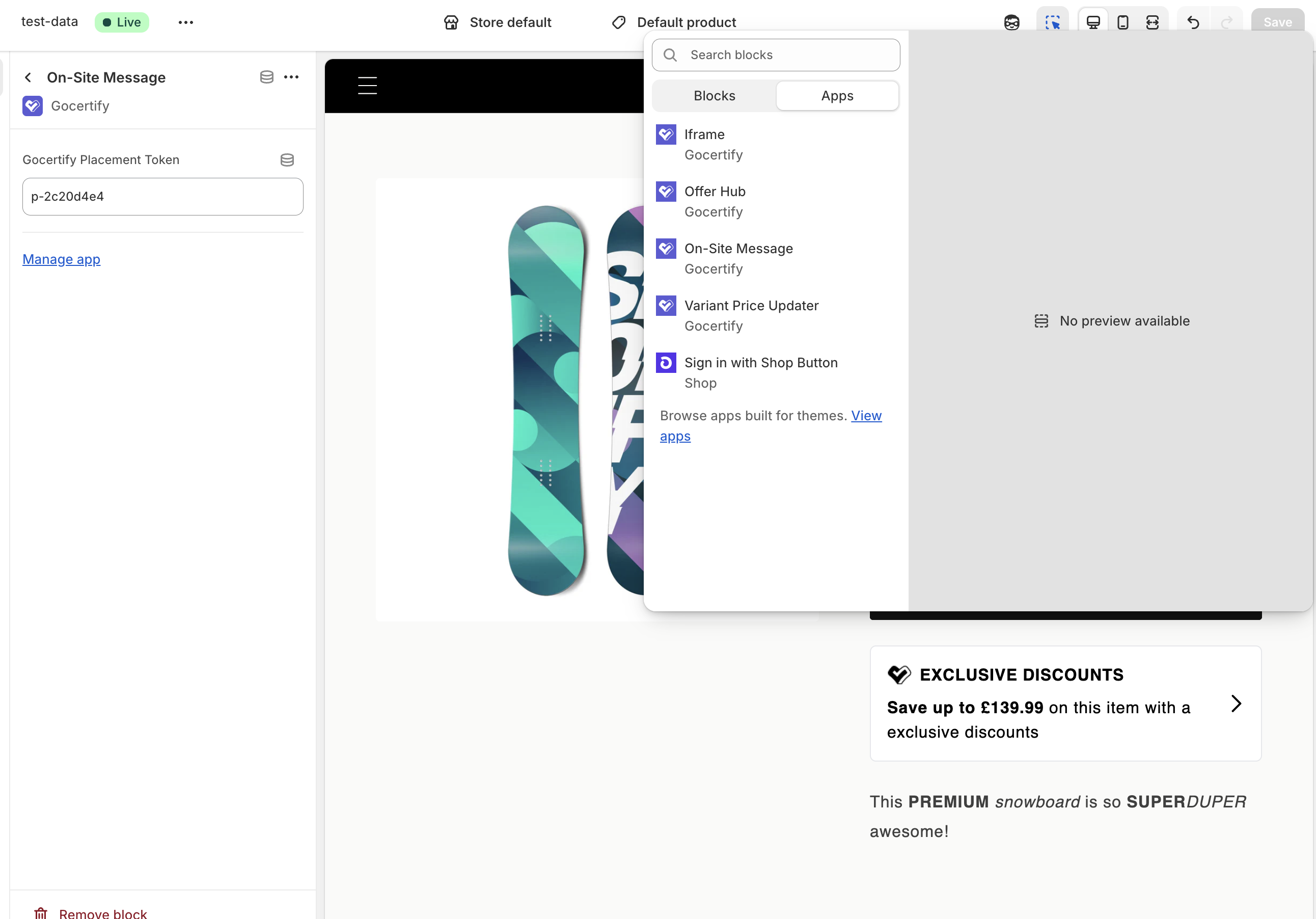
Once installed you will be able to add Gocertify blocks in your Shopify theme editor. To add a block, switch to the Apps tab and select from the available Gocertify blocks.
Gocertify blocks can be added directly to your site using the Shopify builder
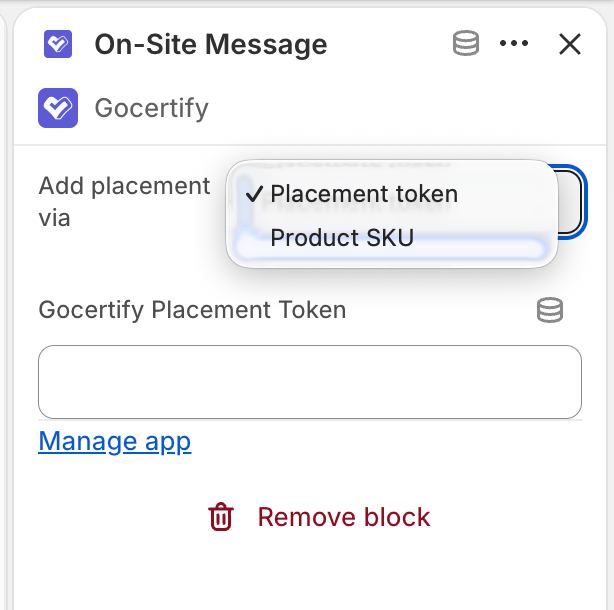
The On-Site Message block lets you add targeted promotional messages to your product pages, displaying exclusive offers to eligible shoppers right next to the product.When you add the block, use the Add placement via setting to choose how Gocertify decides which message to show:
Placement token - show the same on-site message on every product using this template
Product SKU - show a different on-site message depending on the product’s SKU
Choose between Placement token and Product SKU when adding the block
Select Placement token and paste the token of the on-site message you want to display into the Gocertify Placement Token field (e.g. p-123456). You can find it in your Gocertify dashboard, under the On-Site Messaging tab.
Select Product SKU and the token field disappears. Instead of a fixed on-site message, the block uses the SKU of the product being viewed as the identifier of an Advanced target, so each product can display its own message.
Advanced targeting is an enterprise feature. If you want to enable it, please contact your account manager.
To tell Gocertify which on-site message to use for each SKU, you need to upload your targets:
1
Export your products from Shopify
In your Shopify admin, go to Products and click Export to download a CSV of your products. This gives you the SKU of every product and variant.
2
Create your targets CSV
Create a new CSV file with one row per SKU, using these columns:
identifier (required) - the product SKU
placement_token (required) - the token of the on-site message to show for that SKU
name (optional) - a human-readable name, such as the product title
Any additional columns will be added as variables for your on-site message.
3
Upload the CSV in your Gocertify dashboard
In the Advanced targeting section of your dashboard, select the Multiple targets option and upload your file. See Importing targets from CSV for more details.
Once published, shoppers will only see an on-site message on products whose SKU matches one of your targets. If there is no match for a SKU, nothing is displayed.
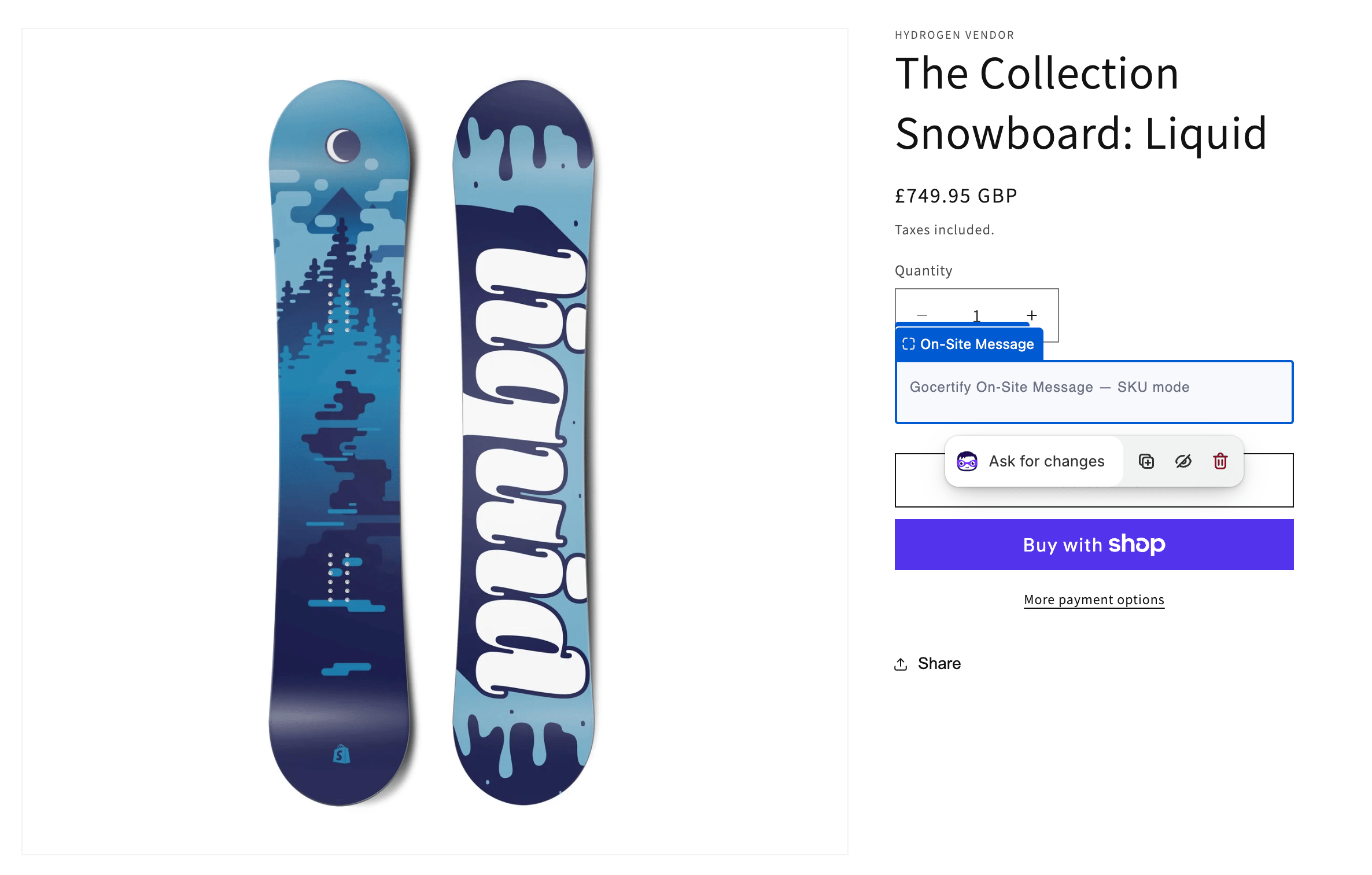
While you are editing your theme, the block is outlined with a label showing how it is configured, so you can see exactly where it will appear on the page, even when there is no message to display yet. The label shows the placement token in use, SKU mode, or a warning if no placement token has been set.
The block as it appears in the theme editor when using the Product SKU option
This outline is only visible in the theme editor. Shoppers never see it.
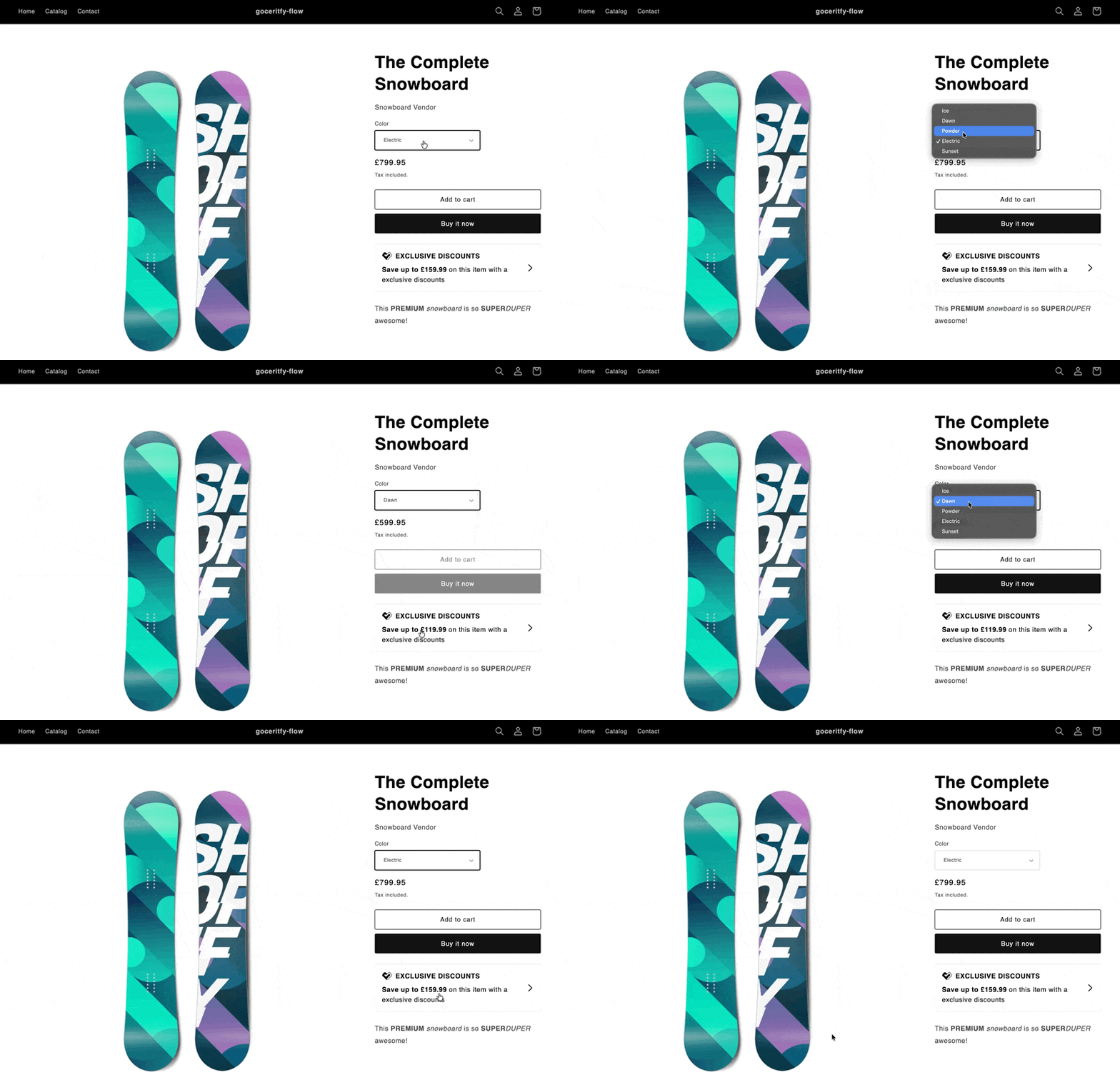
On products with multiple variants, the block keeps the message accurate as the shopper changes their selection. When they pick a different size or colour, the savings amount updates to reflect the new price and, in Product SKU mode, the message switches to the one targeted at the selected variant’s SKU.
The savings amount updates automatically when the shopper changes variant
This used to require a separate Variant Price Updater block. It is now built into the On-Site Message block, so no extra block is needed.
Other types of on-site messages (floating button, sticky bar, etc.) can be enabled directly from the Gocertify dashboard without adding any blocks.
The Checkout On-Site Message block displays promotional messages directly on your checkout page, allowing you to promote offers at the point of purchase.
1
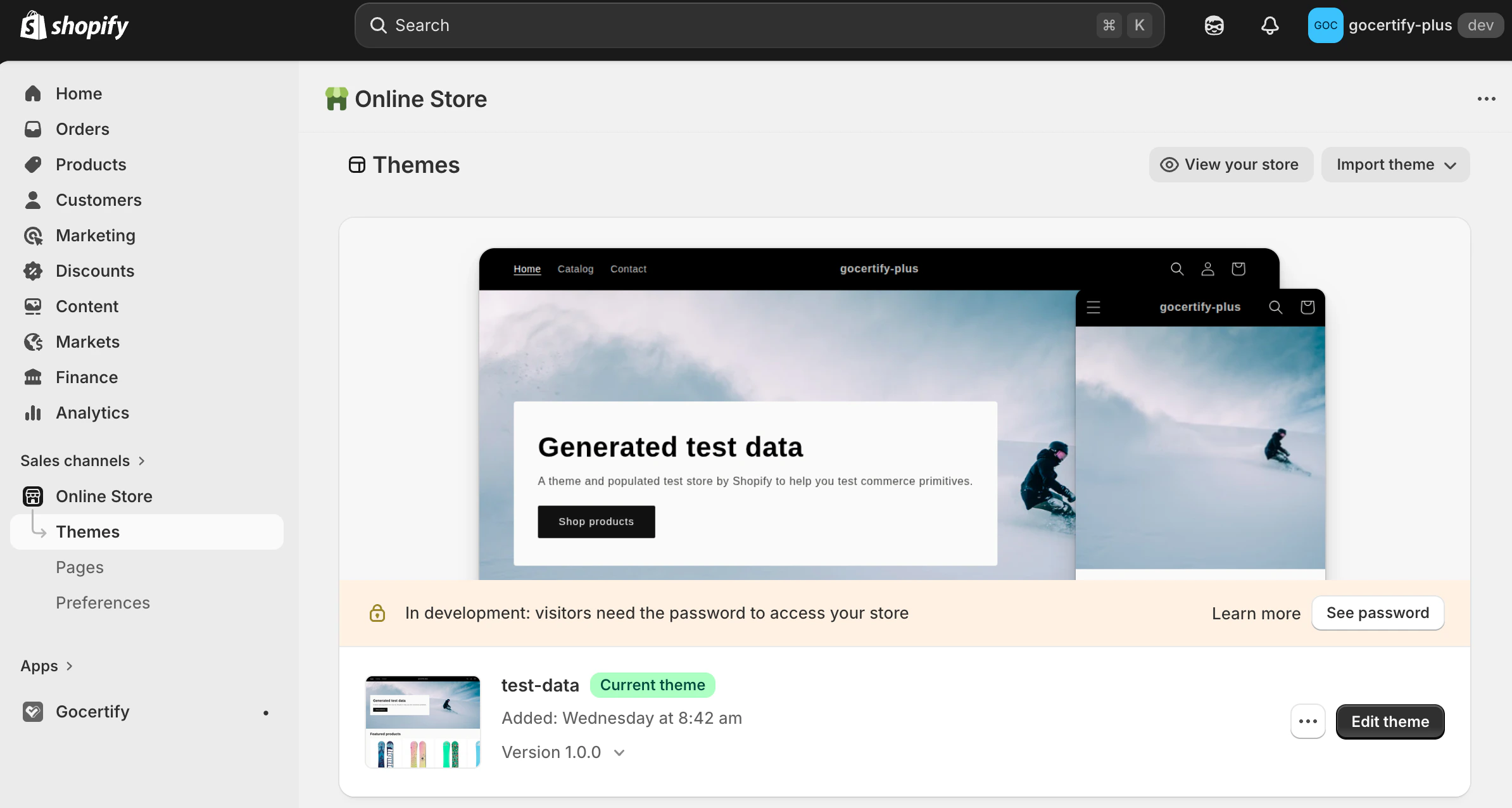
Navigate to Themes
In your Shopify admin, go to Online Store > Themes.
2
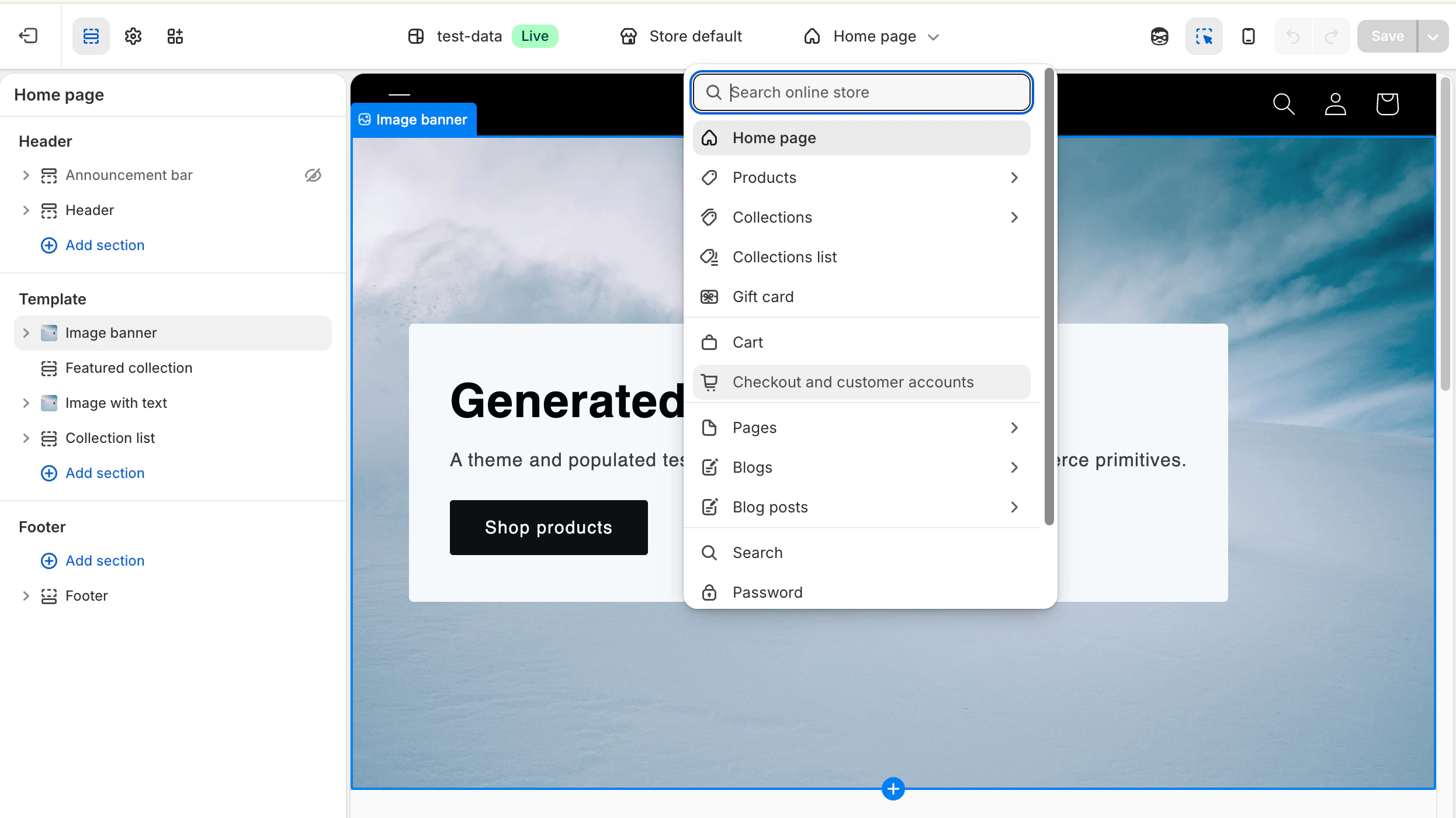
Open Checkout Customisation
Click Customize, then use the page selector dropdown and choose Checkout and customer accounts.
3
Add the Checkout Extension
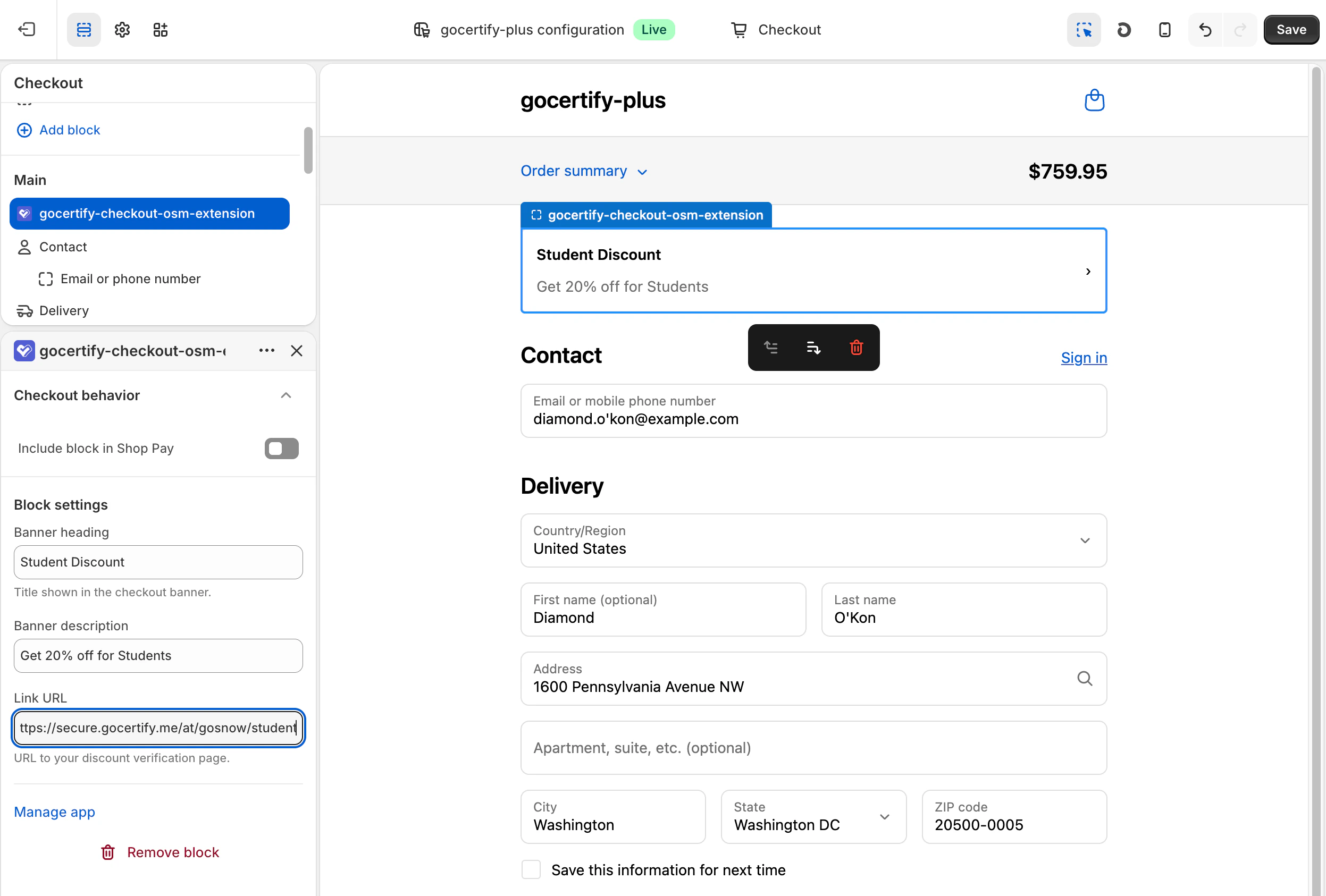
In the checkout editor, add the gocertify-checkout-osm-extension block and configure:
Banner heading: The title shown in the checkout banner (e.g. “Student Discount”)
Banner description: The offer description (e.g. “Get 20% off for Students”)
Link URL: URL to your hosted Gocertify page for that campaign
Configure the checkout banner with your offer details
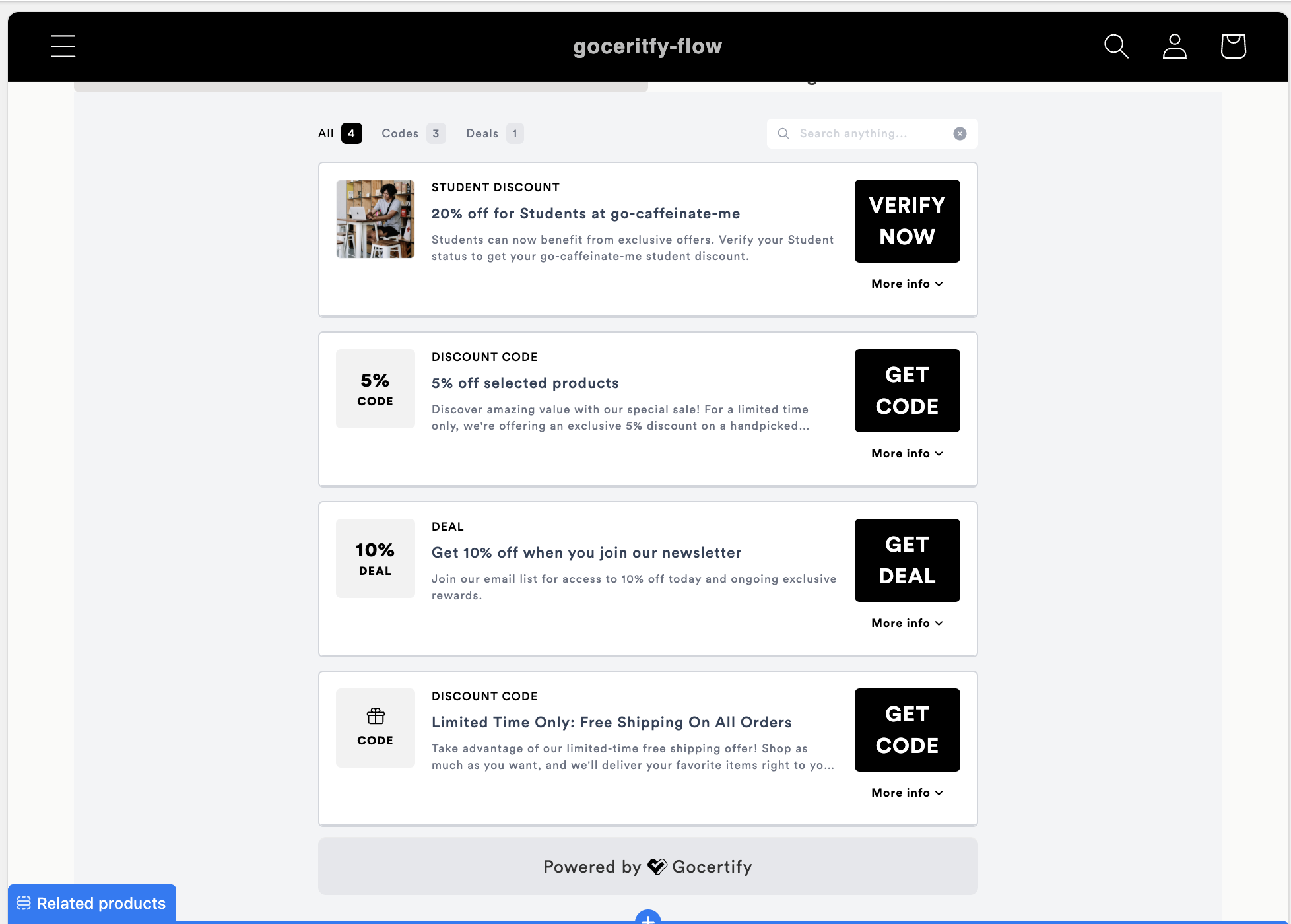
The OfferHub block embeds your OfferHub directly into any page. Simply add the block and it will automatically display all your available offers. No additional configuration required.
The OfferHub block displays all your available offers
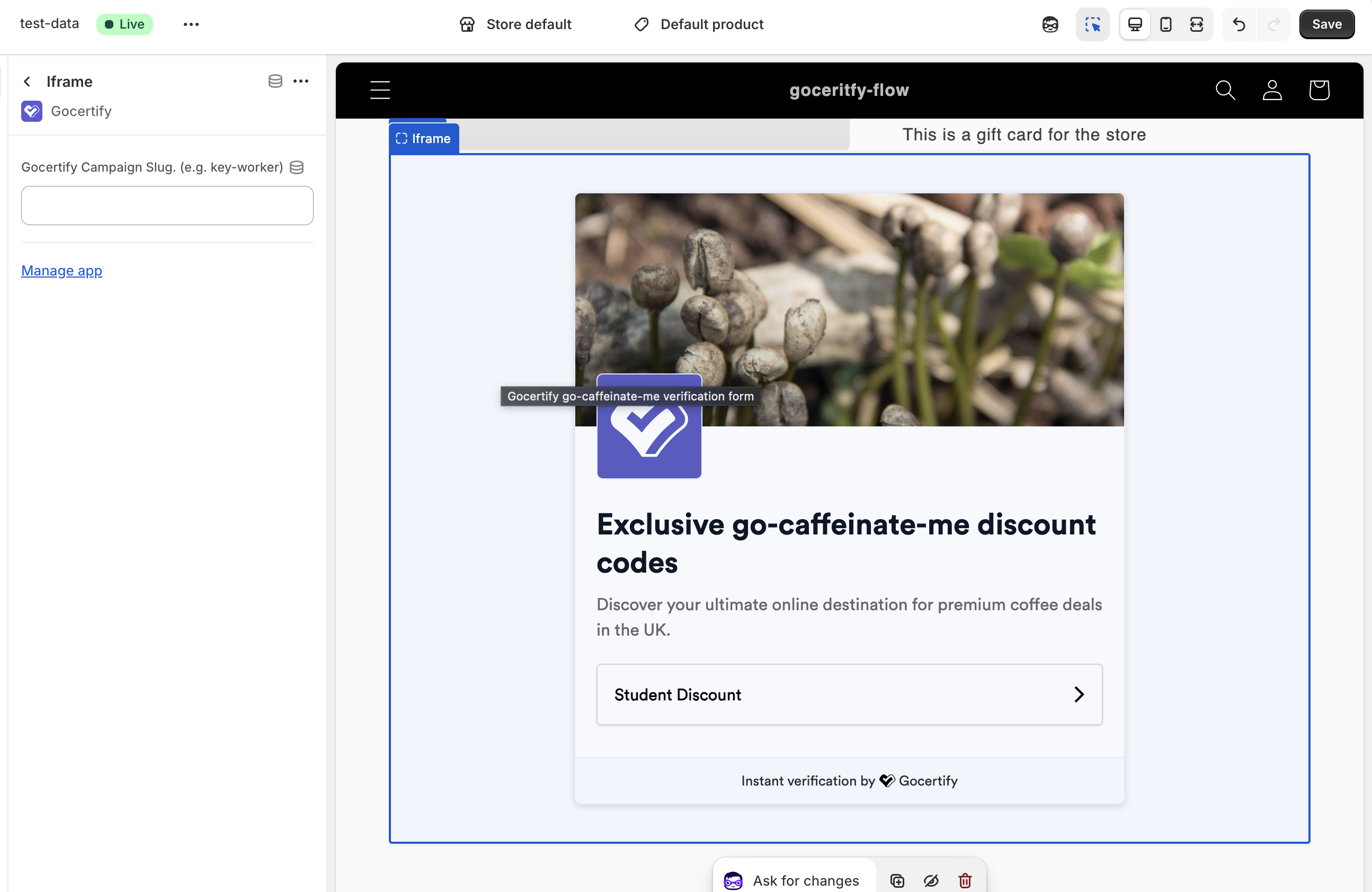
The iFrame block adds a Gocertify landing page to your site. By default, it displays your brand page, but you can specify a campaign slug to show a specific campaign’s landing page.This is useful if you want different landing pages for different audiences. For example, you could create separate pages for your student discounts and key-worker offers.
Optionally specify a campaign slug to display a specific landing page
Once your offers are live, you can track the orders they drive without adding any code to
your site. Two ready-made Shopify Flow workflows send order and refund data straight to
Gocertify — see Shopify Flow tracking.