

[Gocertify] Consent given with details about the verification. When the shopper claims an offer, another custom event is triggered with campaign and offer details.
With this data, you can create segments based on verified communities and trigger automations from Gocertify events.
Requirements to go live
To connect Braze with Gocertify, you’ll need the following from your Braze account:- API Key with permissions to create users and track events
- REST API Endpoint (e.g.,
https://rest.iad-01.braze.com) - Email Subscription Group ID (required if capturing email)
- SMS Subscription Group ID (required if capturing SMS)
See step by step tutorial
See step by step tutorial
1
Create a new API Key
Sign into Braze and navigate to Settings > API Keys.Click Create New API Key and give it a descriptive name like “Gocertify Integration”.
2
Set API Key permissions
Enable the 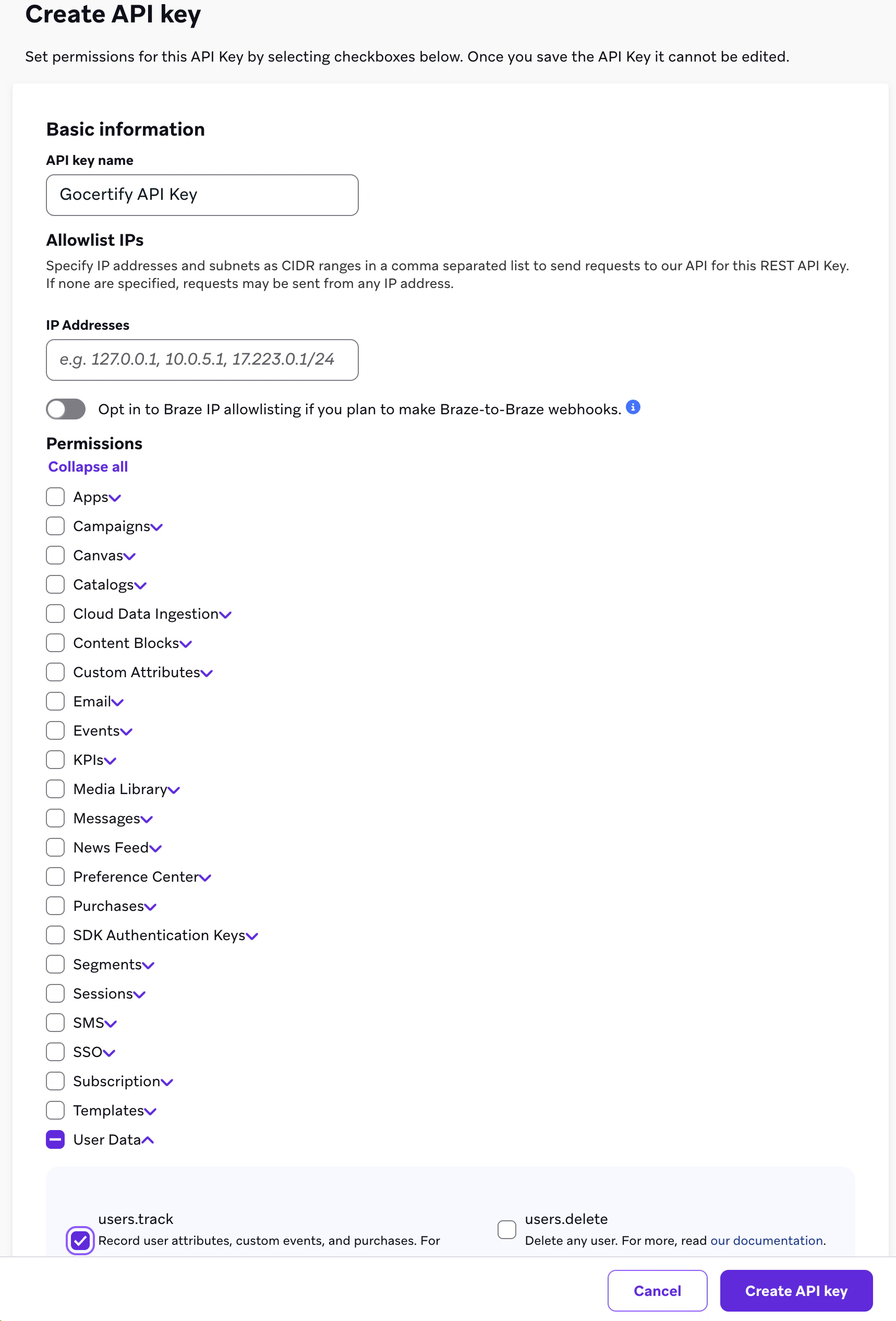
users.track permission for the API key. This is the only permission required and allows Gocertify to create and update user profiles and track events.Save the API key and copy it securely.3
Find your REST API Endpoint
Your REST API Endpoint depends on which Braze instance you’re provisioned on.You can find this in your Braze dashboard URL or in the Braze documentation.Common endpoints include:
https://rest.iad-01.braze.com(US-01)https://rest.iad-02.braze.com(US-02)https://rest.iad-03.braze.com(US-03)https://rest.eu-01.braze.eu(EU-01)
4
Get your Subscription Group IDs
Navigate to Audience > Subscriptions > Subscription Groups.Find your Email and/or SMS subscription groups and copy their IDs. You’ll need at least one subscription group ID (email or SMS) to complete the setup.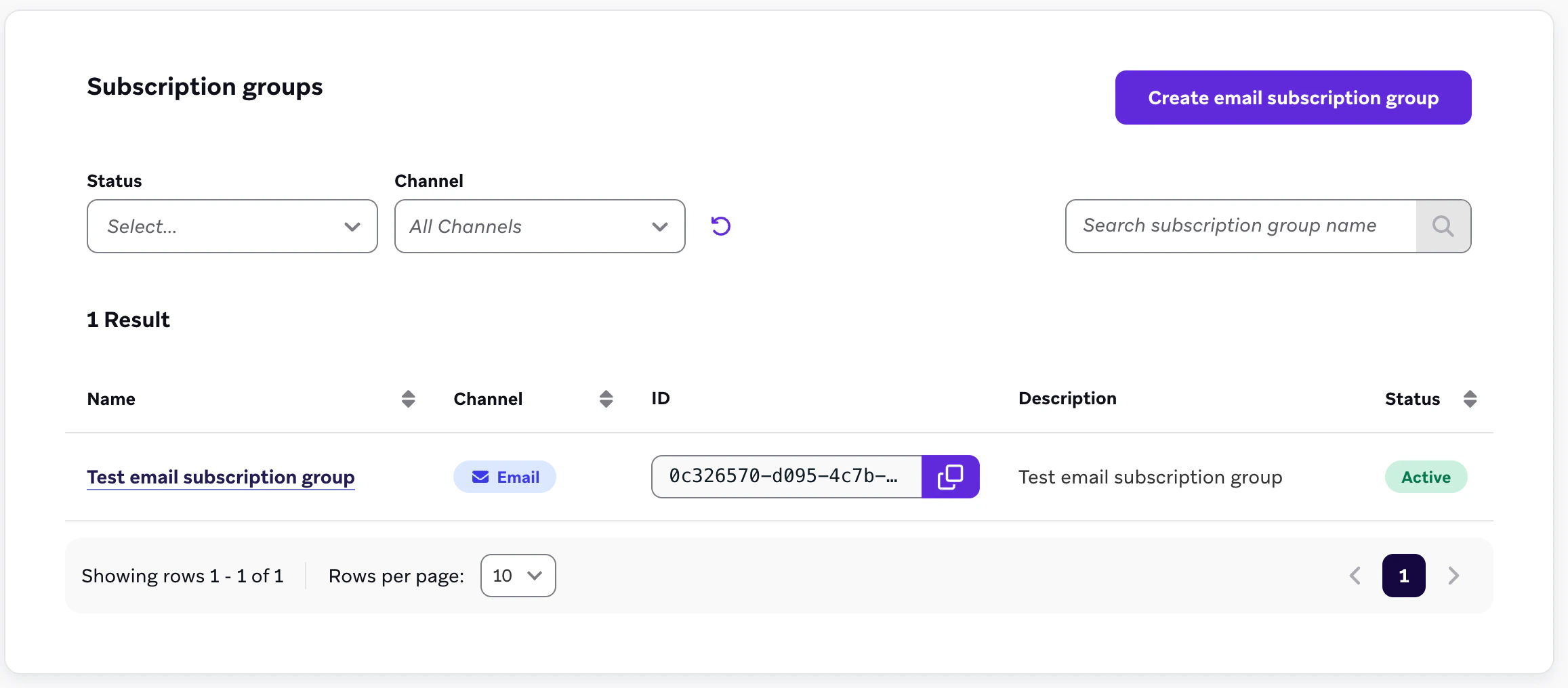
5
Share the credentials with Gocertify
Go to onetimesecret.com and paste the credentials there, in the format below. Even if it’s not required, we encourage you to also add a random “Passphrase”. This will generate a secret link that will expire within 7 days and will be visible only once. Once done, share this link with your Customer Success Manager at Gocertify.
Credentials placeholder
How data will appear in Braze
Once a shopper shares their information with your brand, Gocertify will create or update their user profile in Braze with the email address and/or phone number they provided. The shopper will be automatically subscribed to your configured subscription groups based on which identifiers they shared:- If they shared their email, they’ll be subscribed to your Email Subscription Group
- If they shared their phone number, they’ll be subscribed to your SMS Subscription Group
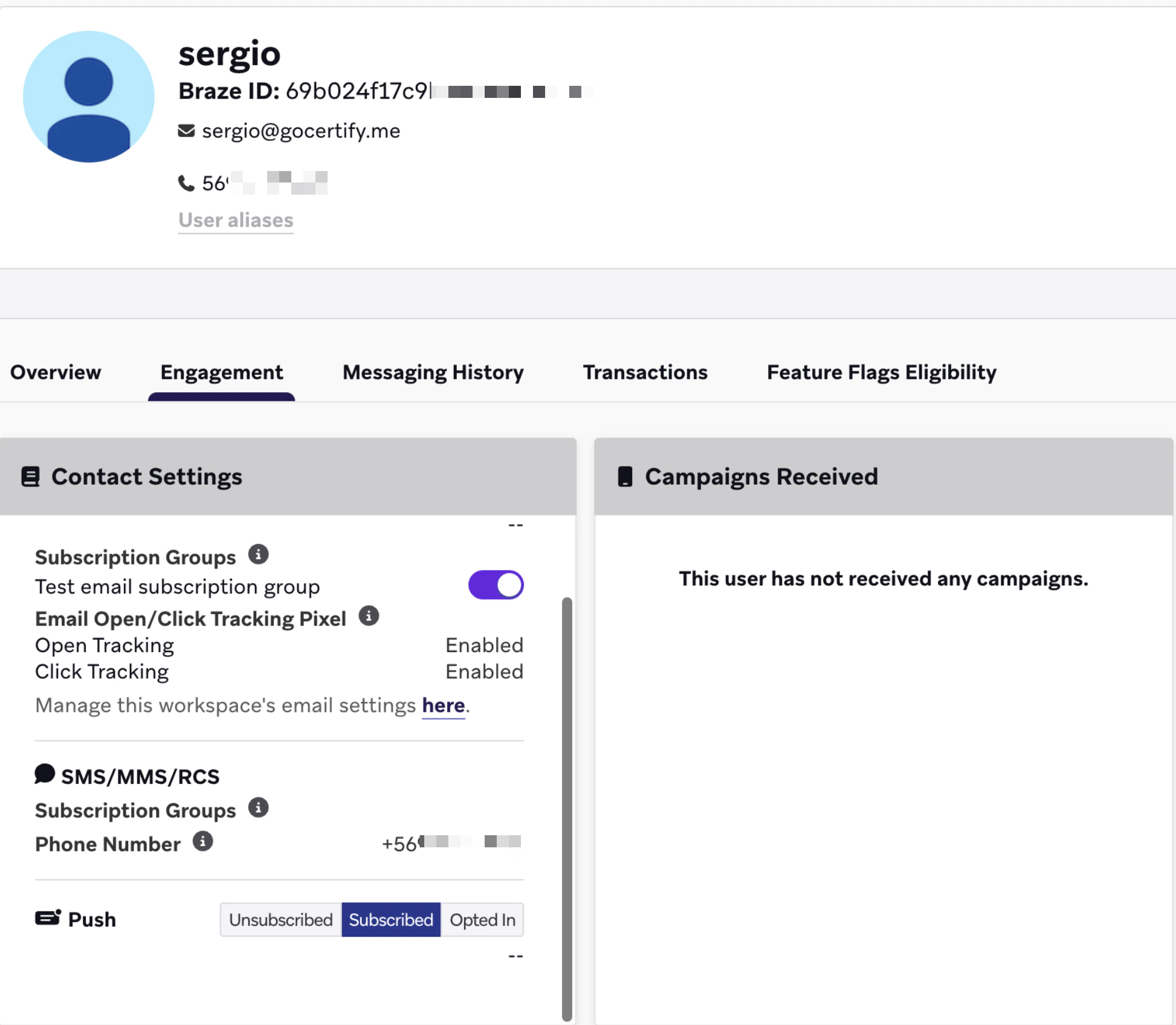
Example shopper profile in Braze showing subscription group membership
Events tracked
Gocertify sends two types of custom events to Braze:Consent Event
When a shopper shares their details and gives consent, Gocertify fires the
[Gocertify] Consent given event with properties about the verification type and campaign.Offer Claimed Event
When a shopper claims an offer after verification, Gocertify fires an event with the campaign and offer details.
How to create segments in Braze
You can create segments in Braze based on the custom events sent by Gocertify. Navigate to Audience > Segments and create a new segment. Use the Custom Event filter to target users who have triggered Gocertify events. Example segments you can create:- All verified shoppers - Users who have triggered
[Gocertify] Consent givenat least once - Students - Filter by
group_parent= “Student” in the consent event properties - Key Workers - Filter by
group_parent= “Key Worker” in the consent event properties - Recent offer claimers - Users who triggered a
[Gocertify] Verified as {group}event (e.g.,[Gocertify] Verified as Student,[Gocertify] Verified as NHS) in the last 30 days