

Requirements to go live
In order to go live with Klaviyo, we will need the following:- Private Klaviyo API Key
- Main Klaviyo lists for Email and SMS
Share Private Klaviyo API Key
Please share a Private Klaviyo API Key must be generated and provided to the Gocertify team. See here how to generate one. This API Key must be a “Custom” one, giving “Full Access” to Events, List, Profiles and Subscriptions, as shown here.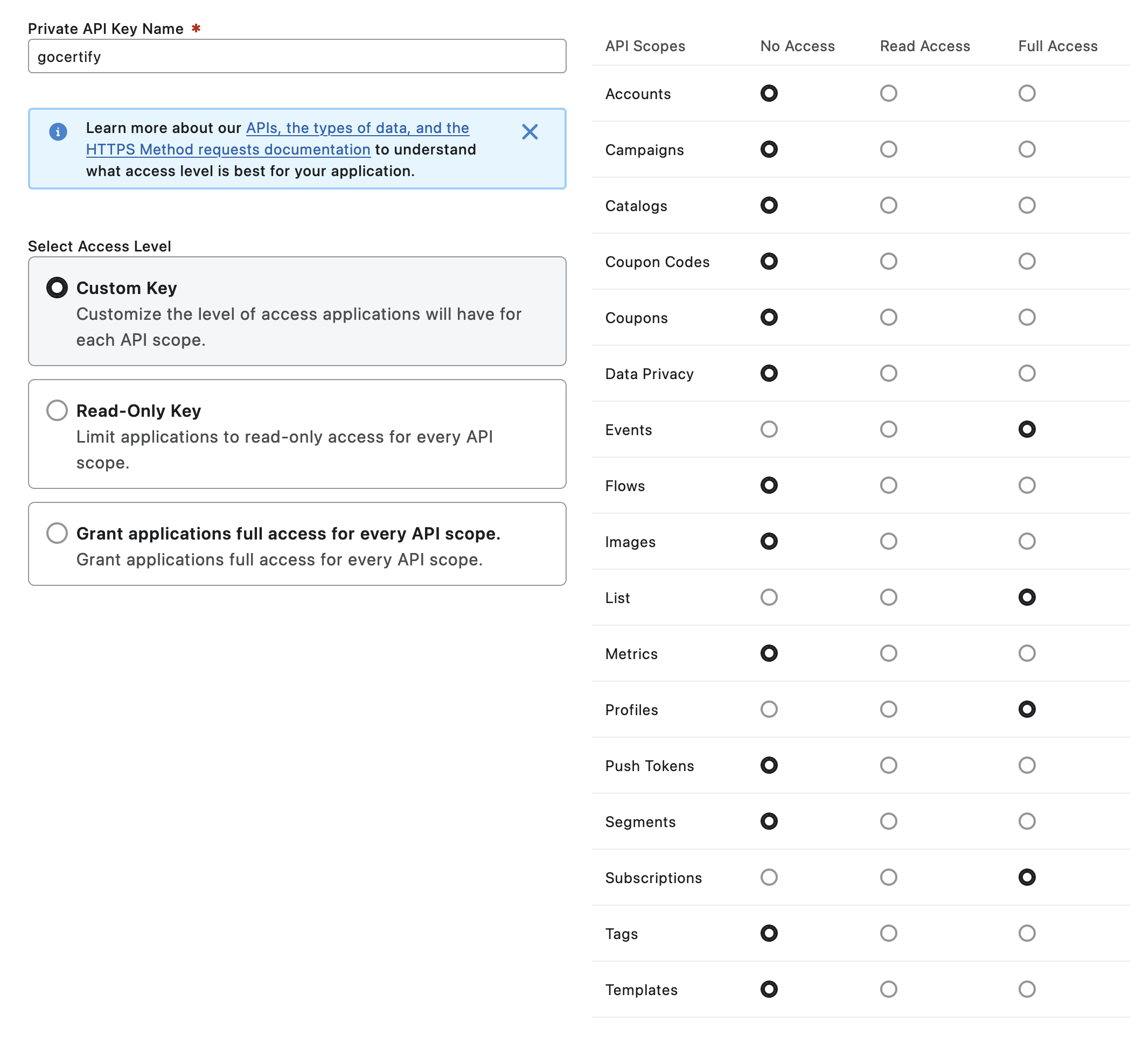
Klaviyo API Key Permissions
Share Main Klaviyo list names
Please share the names of your main Klaviyo lists (which have marketing consent) for:- SMS
How data will appear in Klaviyo
First Gocertify will send the shopper’s data to Klaviyo as a Profile. Within both verification and standard offers the profile will be subscribed to Email and/or SMS marketing.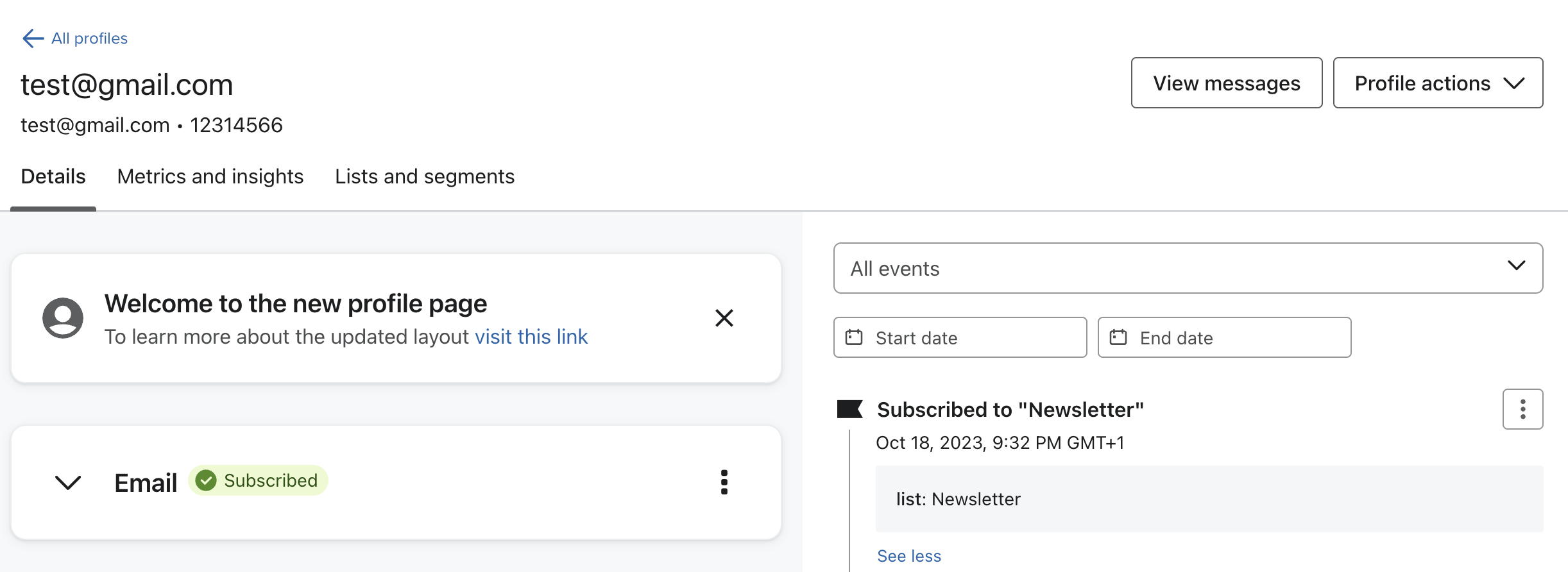
With verification-based offers e.g. students/key workers. Events will then be logged on a profile level for “Verified as 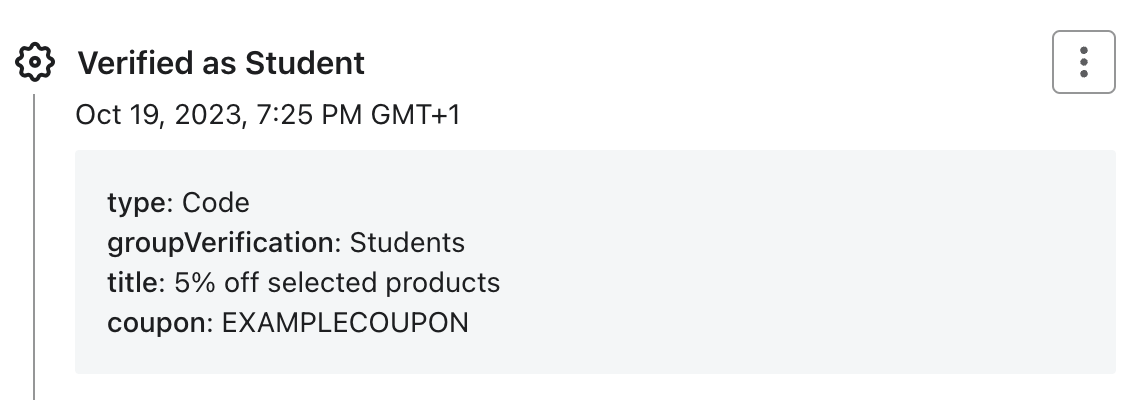
group”With standard offers e.g. discounts. Events will then be logged on a profile level for “Offer claimed”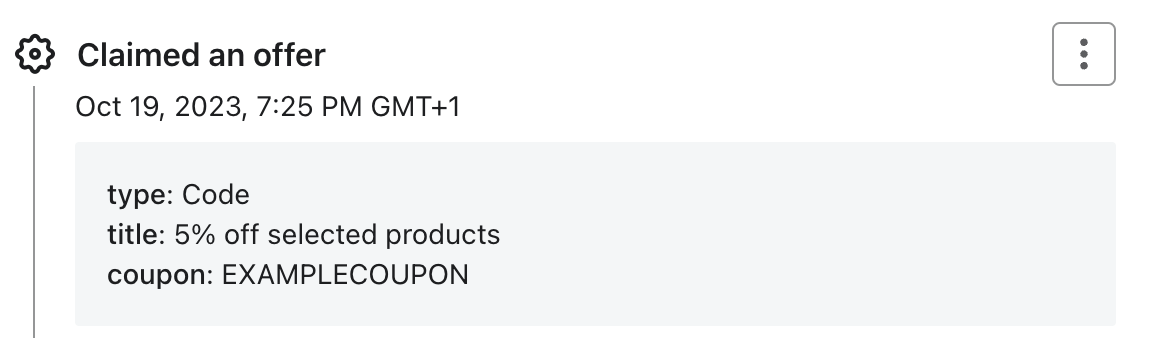
How to create segments in Klaviyo
You can build segments based on the “verified as …” event for each group you’d like to verify. If you’d like a key worker group, you can use OR statements to create a wider group of many occupations.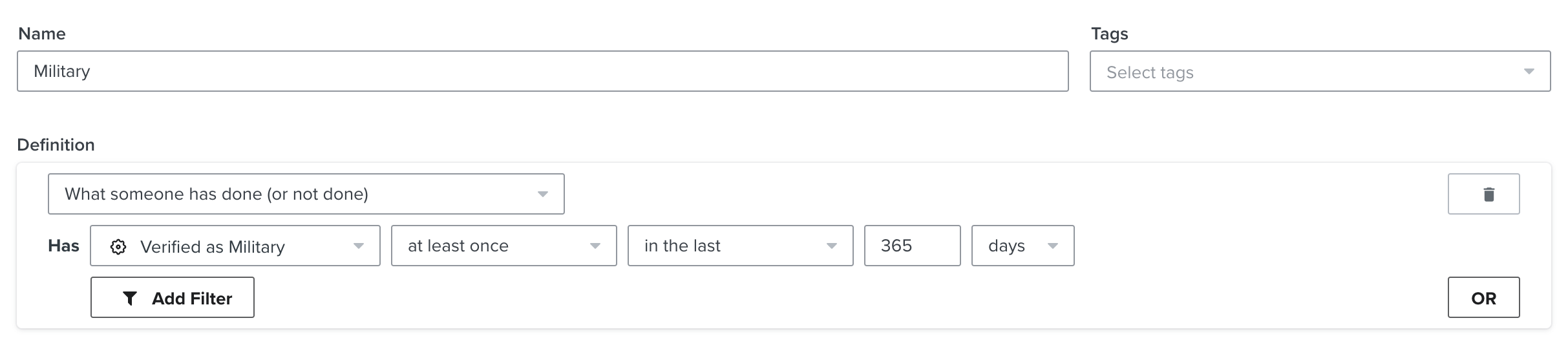
How to add coupon codes in Klaviyo email flows
Klaviyo supports unique coupon codes that can be dynamically inserted into your email flows. This is useful when you want to send personalised discount codes to verified shoppers.How unique coupons work
When you create a unique coupon in Klaviyo, each subscriber receives their own individual code. Here’s how it works:1
Create unique coupon
In Klaviyo, create a unique coupon with a name like
WELCOME252
Shopper signs up
When a user submits their email on your form, Klaviyo assigns them a unique code (e.g.,
WELCOME_XGHTSAK)3
Email flow triggered
Your welcome flow email contains the placeholder:
{% coupon_code 'WELCOME25' %}4
Shopper receives email
The placeholder is replaced with their unique code:
WELCOME_XGHTSAKAdding the coupon code to your email
In your Klaviyo email template, use the following snippet where you want the unique code to appear:WELCOME25, your email template would include:
WELCOME_XGHTSAK) in place of the placeholder.