> ## Documentation Index
> Fetch the complete documentation index at: https://docs.gocertify.me/llms.txt
> Use this file to discover all available pages before exploring further.
# Yotpo
> Start building loyal communities with targeted, gated offers
With Gocertify's Yotpo Integration you can reward your users with points when they verify as a member of a target group (Students, Key Workers, etc).
When you connect your Gocertify campaigns to your Yotpo account, we can communicate directly with Yotpo and trigger "Custom Actions" that award points to verified users automatically.
## How It Works
1. Add a link to your Gocertify campaign on your user's account dashboard with a CTA like "Earn XX extra points by verifying as a Student"
2. When users click the link, they're directed to the Gocertify verification flow
3. During verification, Gocertify collects the user's email address
4. Upon successful verification, Gocertify triggers a Custom Action in Yotpo that adds points to the user's account
## Requirements to go live
You'll need to create a separate "Earning Rule" (of type "Custom Action") in Yotpo for each Gocertify campaign. Each Earning Rule connects to a specific campaign through its "Action Name".
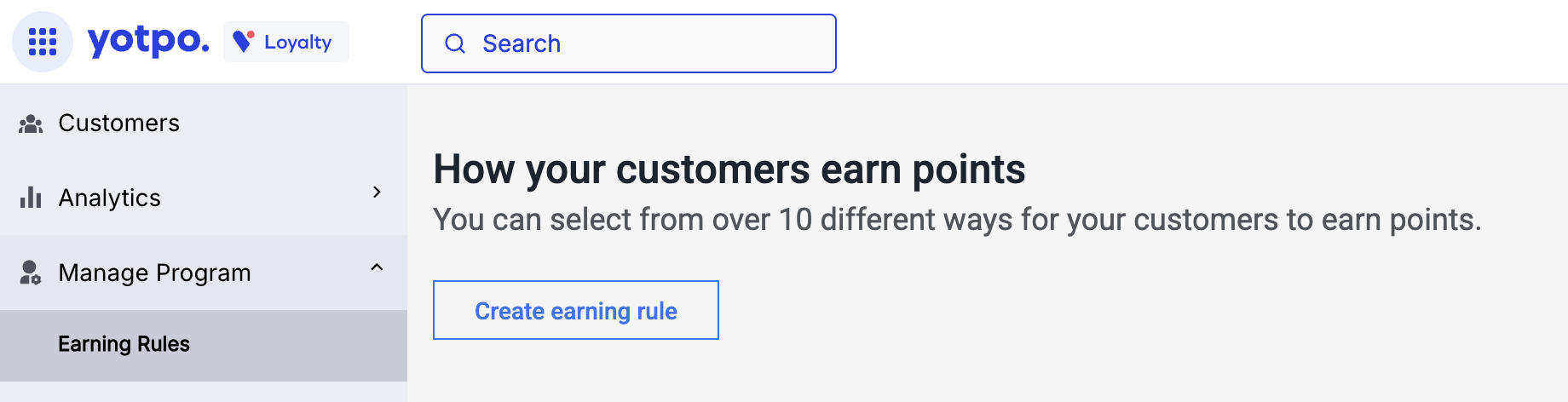
Sign in to your [Yotpo](https://loyalty-app.yotpo.com/) account and go to the "Earning Rules" section, located in the left sidebar, under "Manage Program".
Once there, click on the "Create Earning Rule" button.
 Scroll down to the bottom of the page and select "Custom Action"
Start by setting the "Action Name" to the name of the campaign you want to connect to this Earning Rule. This name must start with `gocertify-` and then the internal name of the campaign (that your CSM will provide), for example `gocertify-students`.
Scroll down to the bottom of the page and select "Custom Action"
Start by setting the "Action Name" to the name of the campaign you want to connect to this Earning Rule. This name must start with `gocertify-` and then the internal name of the campaign (that your CSM will provide), for example `gocertify-students`.
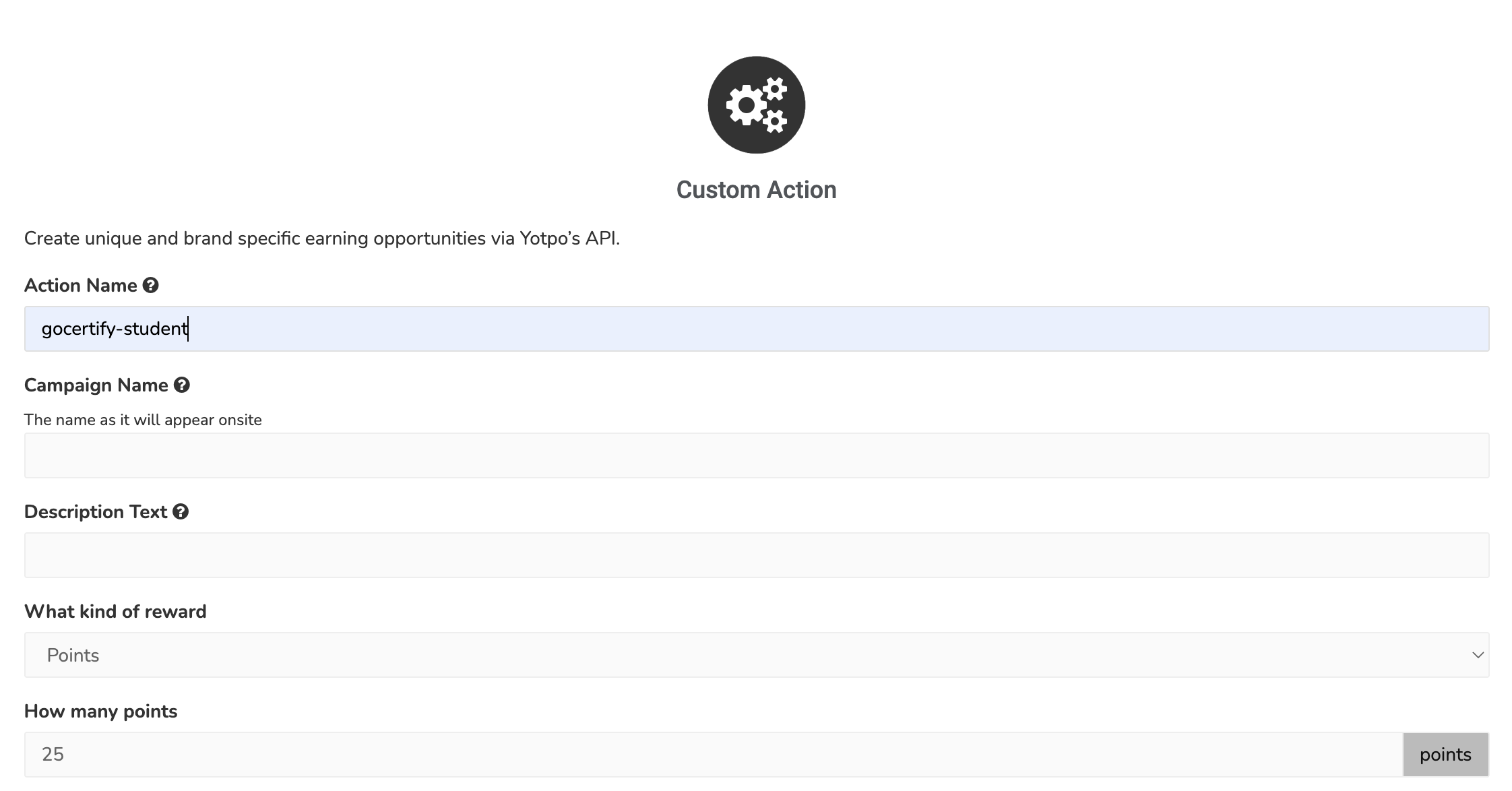 Set the "How many points" value to the number of points you want to reward for this campaign.
Make sure you set the "Maximum Times Completed Total" field to "No maximum".
Repeat this process for each campaign you want to connect to Yotpo (Students, Key Workers, etc). Your CSM will provide the exact Action Name for each campaign.
In the left side menu, go to "Settings" and then "General Settings".
You will find many fields there. You will need to share 2 of them:
* API Key
* GUID
Please share those values with your Gocertify account manager, using [OneTimeSecret](https://onetimesecret.com/) to avoid exposing it in the chat.
## How data will appear in Yotpo
After successful verification, you'll see the points awarded in the customer's "Earning History" section:
Set the "How many points" value to the number of points you want to reward for this campaign.
Make sure you set the "Maximum Times Completed Total" field to "No maximum".
Repeat this process for each campaign you want to connect to Yotpo (Students, Key Workers, etc). Your CSM will provide the exact Action Name for each campaign.
In the left side menu, go to "Settings" and then "General Settings".
You will find many fields there. You will need to share 2 of them:
* API Key
* GUID
Please share those values with your Gocertify account manager, using [OneTimeSecret](https://onetimesecret.com/) to avoid exposing it in the chat.
## How data will appear in Yotpo
After successful verification, you'll see the points awarded in the customer's "Earning History" section:
 The user must use the same email address for Gocertify verification that they use in your store/portal. Otherwise, Yotpo will create a separate customer record instead of adding points to their existing account.