> ## Documentation Index
> Fetch the complete documentation index at: https://docs.gocertify.me/llms.txt
> Use this file to discover all available pages before exploring further.
# Shopify Integration
> Start building loyal communities with targeted, gated offers.
Gocertify has a native integration with Shopify. This allows you to easily promote Gocertify offers across your Shopify site. To install your Shopify app follow the Shopify specific instructions in [Integrate on Site](/section/gettingStarted/integrateOnSite#shopify). We also can connect directly to your [Shopify discounts](/section/buildRewardFlows/discounts#integrating-with-shopify) to create unique codes for each shopper.
## Adding Gocertify Blocks
Once installed you will be able to add Gocertify blocks in your Shopify theme editor. To add a block, switch to the **Apps** tab and select from the available Gocertify blocks.
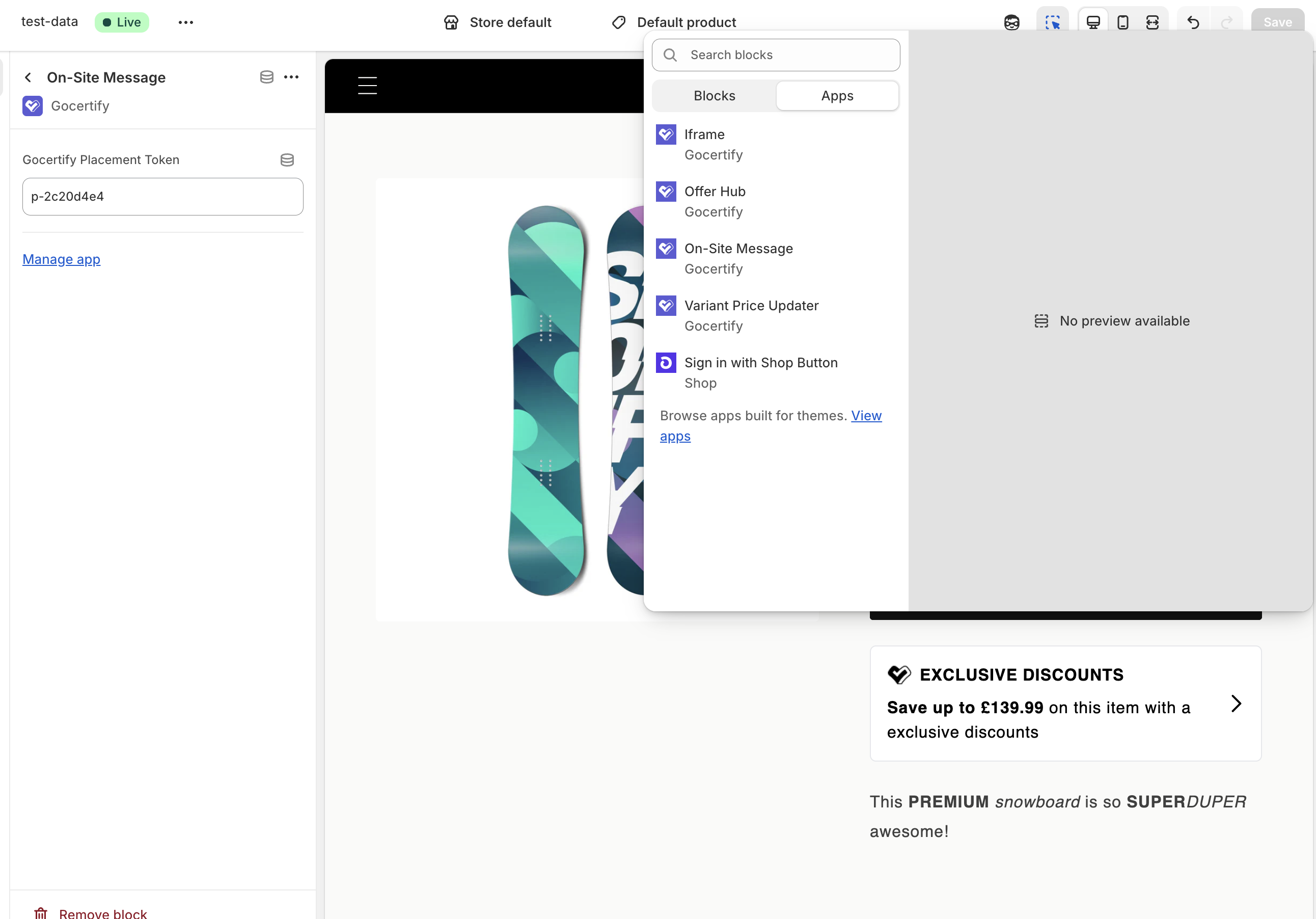 ### On-Site Message
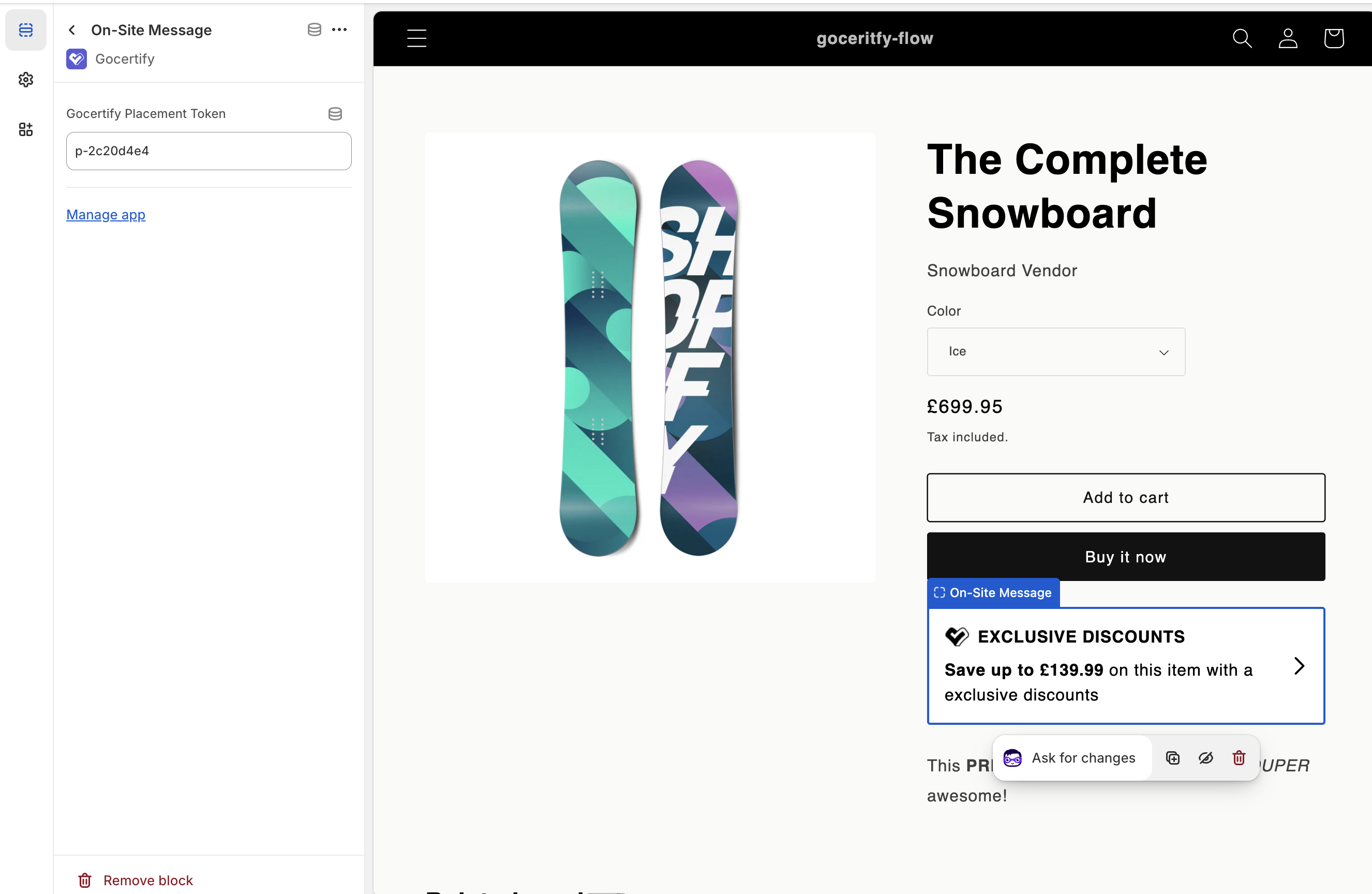
The **On-Site Message** block lets you add targeted promotional messages anywhere on your site. Use this to display exclusive offers to eligible shoppers on product pages, collection pages, or anywhere else in your store.
To link the block to a specific on-site message, enter the **Placement ID** from your Gocertify dashboard (found under the On-Site Messaging tab).
### On-Site Message
The **On-Site Message** block lets you add targeted promotional messages anywhere on your site. Use this to display exclusive offers to eligible shoppers on product pages, collection pages, or anywhere else in your store.
To link the block to a specific on-site message, enter the **Placement ID** from your Gocertify dashboard (found under the On-Site Messaging tab).
 Other types of on-site messages (floating button, sticky bar, etc.) can be enabled directly from the Gocertify dashboard without adding any blocks.
### Checkout On-Site Message
The **Checkout On-Site Message** block displays promotional messages directly on your checkout page, allowing you to promote offers at the point of purchase.
In your Shopify admin, go to **Online Store > Themes**.
Other types of on-site messages (floating button, sticky bar, etc.) can be enabled directly from the Gocertify dashboard without adding any blocks.
### Checkout On-Site Message
The **Checkout On-Site Message** block displays promotional messages directly on your checkout page, allowing you to promote offers at the point of purchase.
In your Shopify admin, go to **Online Store > Themes**.
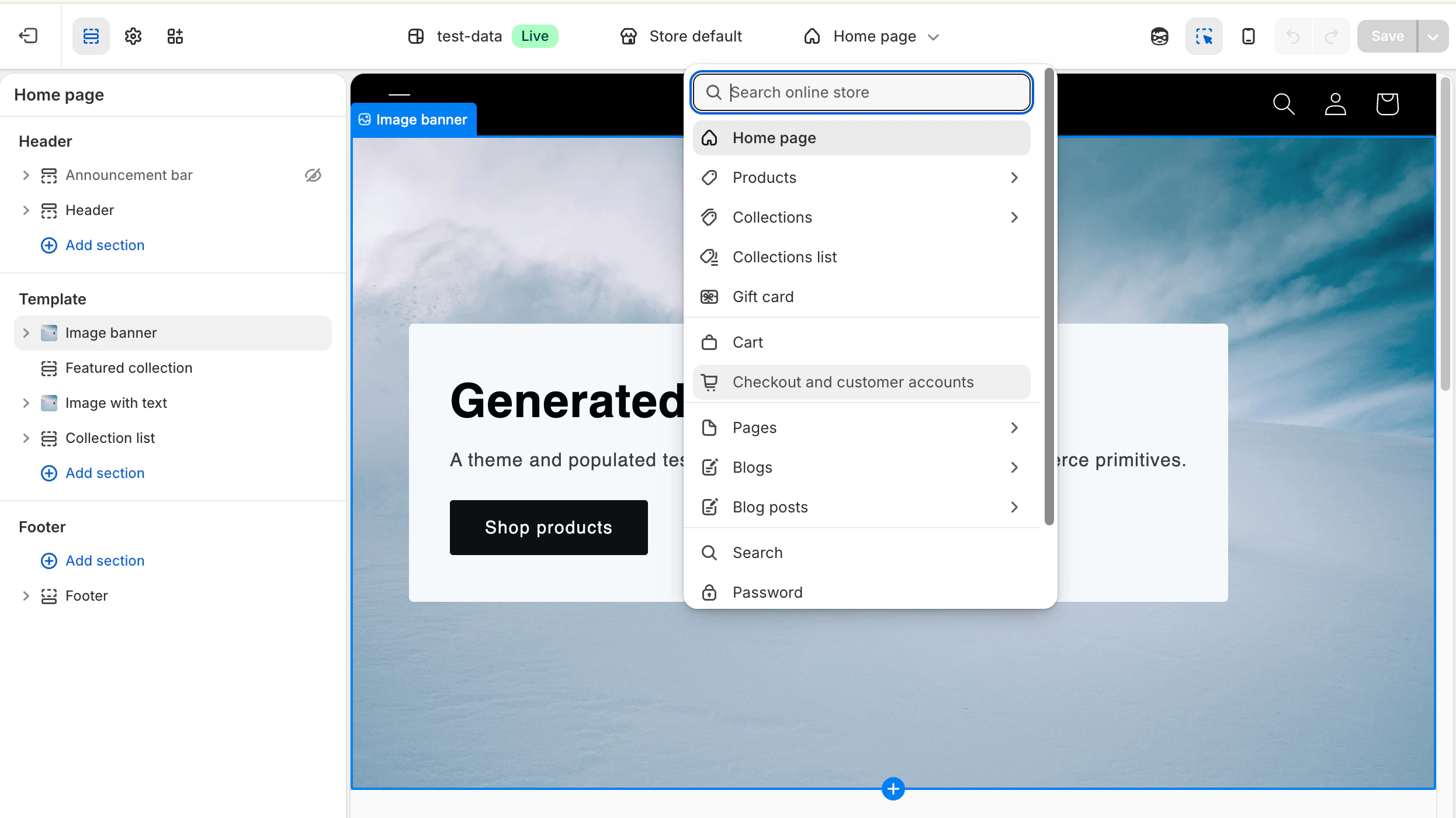
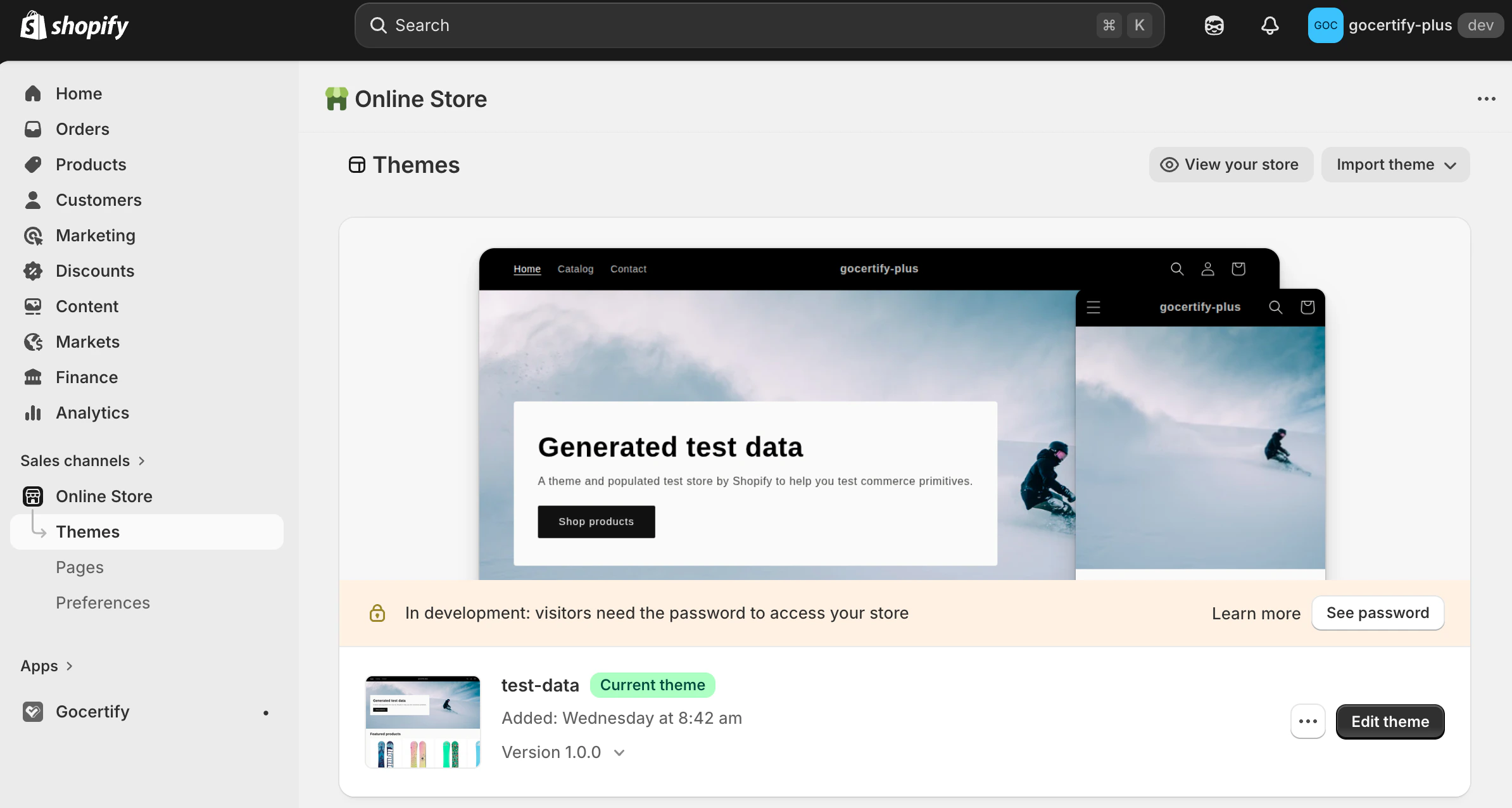 Click **Customize**, then use the page selector dropdown and choose **Checkout and customer accounts**.
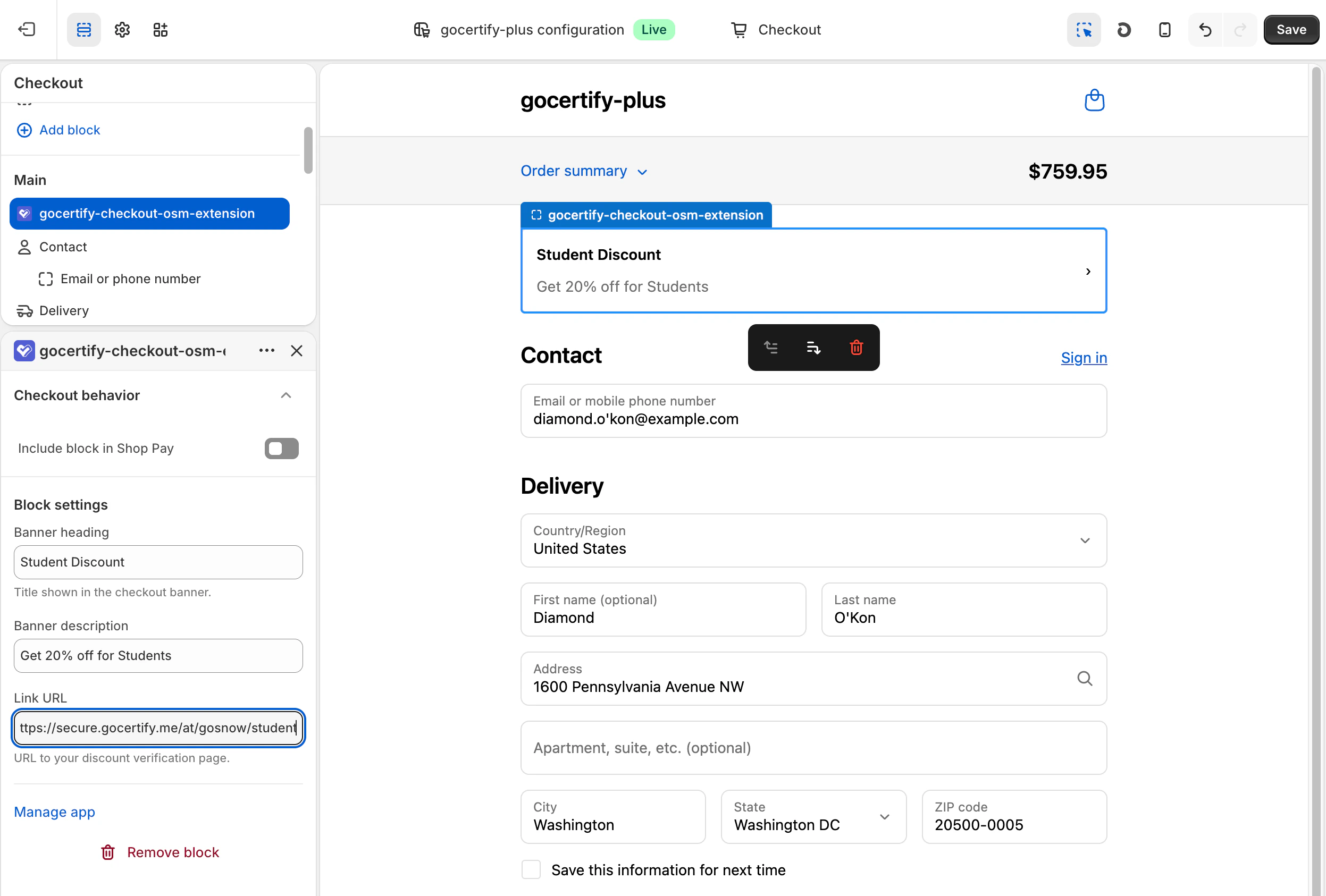
 In the checkout editor, add the **gocertify-checkout-osm-extension** block and configure:
* **Banner heading**: The title shown in the checkout banner (e.g. "Student Discount")
* **Banner description**: The offer description (e.g. "Get 20% off for Students")
* **Link URL**: URL to your hosted Gocertify page for that campaign
In the checkout editor, add the **gocertify-checkout-osm-extension** block and configure:
* **Banner heading**: The title shown in the checkout banner (e.g. "Student Discount")
* **Banner description**: The offer description (e.g. "Get 20% off for Students")
* **Link URL**: URL to your hosted Gocertify page for that campaign
 ### OfferHub
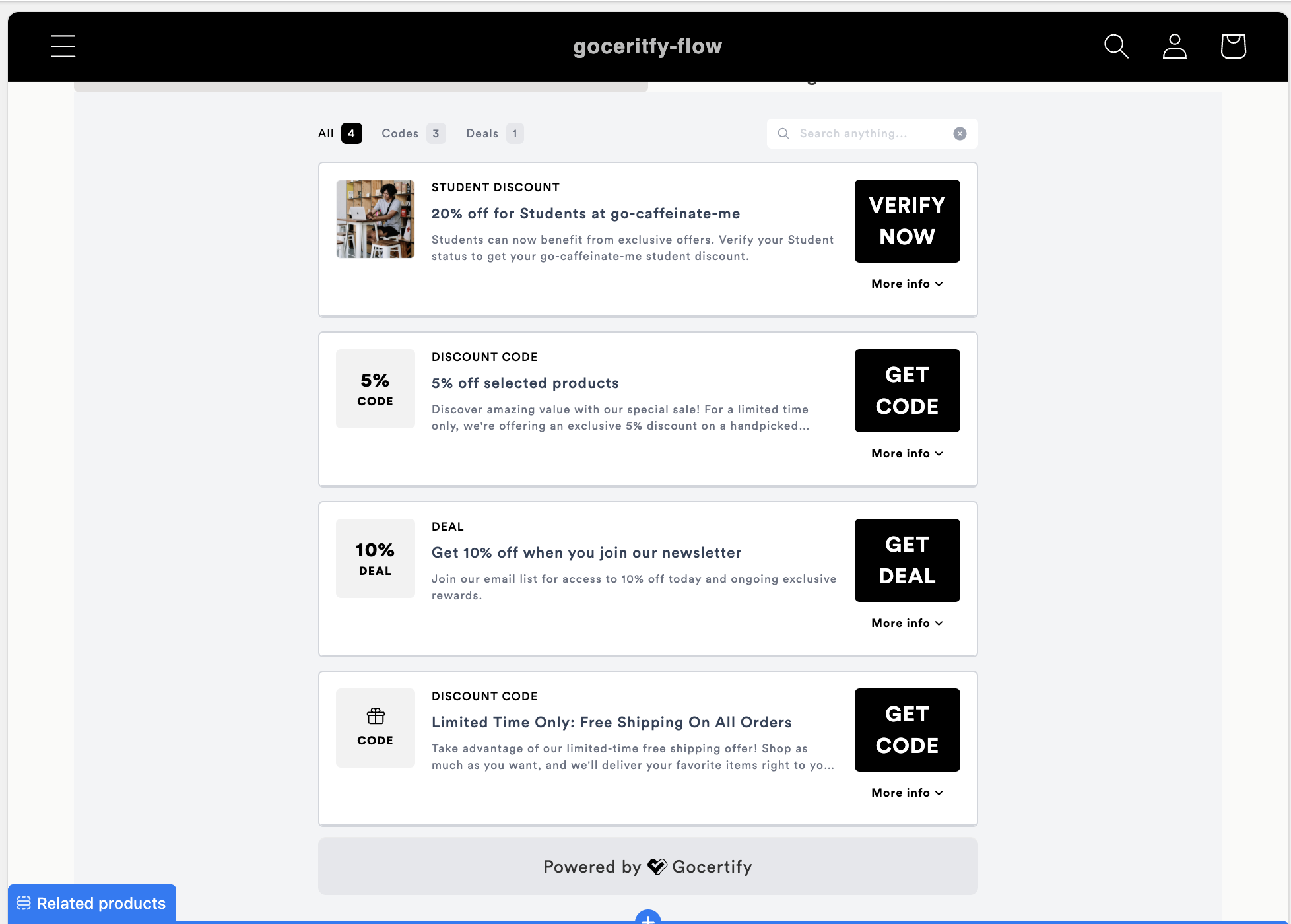
The **OfferHub** block embeds your OfferHub directly into any page. Simply add the block and it will automatically display all your available offers. No additional configuration required.
### OfferHub
The **OfferHub** block embeds your OfferHub directly into any page. Simply add the block and it will automatically display all your available offers. No additional configuration required.
 ### iFrame
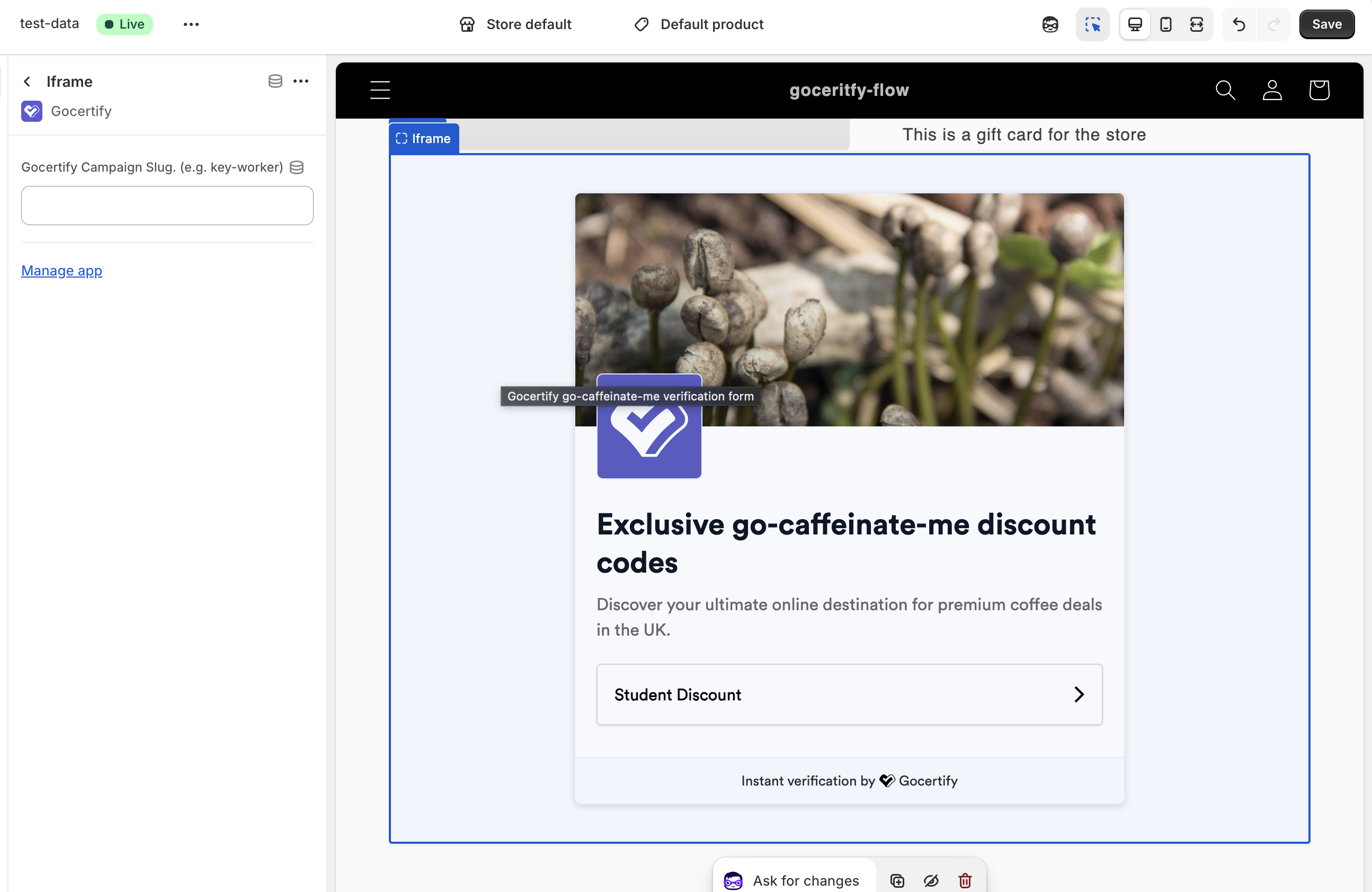
The **iFrame** block adds a Gocertify landing page to your site. By default, it displays your brand page, but you can specify a **campaign slug** to show a specific campaign's landing page.
This is useful if you want different landing pages for different audiences. For example, you could create separate pages for your `student` discounts and `key-worker` offers.
### iFrame
The **iFrame** block adds a Gocertify landing page to your site. By default, it displays your brand page, but you can specify a **campaign slug** to show a specific campaign's landing page.
This is useful if you want different landing pages for different audiences. For example, you could create separate pages for your `student` discounts and `key-worker` offers.
 ### Variant Price Updater
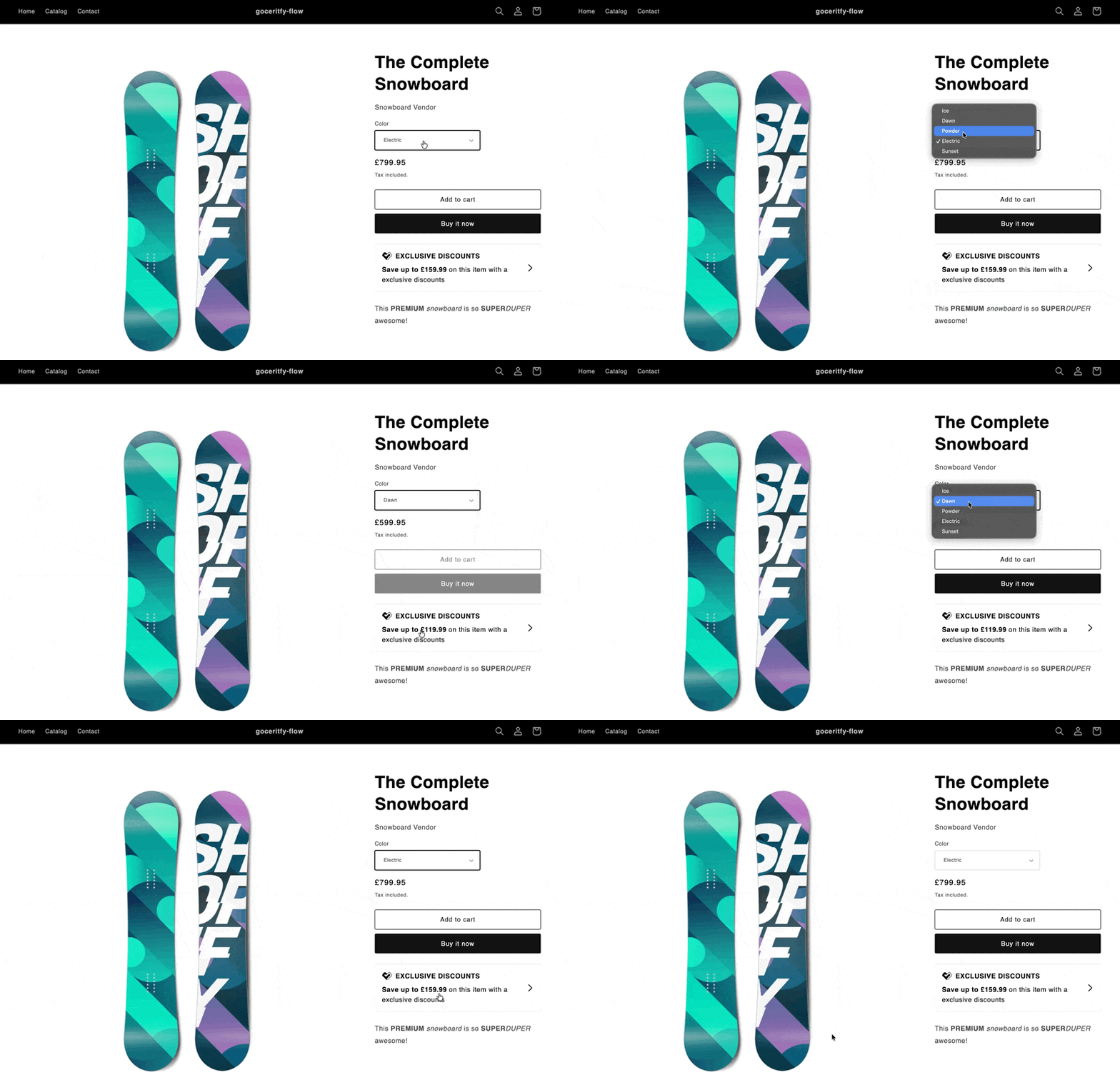
The **Variant Price Updater** block keeps on-site messages accurate on product pages with multiple variants. When a shopper selects a different size or colour, the savings amount automatically updates to reflect the new price.
Add this block to your product page template. It's invisible to shoppers and works automatically so the position doesn't matter.
### Variant Price Updater
The **Variant Price Updater** block keeps on-site messages accurate on product pages with multiple variants. When a shopper selects a different size or colour, the savings amount automatically updates to reflect the new price.
Add this block to your product page template. It's invisible to shoppers and works automatically so the position doesn't matter.