> ## Documentation Index
> Fetch the complete documentation index at: https://docs.gocertify.me/llms.txt
> Use this file to discover all available pages before exploring further.
# Visibility toolkit
> Start building loyal communities with targeted, gated offers.
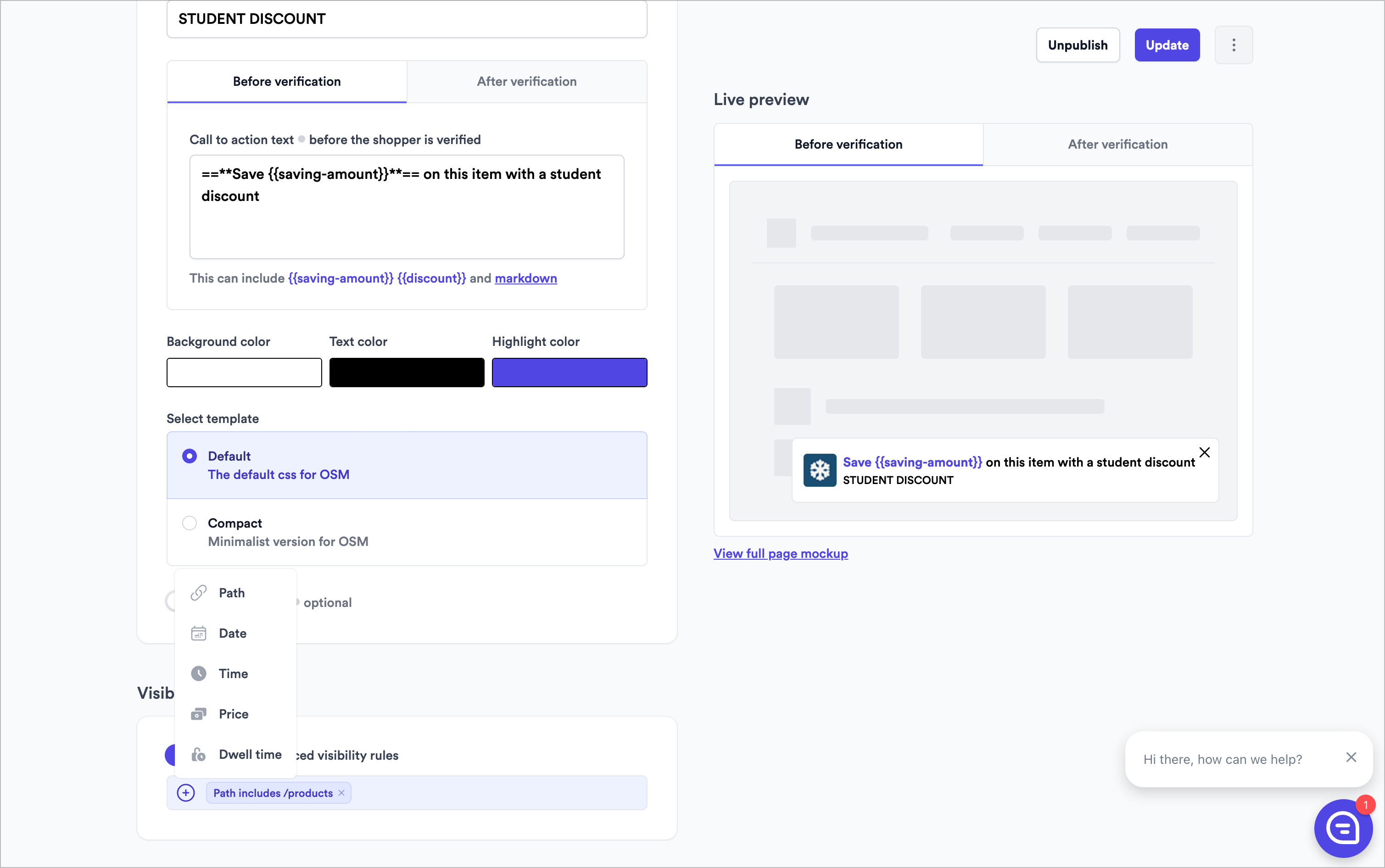
The OSM visibility toolkit lets you control exactly when and where your offers are displayed to shoppers. There are six fundamental types of visibility rules.
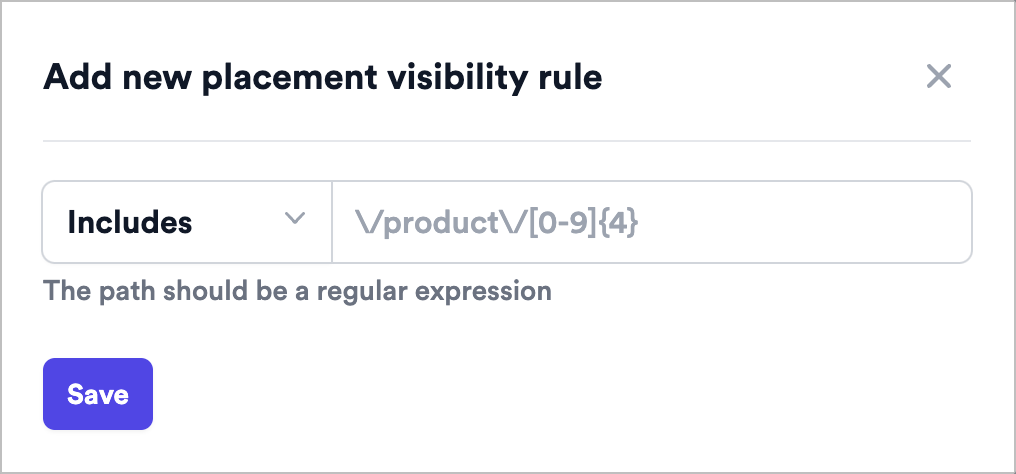
Input plain text to match the path ([https://secure.gocertify.me/](https://secure.gocertify.me/) `this/is/the/path`) you want to show/hide the OSM. Use regex for more complex rules. If you add multiple paths
within one rule, the offer will be displayed if the shopper navigates to any of the paths (i.e path1 OR path2).
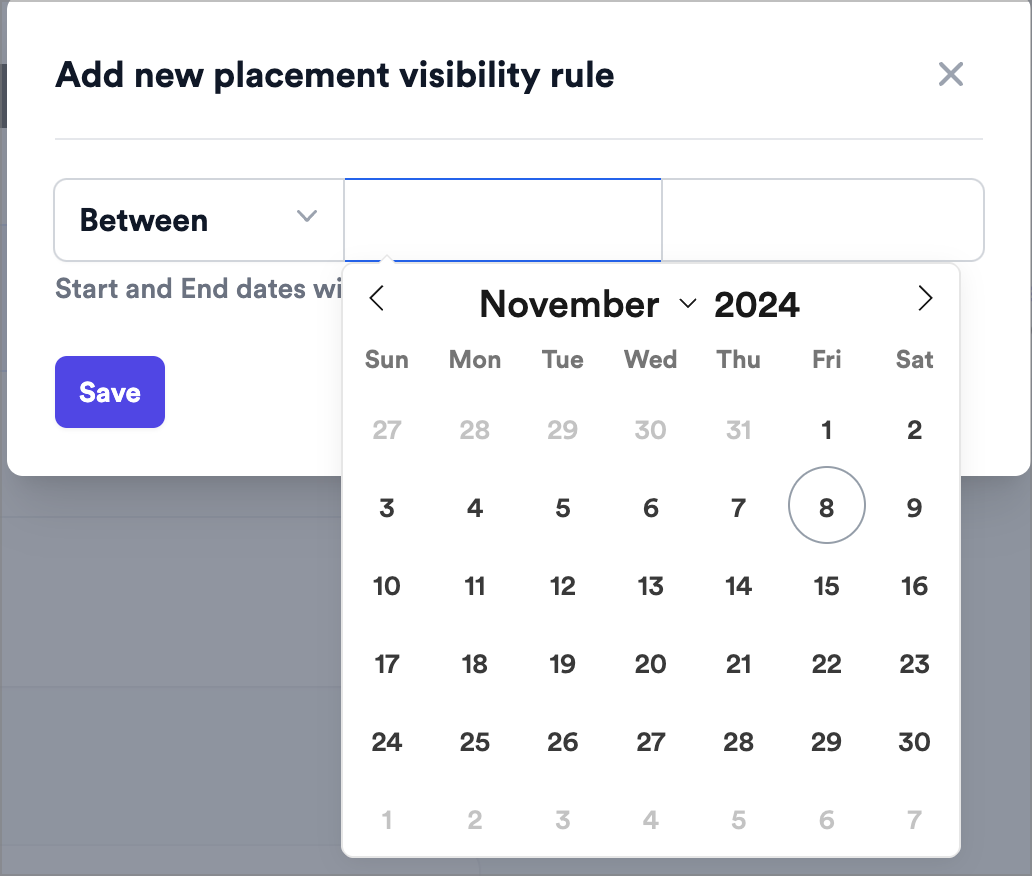
 Select a start and end date for when the offer should be displayed.
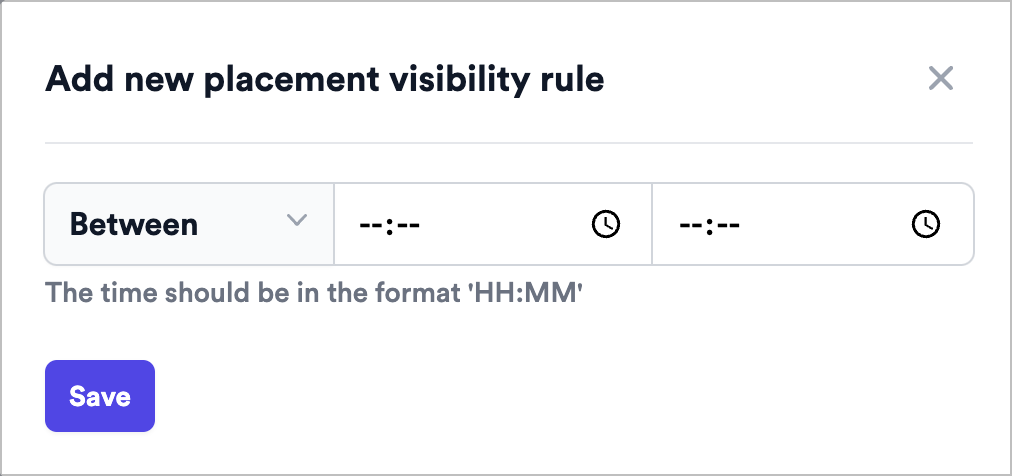
 Select a start and end time for when the offer should be displayed. This will be recurring on every day of the week.
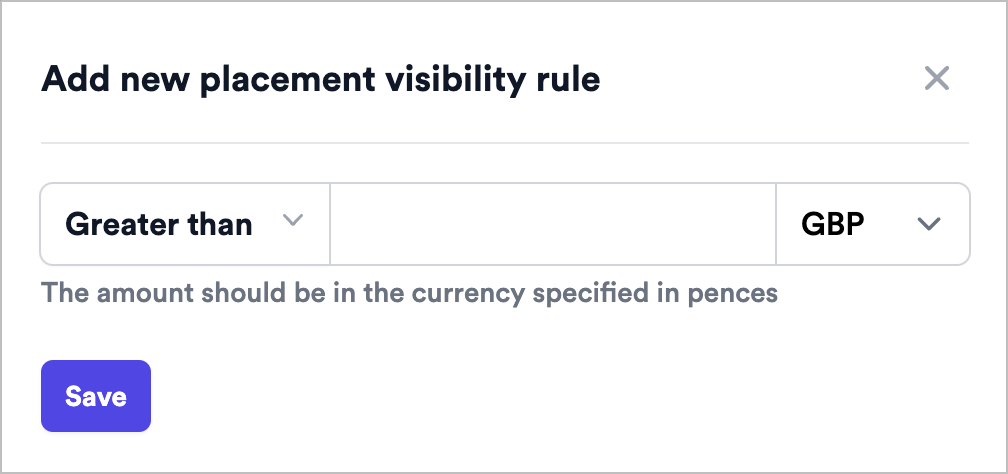
 Select a minimum/maximum/exact price for when the offer should be displayed.
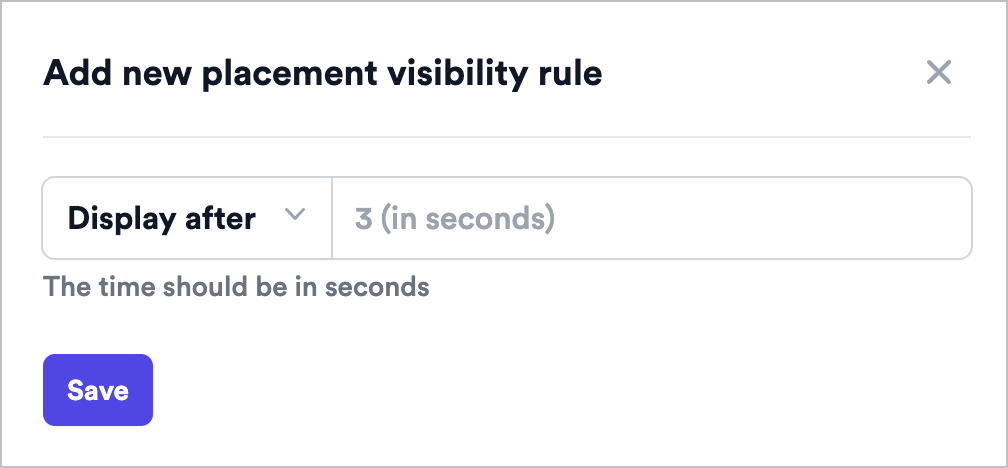
 Display the offer based on how long the shopper has spent on the page.
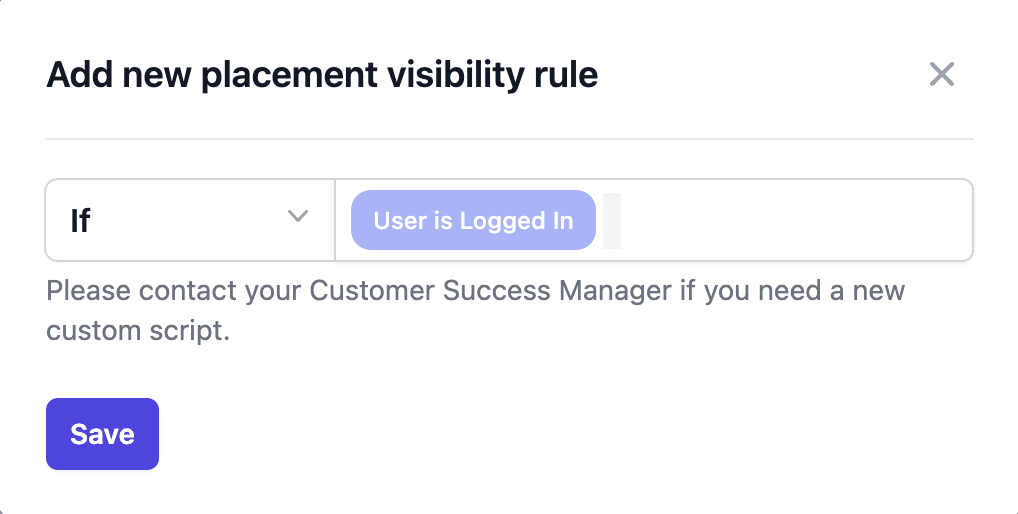
 Display this placement based on data from your DataLayer or any other source that can be accessed via JavaScript.
 ## Popular Visibility Rule Use Cases
You can add up to 30 rules to a placement to combine these rules to match your campaign objectives. All rules need to be met for the offer to be displayed.
## Popular Visibility Rule Use Cases
You can add up to 30 rules to a placement to combine these rules to match your campaign objectives. All rules need to be met for the offer to be displayed.
 Set a path rule for `path` `contains` `?my_oms_test=true`. Manually add this query to the end of the URL in staging
Create a path rule for `path` `contains` `category/product`. Placement will only show when for items within that category.
Create a path rule for `path` `does not contain` `sale` or `discount`.
Alternatively leverage the CSS selector to anchor inline placements to an element that only shows on non-sale products.
Reach out to your account manager to enable this feature. Placement will only show when to shoppers with IPs from that country.
Set a path rule for `path` `contains` `?my_oms_test=true`. Manually add this query to the end of the URL in staging
Create a path rule for `path` `contains` `category/product`. Placement will only show when for items within that category.
Create a path rule for `path` `does not contain` `sale` or `discount`.
Alternatively leverage the CSS selector to anchor inline placements to an element that only shows on non-sale products.
Reach out to your account manager to enable this feature. Placement will only show when to shoppers with IPs from that country.