> ## Documentation Index
> Fetch the complete documentation index at: https://docs.gocertify.me/llms.txt
> Use this file to discover all available pages before exploring further.
# Landing Pages
> Start building loyal communities with targeted, gated offers.
Landing pages are a powerful tool for converting key communities and boosting your SEO.
## Create Campaign landing pages
Best practice is to create dedicated landing pages for your high-priority communities, like Key Workers and Students.
To increase SEO traffic ensure that the group name and “discount” is mentioned.
* **Clear Page Slug:** i.e `student`, `key-worker`, `senior`, `youth`, `disability`
* **Meta title and H1:** *company* student discount
* **Meta description:** We know that a little help goes a long way when you're a student. Verify your student status and you can get 10% off.
* **Relevant Copy:** \~300 words talking about the campaign and why it's important to your audience.
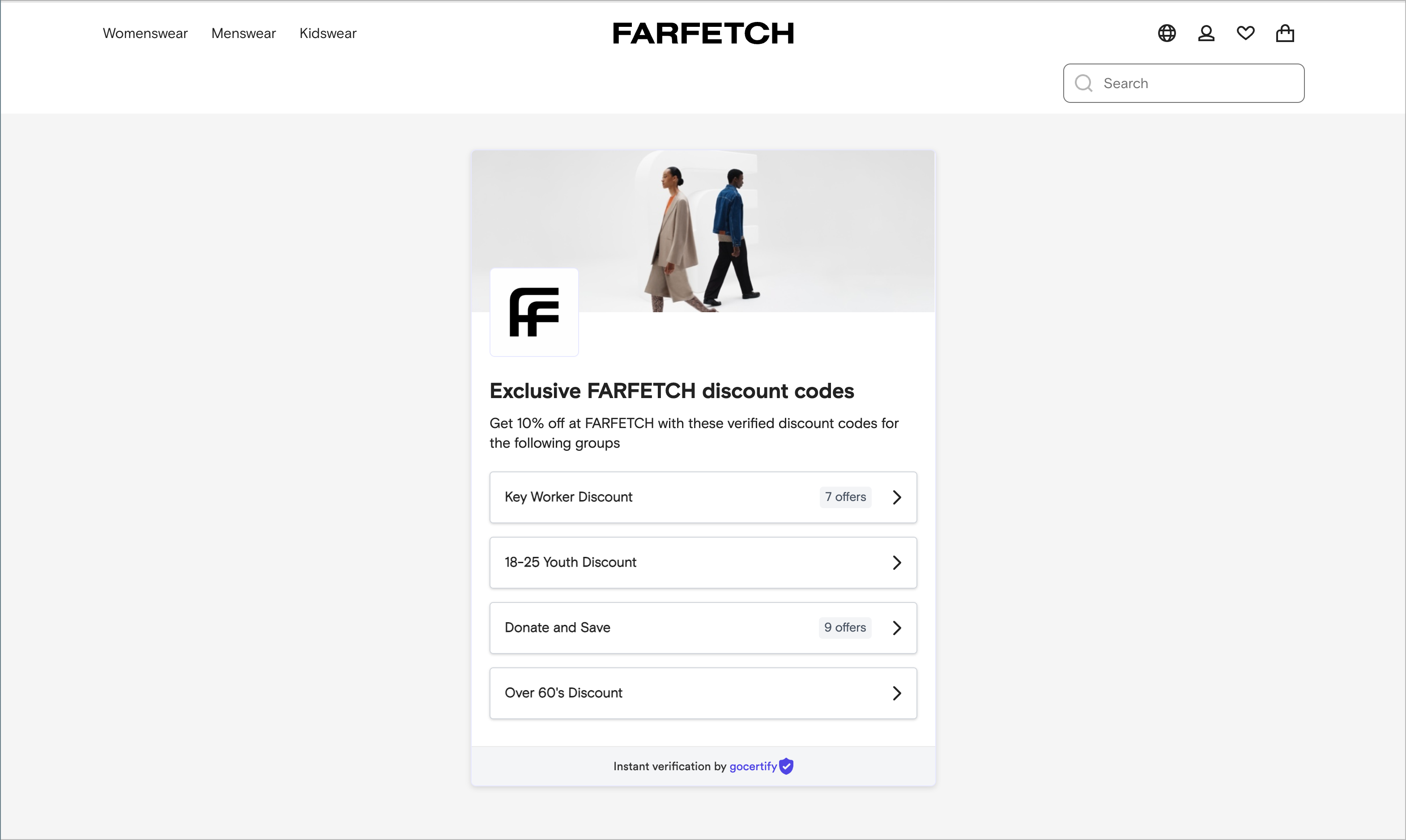 Adding a campaign specific landing page is simple, we recommend getting started with the following steps:
Create a new page on your site for each campaign type you want to promote.
Most brands reference the campaign type within the page url (i.e `company.com/student-discounts`) and add a simple title/description highlighting their offers.
Your Gocertify account manager can provide you with the relevant iFrame code for each campaign.
Once you have your basic page setup you can paste in the following iFrame within the `` tag. This determines where Gocertify reward flow will appear.
```html iFrame theme={null}
```
Remember to replace `example-campaign` with your actual campaign name (e.g. "students") or leave out the attribute `source="example-campaign"` to display all campaigns.
Adding a campaign specific landing page is simple, we recommend getting started with the following steps:
Create a new page on your site for each campaign type you want to promote.
Most brands reference the campaign type within the page url (i.e `company.com/student-discounts`) and add a simple title/description highlighting their offers.
Your Gocertify account manager can provide you with the relevant iFrame code for each campaign.
Once you have your basic page setup you can paste in the following iFrame within the `` tag. This determines where Gocertify reward flow will appear.
```html iFrame theme={null}
```
Remember to replace `example-campaign` with your actual campaign name (e.g. "students") or leave out the attribute `source="example-campaign"` to display all campaigns.