> ## Documentation Index
> Fetch the complete documentation index at: https://docs.gocertify.me/llms.txt
> Use this file to discover all available pages before exploring further.
# Inline On Site Messaging
> Start building loyal communities with targeted, gated offers.
Inline placements are a powerful way to drive conversions by surfacing offers directly on product/checkout pages, maximising conversion of high intent shoppers.
Display rewards directly on product/checkout pages, maximising conversion of high intent shoppers.
## How to enable inline placements
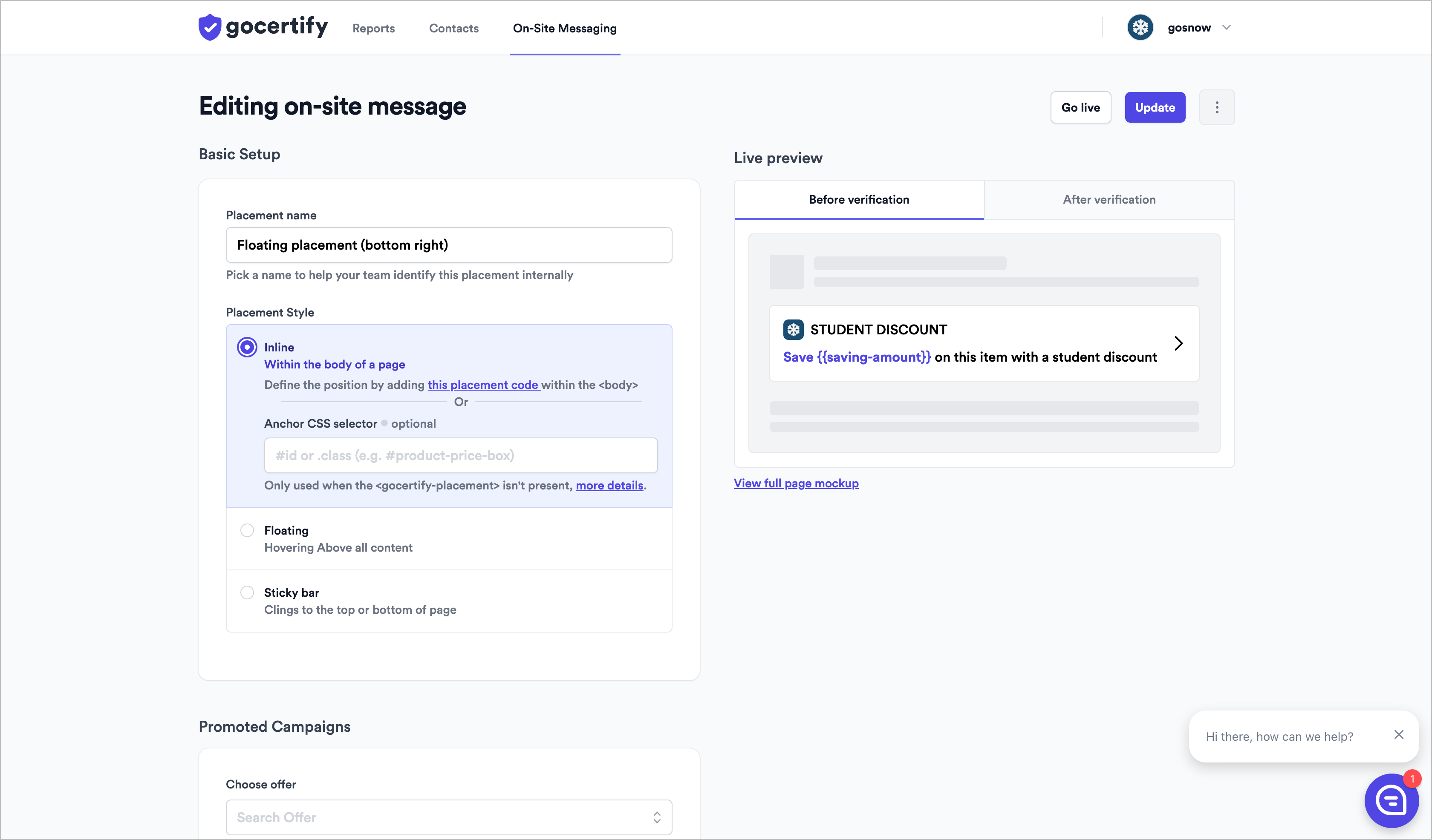
You can one click enable inline placements on any page where you have already installed the Gocertify head script (see [integrate on site](/section/gettingStarted/integrateOnSite)) without the need for a developer.
Simply log into your [Gocertify dashboard](https://secure.gocertify.me/dashboard) and click on the On-Site Messaging tab.
 ## How to position your inline placement
To decide where to position your inline placement you can either add a snippet of code on-site or use a CSS anchor
### Using a CSS anchor
To position an inline placement without a developer you can use a CSS anchor. Gocertify will automatically position the placement at the bottom of the element with the matching CSS selector.
**Important:** CSS anchor injection only occurs if no `` element already exists on the page. If you have manually added a placement code snippet to the page, the CSS selector-based injection will be skipped to avoid duplicate placements.
You can set a different CSS anchor for mobile vs. desktop (breakpoint is 768px) to ensure the placement is always visible.
## How to position your inline placement
To decide where to position your inline placement you can either add a snippet of code on-site or use a CSS anchor
### Using a CSS anchor
To position an inline placement without a developer you can use a CSS anchor. Gocertify will automatically position the placement at the bottom of the element with the matching CSS selector.
**Important:** CSS anchor injection only occurs if no `` element already exists on the page. If you have manually added a placement code snippet to the page, the CSS selector-based injection will be skipped to avoid duplicate placements.
You can set a different CSS anchor for mobile vs. desktop (breakpoint is 768px) to ensure the placement is always visible.
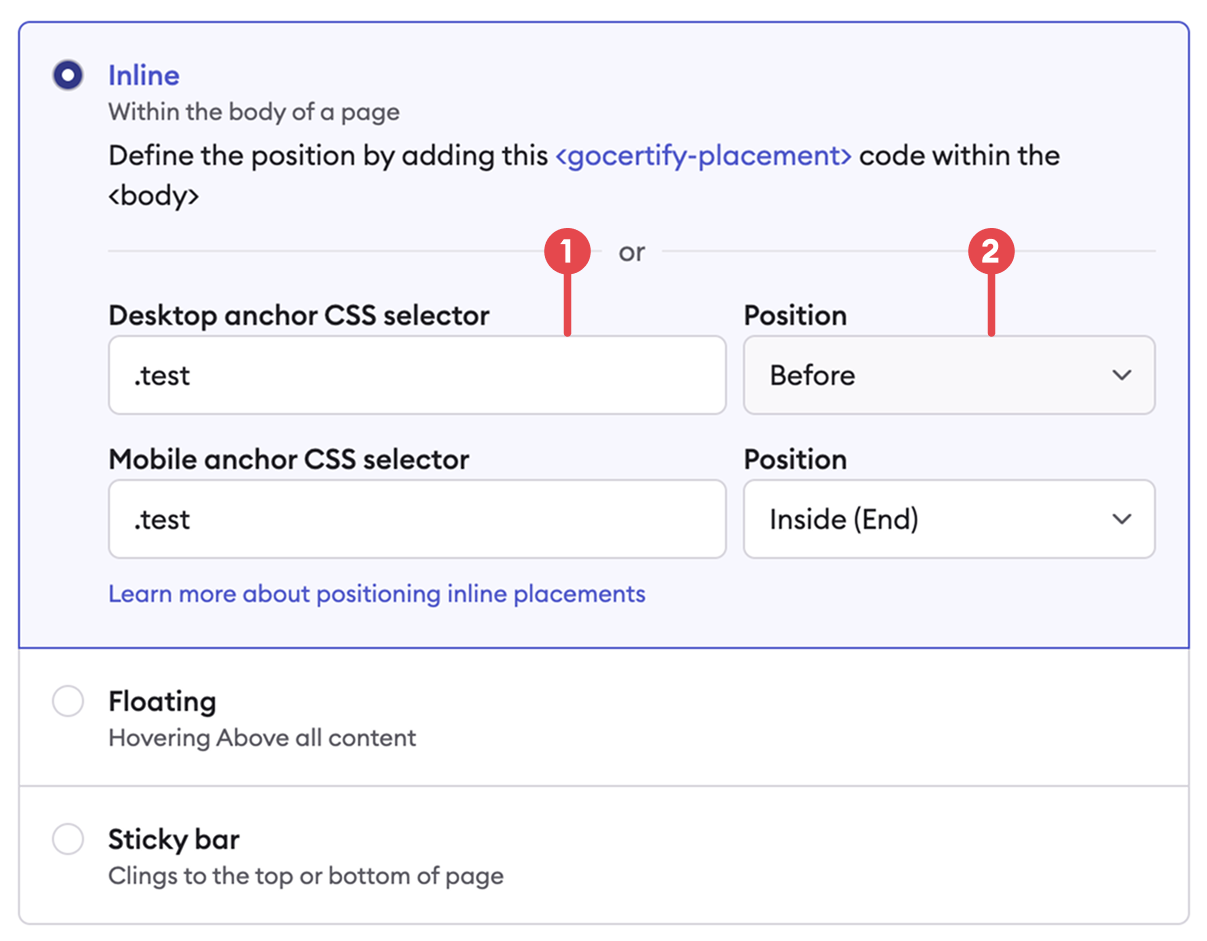 #### 1. Selector
The css selector that is used to attach the placement to. This can be a css class (eg. `.test`), ID (eg. `#test`) or any other [valid CSS selector](https://www.w3schools.com/cssref/css_selectors.php).
#### 2. Position
#### 1. Selector
The css selector that is used to attach the placement to. This can be a css class (eg. `.test`), ID (eg. `#test`) or any other [valid CSS selector](https://www.w3schools.com/cssref/css_selectors.php).
#### 2. Position
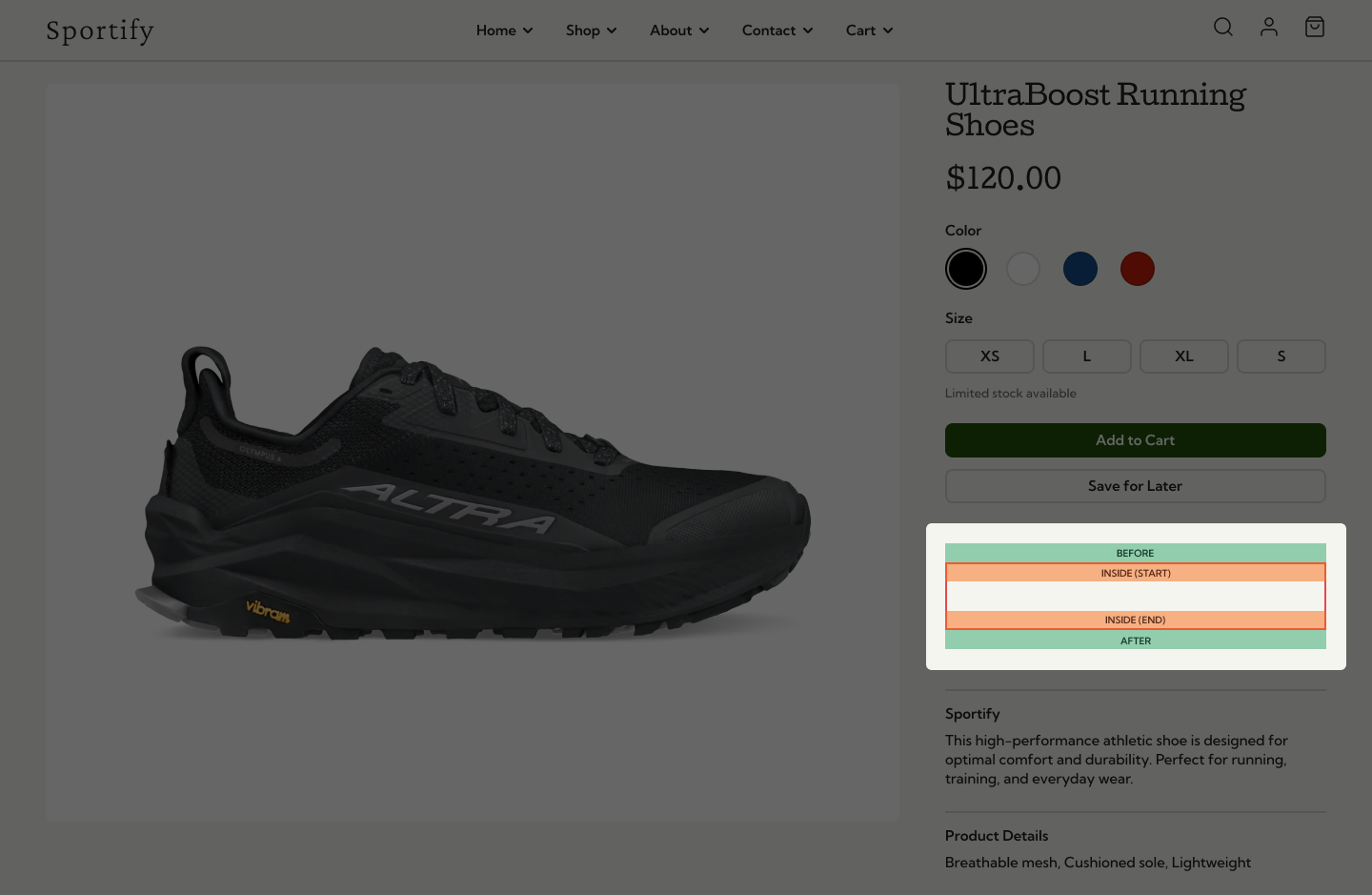 In the above example, the red box demonstrates an example element which would be targetted with a selector. The position property controls where the placement goes in realation to that box:
* **Before**: the placement is placed **outside** and **above** of the target element
* **Inside start**: the placement is placed **inside** and at the **start** of the target element
* **Inside end**: the placement is placed **inside** and at the **end** of the target element
* **After**: the placement is placed **outside** and **after** the target element
### Using a snippet of code
If you want to explicitly position your inline placement on-site you can add a snippet of code to the page where you want to display the placement. Within your dashboard, click on `this placement code` text and paste it into the page where you want to display the placement.
```html theme={null}
```
In the above example, the red box demonstrates an example element which would be targetted with a selector. The position property controls where the placement goes in realation to that box:
* **Before**: the placement is placed **outside** and **above** of the target element
* **Inside start**: the placement is placed **inside** and at the **start** of the target element
* **Inside end**: the placement is placed **inside** and at the **end** of the target element
* **After**: the placement is placed **outside** and **after** the target element
### Using a snippet of code
If you want to explicitly position your inline placement on-site you can add a snippet of code to the page where you want to display the placement. Within your dashboard, click on `this placement code` text and paste it into the page where you want to display the placement.
```html theme={null}
```