> ## Documentation Index
> Fetch the complete documentation index at: https://docs.gocertify.me/llms.txt
> Use this file to discover all available pages before exploring further.
# Floating Button On Site Messaging
> Start building loyal communities with targeted, gated offers.
Floating button placements are a powerful way to drive conversions by surfacing offers directly on product/checkout pages, maximising conversion of high intent shoppers.
Display a hovering trigger that floats above the page content. Highly visible and no-dev installation.
## How to enable floating button placements
You can one click enable floating button placements on any page where you have already installed the Gocertify head script (see [integrate on site](/section/gettingStarted/integrateOnSite)) without the need for a developer.
Simply log into your [Gocertify dashboard](https://secure.gocertify.me/dashboard) and click on the On-Site Messaging tab.
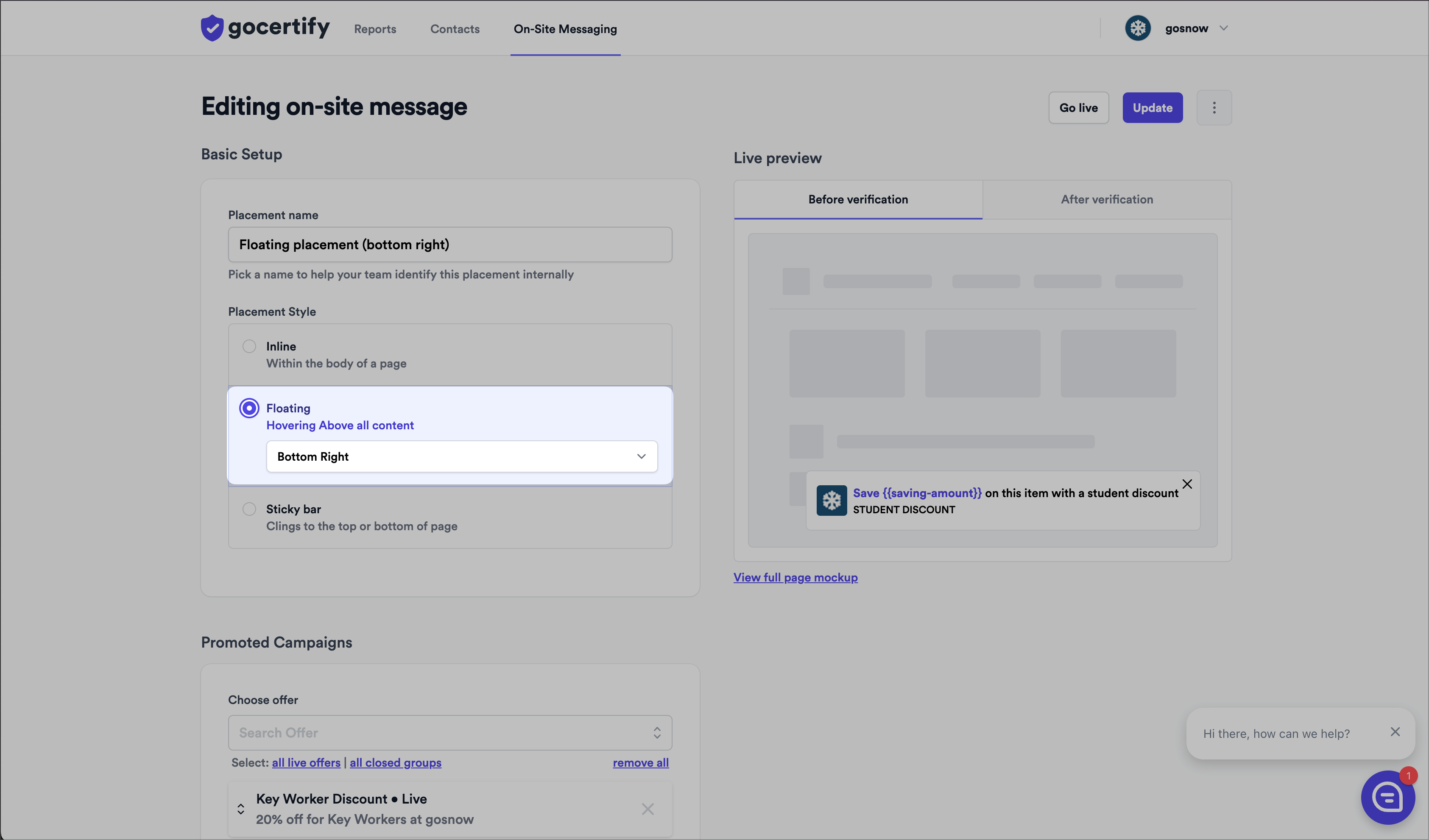 ## How to position your floating button placement
You can change the position of the floating button placement using the dropdown menu in the dashboard. For advanced positioning options you can use custom CSS.
## How to position your floating button placement
You can change the position of the floating button placement using the dropdown menu in the dashboard. For advanced positioning options you can use custom CSS.