> ## Documentation Index
> Fetch the complete documentation index at: https://docs.gocertify.me/llms.txt
> Use this file to discover all available pages before exploring further.
# Dynamic CTAs
> Display personalised savings and custom variables in your on-site messages.
Gocertify makes it easy to display dynamic variables in your on-site messages. This is especially useful for showing the exact savings amount a shopper will receive on a specific product, helping to drive higher conversion rates.
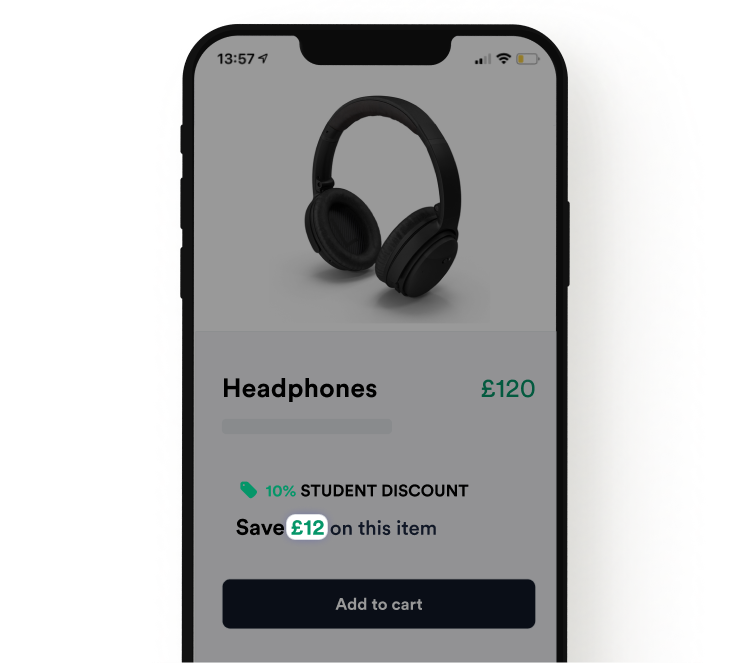 To enable this feature, Gocertify needs to know the price and currency of the product being displayed. You can provide this by adding two data attributes (`data-purchase-amount` and `data-locale`) to the head script. See below for setup instructions based on your integration method.
Make sure that the price is set in cents. For example, if the price is \$10.99, the attribute should be set to **1099**.
If you set the locale to **en-GB** and the purchase-amount to **1099**, the price will be interpreted as £10.99.
If you leave this locale empty, we will use the main locale of your connected brand.
Google Tag Manager supports dynamic variables that integrate with the data layer.
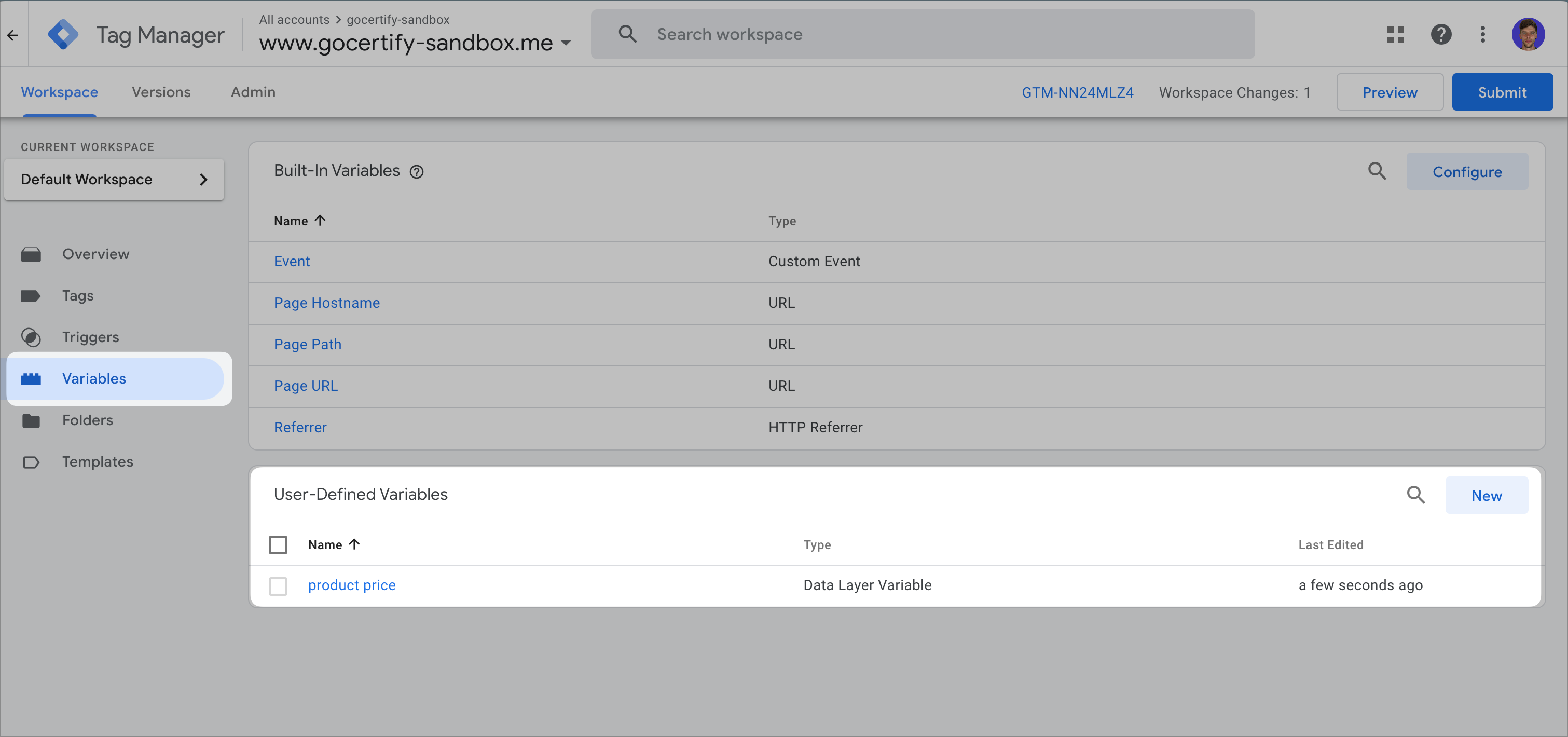
Navigate to the variable tab in [tag manager](https://tagmanager.google.com/#) and identify/create the variable that contains product price and note the name.
To use the variable you'll need to replace the spaces with underscores so `Product Price` would be `product_price`.
To enable this feature, Gocertify needs to know the price and currency of the product being displayed. You can provide this by adding two data attributes (`data-purchase-amount` and `data-locale`) to the head script. See below for setup instructions based on your integration method.
Make sure that the price is set in cents. For example, if the price is \$10.99, the attribute should be set to **1099**.
If you set the locale to **en-GB** and the purchase-amount to **1099**, the price will be interpreted as £10.99.
If you leave this locale empty, we will use the main locale of your connected brand.
Google Tag Manager supports dynamic variables that integrate with the data layer.
Navigate to the variable tab in [tag manager](https://tagmanager.google.com/#) and identify/create the variable that contains product price and note the name.
To use the variable you'll need to replace the spaces with underscores so `Product Price` would be `product_price`.
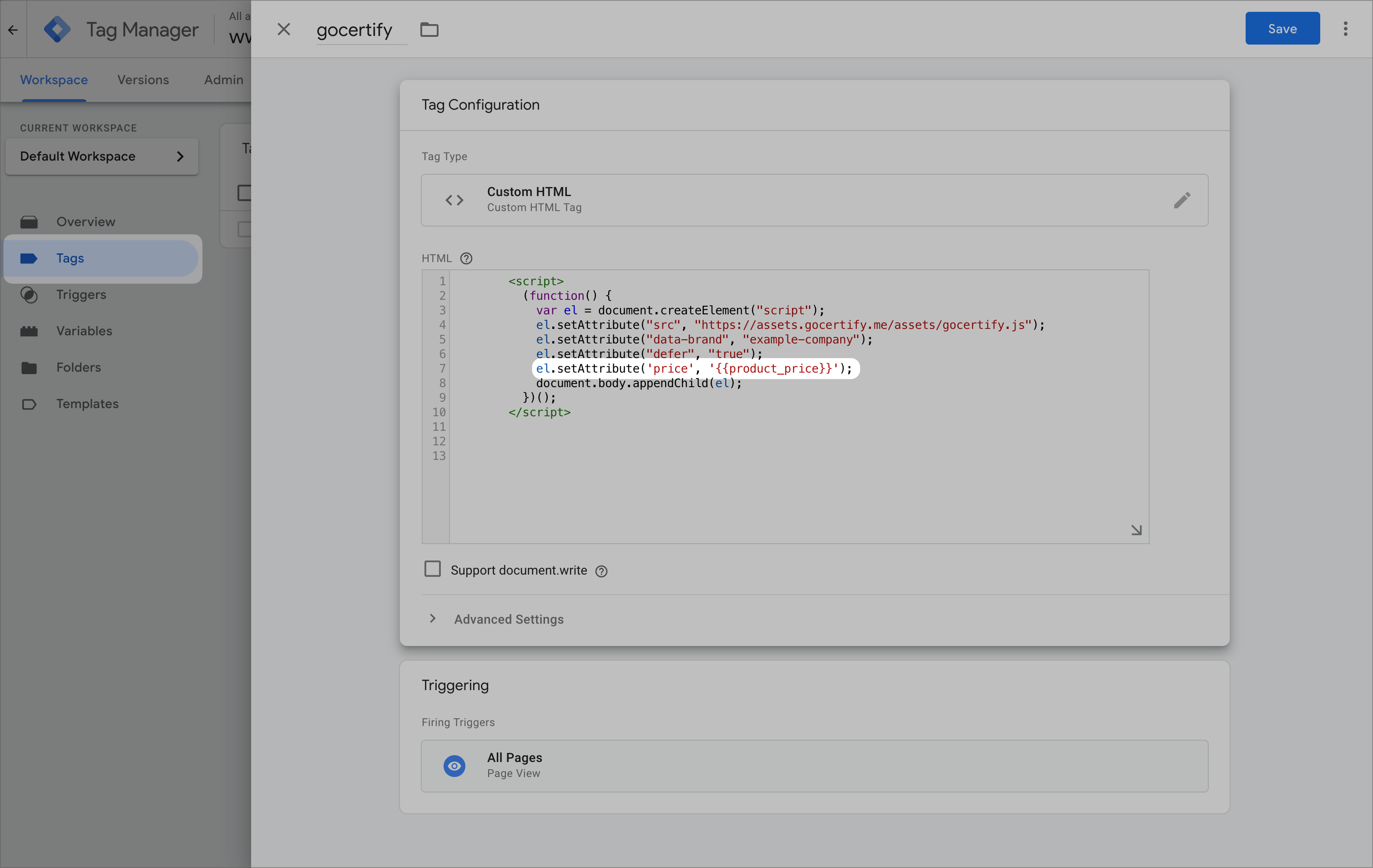
 Navigate back to the Gocertify head script within the tags section and add a new line using the format `el.setAttribute('data-purchase-amount', '{{variable_name}}');` and the variable name you noted in the previous step.
Remember that the price must be in cents. If your variable is in pounds/dollars, parse it as a float and multiply by 100.
For example: `el.setAttribute('data-purchase-amount', parseFloat({{variable_name}}) * 100);`
Navigate back to the Gocertify head script within the tags section and add a new line using the format `el.setAttribute('data-purchase-amount', '{{variable_name}}');` and the variable name you noted in the previous step.
Remember that the price must be in cents. If your variable is in pounds/dollars, parse it as a float and multiply by 100.
For example: `el.setAttribute('data-purchase-amount', parseFloat({{variable_name}}) * 100);`
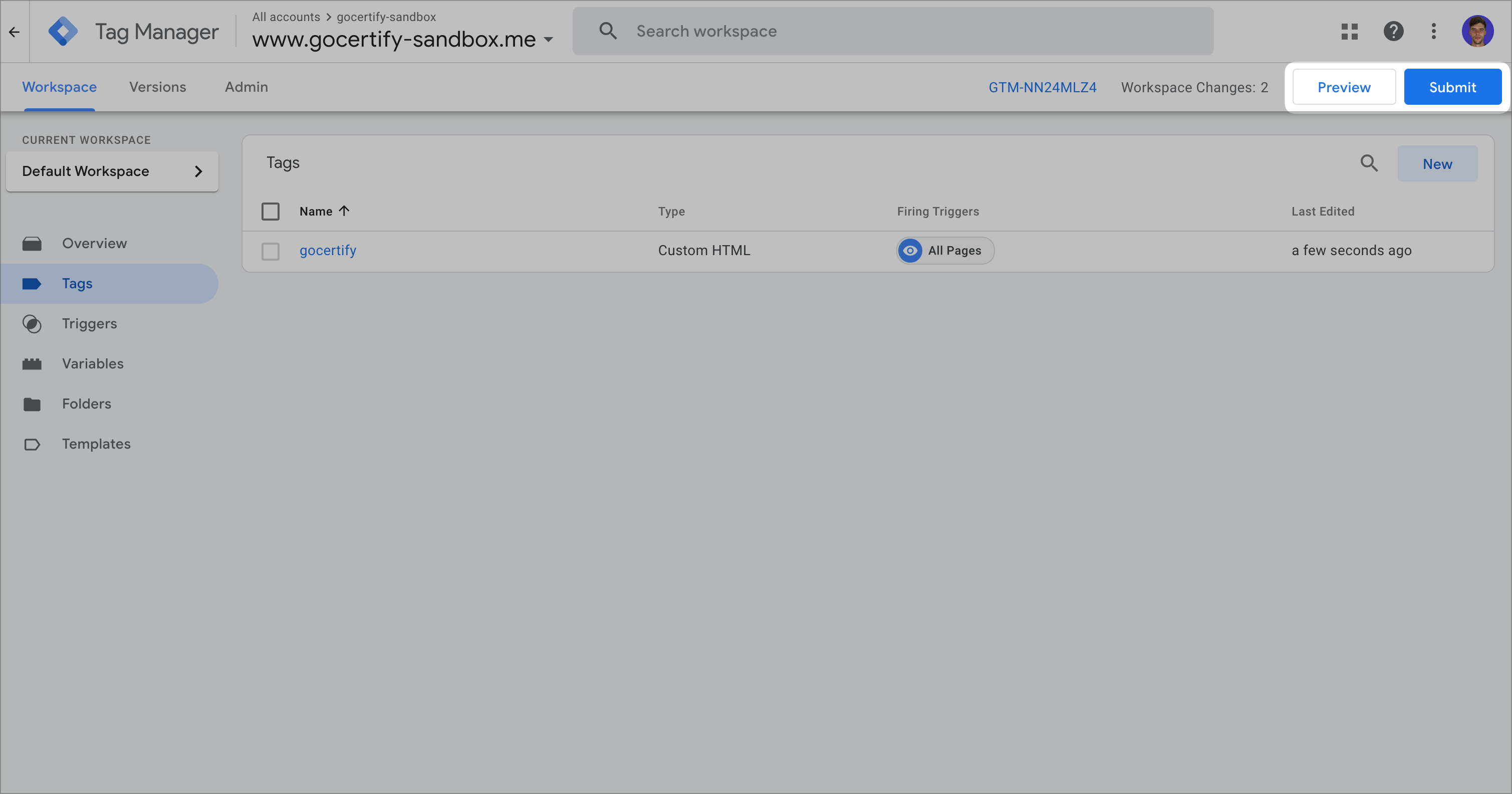
 Save and publish your changes. You should now see dynamic text in your on-site messages.
 If you added the gocertify.js script manually in the `` section of your page, you can set the data attributes like this:
```javascript JS theme={null}
el.setAttributes('data-purchase-amount', '{{variable}}')
```
If you added the Gocertify placement manually in the `` section of your page, you can set the data attributes like this:
```PHP PHP theme={null}
```
```Ruby Ruby theme={null}
```
## Variables
The following variables are available for use in your CTA text:
* `{{purchase-amount}}`: The product price in cents (e.g. 1000 for £10).
* `{{locale}}`: The page locale in ISO 639-1 format (e.g. `en-GB`).
* `{{currency}}`: The page currency in ISO 4217 format (e.g. `GBP`). Optional. If not set, the currency associated with the locale will be used.
* `{{savings-amount}}`: The savings amount, calculated automatically based on the product price and the campaign discount.
### Custom variables
You can also define custom variables by adding data attributes to the placement. For example, to include a product category in your CTA:
`==Save {{savings-amount}}== on this {{category}}`
Then set the value for that variable as a data attribute when rendering the placement:
```html theme={null}
id="p-123456"
data-locale="en-GB"
data-purchase-amount="9800"
data-category="item">
```
If the maximum discount available on campaigns for this placement is 20%, the savings amount will be calculated as £19.60 (£98.00 × 20%), and the resulting text will be:
> **Save £19.60** on this item
In practice, you'll want to replace these hardcoded values with variables from your data layer (e.g. Google Tag Manager) or CMS.
## Markdown
CTA text supports basic formatting. To highlight text (typically displayed in bold), wrap it in double equals signs:
| Syntax | Result |
| ----------------------------- | ------------------------ |
| `==Save {{savings-amount}}==` | **Save £19.60** |
| `==20% off== for students` | **20% off** for students |
This highlighting draws attention to the key benefit in your message and is recommended for savings amounts or discount percentages.
If you added the gocertify.js script manually in the `` section of your page, you can set the data attributes like this:
```javascript JS theme={null}
el.setAttributes('data-purchase-amount', '{{variable}}')
```
If you added the Gocertify placement manually in the `` section of your page, you can set the data attributes like this:
```PHP PHP theme={null}
```
```Ruby Ruby theme={null}
```
## Variables
The following variables are available for use in your CTA text:
* `{{purchase-amount}}`: The product price in cents (e.g. 1000 for £10).
* `{{locale}}`: The page locale in ISO 639-1 format (e.g. `en-GB`).
* `{{currency}}`: The page currency in ISO 4217 format (e.g. `GBP`). Optional. If not set, the currency associated with the locale will be used.
* `{{savings-amount}}`: The savings amount, calculated automatically based on the product price and the campaign discount.
### Custom variables
You can also define custom variables by adding data attributes to the placement. For example, to include a product category in your CTA:
`==Save {{savings-amount}}== on this {{category}}`
Then set the value for that variable as a data attribute when rendering the placement:
```html theme={null}
id="p-123456"
data-locale="en-GB"
data-purchase-amount="9800"
data-category="item">
```
If the maximum discount available on campaigns for this placement is 20%, the savings amount will be calculated as £19.60 (£98.00 × 20%), and the resulting text will be:
> **Save £19.60** on this item
In practice, you'll want to replace these hardcoded values with variables from your data layer (e.g. Google Tag Manager) or CMS.
## Markdown
CTA text supports basic formatting. To highlight text (typically displayed in bold), wrap it in double equals signs:
| Syntax | Result |
| ----------------------------- | ------------------------ |
| `==Save {{savings-amount}}==` | **Save £19.60** |
| `==20% off== for students` | **20% off** for students |
This highlighting draws attention to the key benefit in your message and is recommended for savings amounts or discount percentages.