> ## Documentation Index
> Fetch the complete documentation index at: https://docs.gocertify.me/llms.txt
> Use this file to discover all available pages before exploring further.
# Integrate In Store
> Verify shoppers in store with the Gocertify Launcher and in-store reward claiming.
Gocertify unlocks true omni-channel customer engagement with in-store rewards.
## In-store claiming
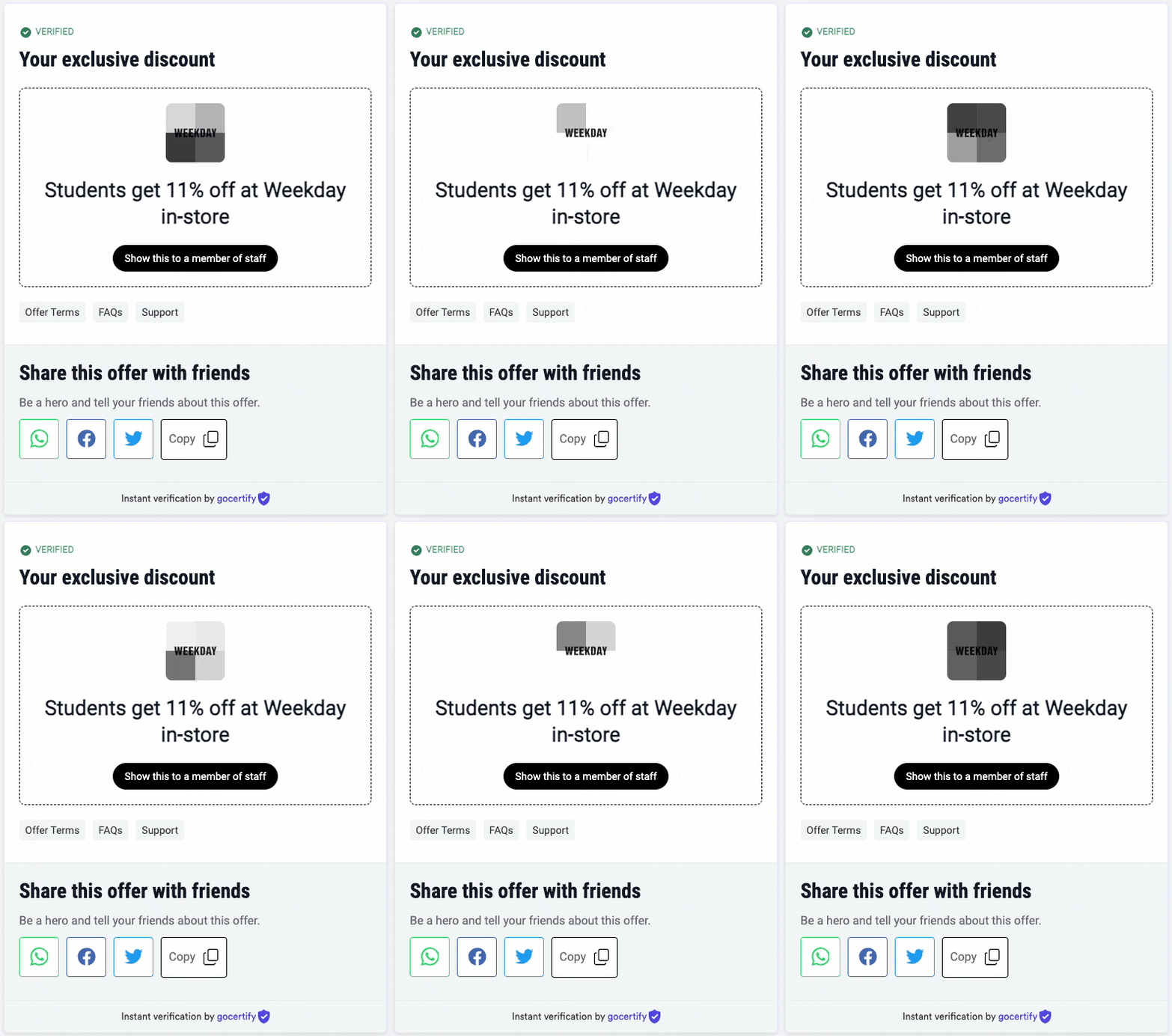
In-store claiming can be done by:
* Coupon code entered at till manually
* Flashing coupon to show to till person
* QR code scanned at till
To enable in-store claiming talk to your Gocertify account manager.
 ## Gocertify Launcher
The Gocertify Launcher is an in-store tool that enables shop assistants to verify shoppers directly on sales devices. Rather than requiring shoppers to use their own phone to find and complete a verification flow, the assistant initiates the process on a store device and hands off to the shopper for the verification step.
## Gocertify Launcher
The Gocertify Launcher is an in-store tool that enables shop assistants to verify shoppers directly on sales devices. Rather than requiring shoppers to use their own phone to find and complete a verification flow, the assistant initiates the process on a store device and hands off to the shopper for the verification step.
 ### How it works
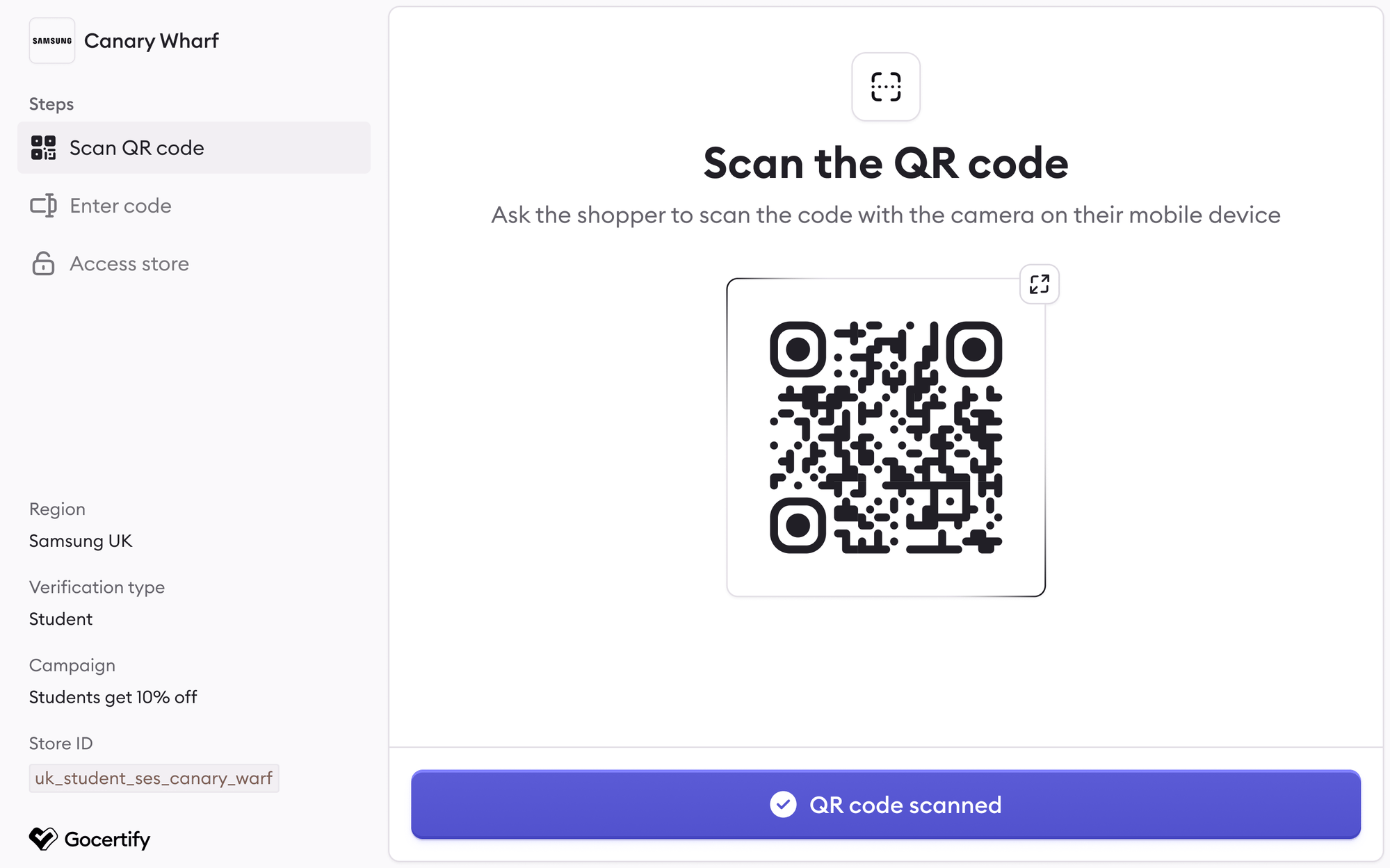
The Launcher walks through a three-step wizard:
The sales agent presents a QR code on the store tablet. The shopper scans it with their personal mobile device, which initiates the verification journey on their phone.
The shopper completes the verification on their own device. On success, a configurable reward screen is shown on their phone — this can display a barcode, a short alphanumeric code, or a discount code.
The sales agent takes the code from the shopper's phone, inputs it into the tablet, and gains access to the gated storefront to complete the sale.
### Store IDs
Each store location is assigned a unique Store ID. This allows you to track which store locations are driving verifications and measure in-store reward performance by location.
### Reward display formats
The success screen shown on the shopper's phone after verification can be configured to display:
* **Barcodes** — for the sales agent to scan from the shopper's phone
* **Short alphanumeric codes** — for the sales agent to type into the tablet
* **Discount codes** — a standard coupon code to apply at checkout
To set up the Gocertify Launcher for your stores, contact your Gocertify account manager.
### How it works
The Launcher walks through a three-step wizard:
The sales agent presents a QR code on the store tablet. The shopper scans it with their personal mobile device, which initiates the verification journey on their phone.
The shopper completes the verification on their own device. On success, a configurable reward screen is shown on their phone — this can display a barcode, a short alphanumeric code, or a discount code.
The sales agent takes the code from the shopper's phone, inputs it into the tablet, and gains access to the gated storefront to complete the sale.
### Store IDs
Each store location is assigned a unique Store ID. This allows you to track which store locations are driving verifications and measure in-store reward performance by location.
### Reward display formats
The success screen shown on the shopper's phone after verification can be configured to display:
* **Barcodes** — for the sales agent to scan from the shopper's phone
* **Short alphanumeric codes** — for the sales agent to type into the tablet
* **Discount codes** — a standard coupon code to apply at checkout
To set up the Gocertify Launcher for your stores, contact your Gocertify account manager.