> ## Documentation Index
> Fetch the complete documentation index at: https://docs.gocertify.me/llms.txt
> Use this file to discover all available pages before exploring further.
# Braze
> Start building loyal communities with targeted, gated offers.
When a shopper submits their email and/or mobile number, Gocertify will sync this data to your Braze account. Gocertify creates or updates a user profile with the shared identifiers and subscribes them to your configured subscription groups.
As the shopper goes on to successfully verify as a target group (student, healthcare, senior, etc), Gocertify will fire a custom event called `[Gocertify] Consent given` with details about the verification. When the shopper claims an offer, another custom event is triggered with campaign and offer details.
With this data, you can create segments based on verified communities and trigger automations from Gocertify events.
## Requirements to go live
To connect Braze with Gocertify, you'll need the following from your Braze account:
* **API Key** with permissions to create users and track events
* **REST API Endpoint** (e.g., `https://rest.iad-01.braze.com`)
* **Email Subscription Group ID** (required if capturing email)
* **SMS Subscription Group ID** (required if capturing SMS)
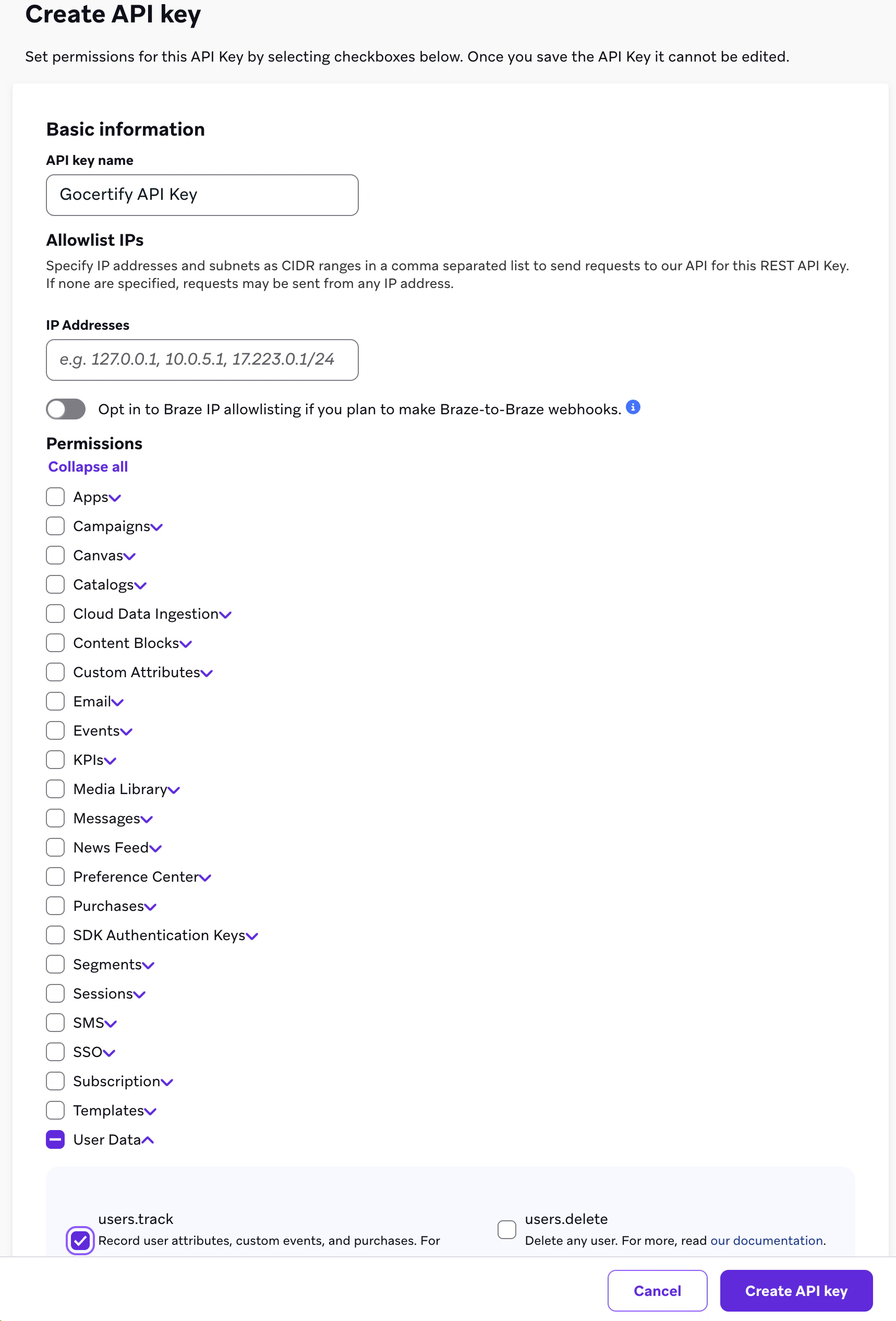
Sign into [Braze](https://dashboard.braze.com) and navigate to **Settings** > **API Keys**.
Click **Create New API Key** and give it a descriptive name like "Gocertify Integration".
Enable the `users.track` permission for the API key. This is the only permission required and allows Gocertify to create and update user profiles and track events.
Save the API key and copy it securely.
 Your REST API Endpoint depends on which Braze instance you're provisioned on.
You can find this in your Braze dashboard URL or in the [Braze documentation](https://www.braze.com/docs/api/basics/#endpoints).
Common endpoints include:
* `https://rest.iad-01.braze.com` (US-01)
* `https://rest.iad-02.braze.com` (US-02)
* `https://rest.iad-03.braze.com` (US-03)
* `https://rest.eu-01.braze.eu` (EU-01)
Navigate to **Audience** > **Subscriptions** > **Subscription Groups**.
Find your Email and/or SMS subscription groups and copy their IDs. You'll need at least one subscription group ID (email or SMS) to complete the setup.
Your REST API Endpoint depends on which Braze instance you're provisioned on.
You can find this in your Braze dashboard URL or in the [Braze documentation](https://www.braze.com/docs/api/basics/#endpoints).
Common endpoints include:
* `https://rest.iad-01.braze.com` (US-01)
* `https://rest.iad-02.braze.com` (US-02)
* `https://rest.iad-03.braze.com` (US-03)
* `https://rest.eu-01.braze.eu` (EU-01)
Navigate to **Audience** > **Subscriptions** > **Subscription Groups**.
Find your Email and/or SMS subscription groups and copy their IDs. You'll need at least one subscription group ID (email or SMS) to complete the setup.
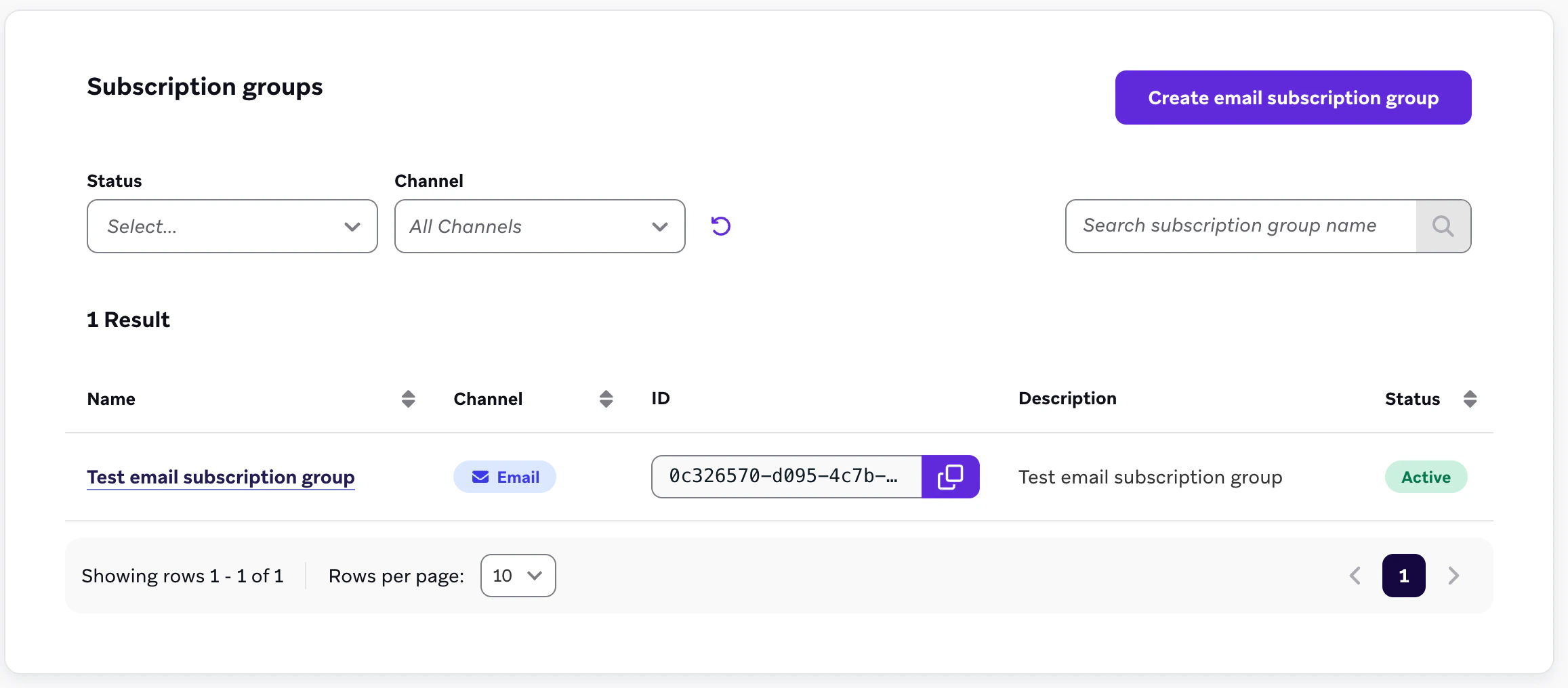 If you don't have subscription groups set up yet, you can create them in Braze before configuring the integration.
Go to onetimesecret.com and paste the credentials there, in the format below. Even if it's not required, we encourage you to also add a random "Passphrase". This will generate a secret link that will expire within 7 days and will be visible only once. Once done, share this link with your Customer Success Manager at Gocertify.
```YAML Credentials placeholder theme={null}
API Key: xxxxxxxx-xxxx-xxxx-xxxx-xxxxxxxxxxxx
REST API Endpoint: https://rest..braze.com
Email Subscription Group ID: xxxxxxxx-xxxx-xxxx-xxxx-xxxxxxxxxxxx
SMS Subscription Group ID: xxxxxxxx-xxxx-xxxx-xxxx-xxxxxxxxxxxx
```
## How data will appear in Braze
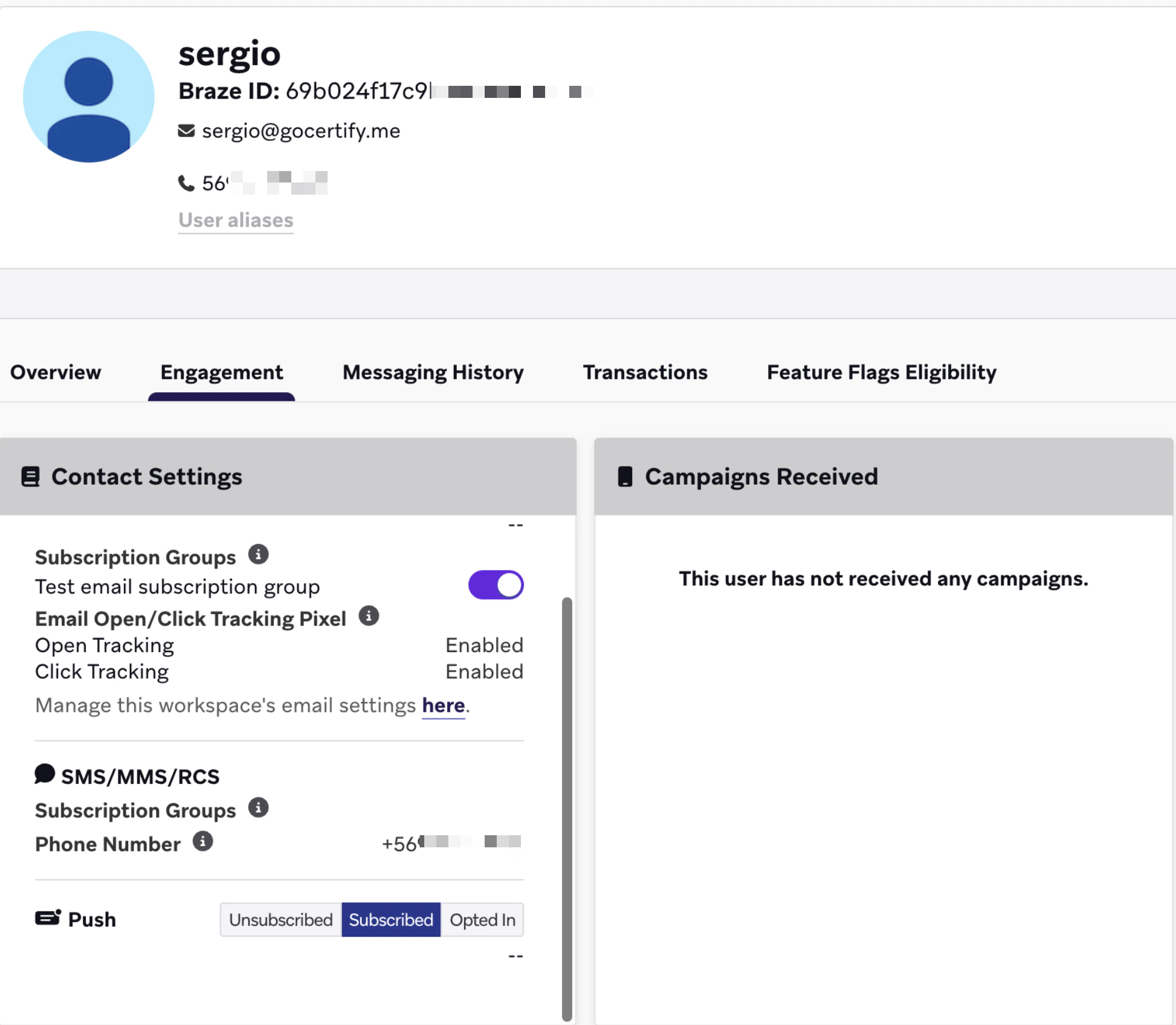
Once a shopper shares their information with your brand, Gocertify will create or update their user profile in Braze with the email address and/or phone number they provided.
The shopper will be automatically subscribed to your configured subscription groups based on which identifiers they shared:
* If they shared their email, they'll be subscribed to your Email Subscription Group
* If they shared their phone number, they'll be subscribed to your SMS Subscription Group
If you don't have subscription groups set up yet, you can create them in Braze before configuring the integration.
Go to onetimesecret.com and paste the credentials there, in the format below. Even if it's not required, we encourage you to also add a random "Passphrase". This will generate a secret link that will expire within 7 days and will be visible only once. Once done, share this link with your Customer Success Manager at Gocertify.
```YAML Credentials placeholder theme={null}
API Key: xxxxxxxx-xxxx-xxxx-xxxx-xxxxxxxxxxxx
REST API Endpoint: https://rest..braze.com
Email Subscription Group ID: xxxxxxxx-xxxx-xxxx-xxxx-xxxxxxxxxxxx
SMS Subscription Group ID: xxxxxxxx-xxxx-xxxx-xxxx-xxxxxxxxxxxx
```
## How data will appear in Braze
Once a shopper shares their information with your brand, Gocertify will create or update their user profile in Braze with the email address and/or phone number they provided.
The shopper will be automatically subscribed to your configured subscription groups based on which identifiers they shared:
* If they shared their email, they'll be subscribed to your Email Subscription Group
* If they shared their phone number, they'll be subscribed to your SMS Subscription Group
 ### Events tracked
Gocertify sends two types of custom events to Braze:
When a shopper shares their details and gives consent, Gocertify fires the `[Gocertify] Consent given` event with properties about the verification type and campaign.
```json theme={null}
{
"name": "[Gocertify] Consent given",
"properties": {
"group_type": "Occupation",
"group_parent": "Key Worker",
"group_child": "NHS Worker",
"campaign_title": "20% OFF for Key Workers",
"brand_slug": "your-brand"
}
}
```
When a shopper claims an offer after verification, Gocertify fires an event with the campaign and offer details.
```json theme={null}
{
"name": "[Gocertify] Verified as {group}",
"properties": {
"campaign_id": 1234,
"campaign_title": "20% OFF for Key Workers",
"offer_type": "Code",
"group_type": "Occupation",
"group_parent": "Key Worker"
}
}
```
## How to create segments in Braze
You can create segments in Braze based on the custom events sent by Gocertify.
Navigate to **Audience** > **Segments** and create a new segment. Use the **Custom Event** filter to target users who have triggered Gocertify events.
**Example segments you can create:**
* **All verified shoppers** - Users who have triggered `[Gocertify] Consent given` at least once
* **Students** - Filter by `group_parent` = "Student" in the consent event properties
* **Key Workers** - Filter by `group_parent` = "Key Worker" in the consent event properties
* **Recent offer claimers** - Users who triggered a `[Gocertify] Verified as {group}` event (e.g., `[Gocertify] Verified as Student`, `[Gocertify] Verified as NHS`) in the last 30 days
You can also use these events to trigger Canvases and campaigns in Braze, such
as sending a welcome email when someone first verifies, or a follow-up message
after they claim an offer.
### Events tracked
Gocertify sends two types of custom events to Braze:
When a shopper shares their details and gives consent, Gocertify fires the `[Gocertify] Consent given` event with properties about the verification type and campaign.
```json theme={null}
{
"name": "[Gocertify] Consent given",
"properties": {
"group_type": "Occupation",
"group_parent": "Key Worker",
"group_child": "NHS Worker",
"campaign_title": "20% OFF for Key Workers",
"brand_slug": "your-brand"
}
}
```
When a shopper claims an offer after verification, Gocertify fires an event with the campaign and offer details.
```json theme={null}
{
"name": "[Gocertify] Verified as {group}",
"properties": {
"campaign_id": 1234,
"campaign_title": "20% OFF for Key Workers",
"offer_type": "Code",
"group_type": "Occupation",
"group_parent": "Key Worker"
}
}
```
## How to create segments in Braze
You can create segments in Braze based on the custom events sent by Gocertify.
Navigate to **Audience** > **Segments** and create a new segment. Use the **Custom Event** filter to target users who have triggered Gocertify events.
**Example segments you can create:**
* **All verified shoppers** - Users who have triggered `[Gocertify] Consent given` at least once
* **Students** - Filter by `group_parent` = "Student" in the consent event properties
* **Key Workers** - Filter by `group_parent` = "Key Worker" in the consent event properties
* **Recent offer claimers** - Users who triggered a `[Gocertify] Verified as {group}` event (e.g., `[Gocertify] Verified as Student`, `[Gocertify] Verified as NHS`) in the last 30 days
You can also use these events to trigger Canvases and campaigns in Braze, such
as sending a welcome email when someone first verifies, or a follow-up message
after they claim an offer.